In diesem Artikel
- Quick answer
- Identify hum, hiss, and computer interference
- Begin with the speakers alone
- Try a clean, simple source
- Inspect cables and connector choices
- Set gain so you are not amplifying avoidable noise
- Simplify USB docks and attached equipment
- Keep protective grounding intact
- Decide whether service or a connection change is warranted
- Sources
Quick answer
Turn the speakers down, stop playback, and disconnect their audio input according to the manual. If the hum disappears, reconnect a short known-good cable and test a battery-powered phone or laptop that is not charging. If that source is quiet but the desktop computer hums, investigate the computer connection, attached peripherals, and gain settings.
If hum persists with the audio input disconnected, the powered speaker, its approved power supply, or nearby interference deserves attention. Never remove a mains earth pin, use a ground-lifting power adapter, or open the speaker. A safe diagnosis separates the audio path from the power system without defeating protective electrical features.
Identify hum, hiss, and computer interference
A low steady drone is different from broadband hiss or a high-pitched whine that changes when you move the mouse. Hum may arise from an unwanted current path between connected devices, while hiss can reflect gain settings or normal electronic noise. Computer-related interference often changes with screen activity, graphics load, or connected USB devices.
Write down whether the noise occurs in both speakers, changes with the speaker volume knob, or remains when the computer is muted. Also note how far away it is audible during normal use. A faint sound with an ear against the tweeter is not equivalent to a clearly audible hum at the desk. These observations guide the next comparison.
Begin with the speakers alone
Stop playback and reduce volume before disconnecting signal cables. Follow any prescribed power-down procedure to avoid pops. With the input disconnected, listen from the normal seat. If the noise changes, the removed connection is involved, although an open input can behave differently on some designs; check the manual before drawing a final conclusion.
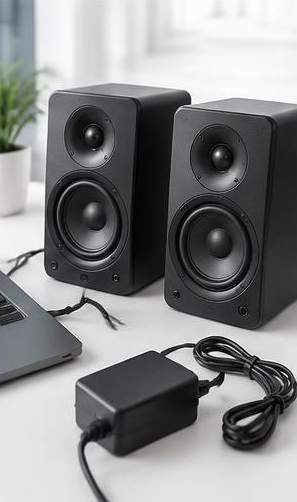
Keep only the manufacturer's approved power supply connected. Move phone chargers, wireless charging pads, and large power adapters away from the speaker and signal cable. Do not replace the supply with one that merely fits the socket. Voltage, polarity, current capability, and connector requirements matter, and an unsuitable adapter can damage equipment or create a hazard.
Try a clean, simple source
Connect a battery-powered source using a short compatible cable, with charging disconnected for the comparison. Set the source to a sensible level and raise the speaker volume gradually. If this arrangement is quiet, reconnect the computer without changing the speaker position or cable routing unnecessarily.
A quiet battery-source test suggests that the speakers can operate cleanly and that the desktop connection introduces the problem. It does not identify a specific electrical fault by itself. Avoid testing with devices that have damaged batteries, wet connectors, or questionable adapters. Keep the comparison brief and return all equipment to its normal safe charging arrangement afterward.
Inspect cables and connector choices
Use the correct line-level output and input. A microphone input, headphone output, and balanced line output are not interchangeable in every system. Check that plugs are fully seated and that adapters match the connector's wiring. A partially inserted mini-jack can produce hum, missing channels, or an unstable connection.
Try a known-good short cable and keep it away from power bricks and tightly bundled mains leads. If both the interface and speakers support balanced connections, use the documented balanced cable type end to end. A connector that looks professional does not guarantee a balanced signal, and an adapter cannot convert an unbalanced source into a balanced output by itself.
Set gain so you are not amplifying avoidable noise
Very low computer output combined with a nearly maximum speaker gain can make background noise more apparent. Start with the speakers turned down, raise the computer or interface output to a healthy level that does not distort, and then set the speakers for comfortable listening. Exact positions depend on the equipment.
Disable unnecessary microphone monitoring, unused analog inputs, and software effects while testing. Check whether a communication app is routing microphone noise back to the speakers. If the sound becomes harsh on peaks, reduce the relevant level rather than compensating elsewhere. Gain adjustment can improve the noise relationship, but it will not repair a defective power supply or eliminate every ground-related hum.
Simplify USB docks and attached equipment
With devices stopped or safely ejected as needed, disconnect nonessential USB peripherals and docking accessories one at a time. External monitors, docks, audio interfaces, and chargers can create additional connection paths. Keep notes so you can identify which reconnection brings the noise back rather than leaving everything unplugged indefinitely.
If an audio interface is involved, test a direct computer connection instead of an unpowered hub, following the interface's requirements. Do not disconnect storage devices during active writes. A USB isolator is not a universal solution: compatibility, power delivery, and audio bandwidth vary. Seek the interface manufacturer's recommendation before buying an accessory intended to interrupt a specific connection path.
Keep protective grounding intact
Never remove an earth pin or use an adapter that defeats grounding to silence hum. Do not modify power cables, open an outlet, or connect improvised wires between equipment cases. A noise improvement does not establish electrical safety. Damaged plugs, hot sockets, sparks, or tingling from equipment require stopping use and appropriate professional attention.
Where the manuals permit, powering the desk equipment from the same correctly rated power strip may simplify the arrangement, but do not overload it or daisy-chain strips. If a signal-path isolator is appropriate, use a purpose-designed audio product recommended for the connection. Signal isolation and mains-earth removal are fundamentally different actions and should never be treated as interchangeable.
Decide whether service or a connection change is warranted
If the speakers hum with no signal connected and with the correct supply, contact the manufacturer before replacing random accessories. Report whether the noise is present in one cabinet or both, whether it changes with the volume knob, and whether moving nearby adapters helped. A short recording can describe the character but cannot provide calibrated noise measurements.
If only the computer's analog output causes trouble, a supported USB audio interface or digital speaker input may offer a cleaner route. Confirm compatibility before buying. Keep the solution proportional to the problem: correct cabling, sensible gain, and removing one troublesome peripheral may be sufficient. Persistent faults should be serviced rather than masked by louder playback.
Sources
Use the powered speaker and audio-interface manuals for input wiring, balanced connections, gain controls, approved power supplies, and safe connection procedures.
Official manufacturer resources: genelec.com guidance ; focusrite.com guidance ; kef.com guidance . Model-specific support should guide any isolation accessory or replacement supply.