In diesem Artikel
- Quick answer
- Confirm that the media actually contains sound
- Adjust the correct volume category
- Follow the audio destination all the way through
- Check settings that treat apps differently
- Separate app faults from temporary audio-session problems
- Use headphones and alerts as comparison tools
- Escalate with a small, repeatable test matrix
- Sources
Quick answer
If speakerphone works but music and videos are silent, start with media volume and playback routing, not speaker replacement. Play a known-good local video, raise volume while it plays, select the phone as the output, and disconnect Bluetooth, USB audio, AirPlay, or casting destinations. Check the player's own mute control and compare another app before changing system settings.
Calls and media can use different volume controls, routes, and processing. A working speakerphone is encouraging but does not guarantee that every speaker or playback path is functioning. If local media remains silent across several apps after a restart, note whether ringtones and headphone playback work. Those results make the next troubleshooting step much more precise.
Confirm that the media actually contains sound
Use a local camera video that you remember hearing previously, a downloaded spoken recording, or another familiar file. A muted social-media post, silent screen recording, unavailable audio track, or incomplete download can look like a phone-wide problem. Watch whether the playback timer advances and whether the app displays a mute symbol, unavailable-content message, or separate audio-track selection.
Try a second known-good item in a different app. If one clip is silent everywhere, the clip is the leading suspect. If one app is silent but another works, investigate the app before resetting the device. Browser videos may need an intentional tap before audible playback begins, and some players remember their previous mute state. Testing a familiar file prevents those ordinary behaviors from being mistaken for failed hardware.
Adjust the correct volume category
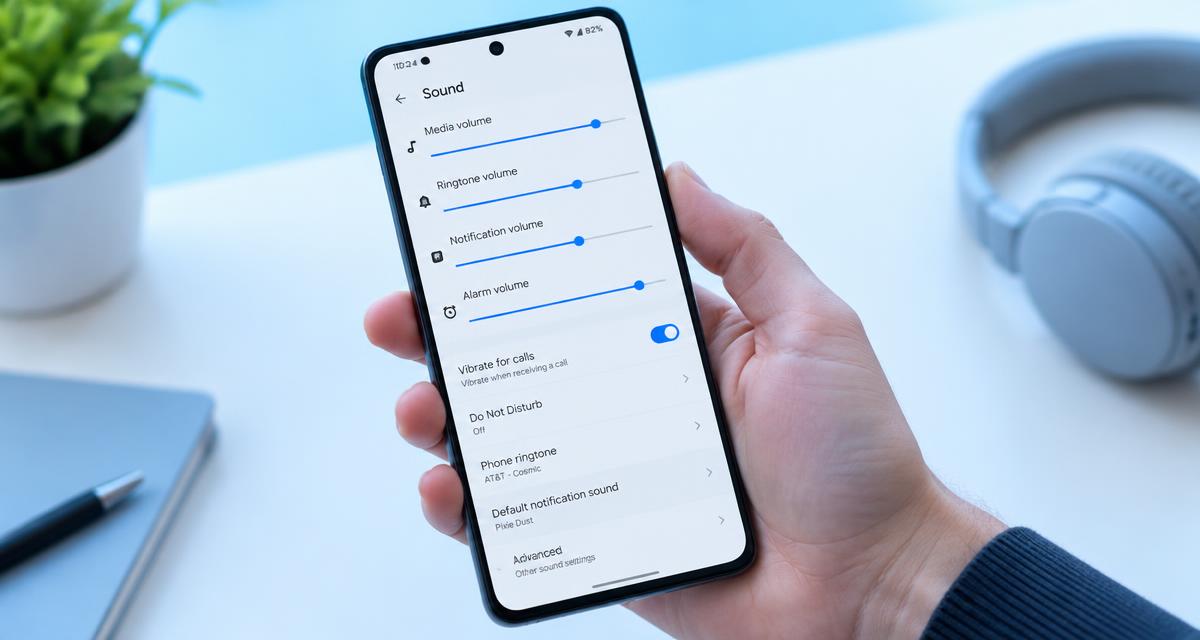
Press the volume buttons while media is actively playing. On Android, expand the volume panel if necessary and identify the media control rather than ring, alarm, or call volume. On iPhone, use the playback volume control during the test. A loud ringtone or a clear speakerphone conversation does not establish that media volume is above zero.
Inspect the player's own volume slider as well. A website or specialist media app can be muted independently of the main system level. Do not move every slider to maximum; a comfortable midrange setting is enough to establish whether sound returns. If you have been using an external speaker, remember that the accessory and phone may have separate volume behavior. Remove the accessory from the test before interpreting the phone's slider position.
Follow the audio destination all the way through
Open the system media-output selector and choose the phone. Check for earbuds, a vehicle, a smart speaker, a television, or a remote session. On iPhone, inspect the AirPlay destination in the playback controls. On Android, inspect the current media device. Also look inside the app for casting or remote-control features, which may operate separately from the ordinary Bluetooth route.
Temporarily turn Bluetooth off and unplug USB docks, adapters, and wired headsets. Stop any active casting session inside the relevant app rather than only closing its screen. A media app can function as a remote for another device while speakerphone still uses the handset, producing exactly this symptom. Restart the original recording after selecting the local output so that an old session does not obscure the result.
Check settings that treat apps differently
On supported Samsung phones, Separate app sound can send selected apps to another audio device. Review Settings, Sounds and vibration, Separate app sound, and temporarily disable the assignment for comparison. Also inspect Accessibility, Hearing enhancements, for Mute all sounds if present. Samsung notes that menu placement varies by model, region, and carrier, so use Settings search when labels differ.
On other phones, examine any installed audio-routing, automation, equalizer, or volume-control app that could affect media independently. On iPhone, Silent mode can influence some app or web audio behavior, but it is not a universal media-mute switch. Test the affected app with Silent mode off rather than assuming that one toggle explains all playback. Preserve accessibility settings you depend on and restore diagnostic changes afterward.
Separate app faults from temporary audio-session problems
Close the affected app and reopen it. End any ongoing internet call, voice chat, recording session, or navigation session that might still be managing audio. Then play the local test file again. Restart the phone if media remains silent. A restart is useful because it creates a cleaner comparison without immediately removing accounts, downloads, or customized settings.
Check for updates to the affected app and the operating system. If only one app remains silent, inspect its help documentation and account playback options. On Android, clearing an app's cache may be less disruptive than clearing its storage, but available controls differ. Do not select Clear data or reinstall without understanding what local content, projects, credentials, or downloads would be lost. System-wide resets are disproportionate when the failure remains app-specific.
Use headphones and alerts as comparison tools
At a modest level, compare the same media through known-working headphones if available. If headphones work while phone media remains silent, recheck the selected output and physical speaker openings. If headphones are also silent but speakerphone works, app state, media volume, or a broader media-playback issue becomes more plausible. Neither result alone proves which component or setting is responsible.
Briefly preview a ringtone and compare another local app. Some phones use multiple speakers differently for calls, alerts, and stereo media, so a working speakerphone cannot certify the complete speaker arrangement. Note whether media is entirely silent or only missing one channel. If one-sided content is involved, temporarily compare Mono Audio with balance centered where supported, then restore your preferred accessibility configuration after the test.
Escalate with a small, repeatable test matrix
Before contacting support, write down four results: local video through the phone, local video through headphones, ringtone preview, and speakerphone call. Add the output destination, phone model, system version, and affected apps. If restarting restores sound only temporarily, describe what happened just before it disappeared again, such as connecting a car, ending a voice chat, or starting a casting session.
Seek device support when multiple local apps remain silent with the correct route, nonzero media volume, and accessories removed. Seek app support when other media plays normally. Back up before any destructive troubleshooting and ask what a proposed reset is intended to test. Avoid aggressive cleaning or repeated tones when the evidence points toward routing; neither can change an app's remote-playback destination or unmute its internal player.
Sources
Samsung documents Separate app sound, Mute all sounds, balance, and accessory checks: samsung.com guidance
Google explains media controls and output selection on Pixel: google.com guidance Apple provides broader speaker and service checks: apple.com guidance