Quick answer
No call sound can mean several things: the phone does not ring, you cannot hear the other person after answering, they cannot hear you, or both directions are silent. These symptoms involve different settings and components. This guide focuses on hearing the other person during a connected call. If only ringing is missing, check ringtone volume, Silent mode, Focus, and Do Not Disturb separately.
Dans cet article
- Define which part of the call is failing
- Adjust volume during the active call
- Rule out Bluetooth and wired accessories
- Compare the receiver with speakerphone
- Inspect and clean only accessible openings
- Test reception and internet calling separately
- Restart and investigate app-specific behavior
- Escalate with useful evidence instead of resetting blindly
- Sources
Define which part of the call is failing
No call sound can mean several things: the phone does not ring, you cannot hear the other person after answering, they cannot hear you, or both directions are silent. These symptoms involve different settings and components. This guide focuses on hearing the other person during a connected call. If only ringing is missing, check ringtone volume, Silent mode, Focus, and Do Not Disturb separately.
Ask the other person whether they can hear you and whether their microphone is muted. Then make a short test call to another person or a suitable non-emergency service. Never use emergency numbers for testing. If only one caller is affected, their device, connection, or microphone may explain the silence. Record whether the problem occurs on cellular calls, internet calls, or both.
Adjust volume during the active call
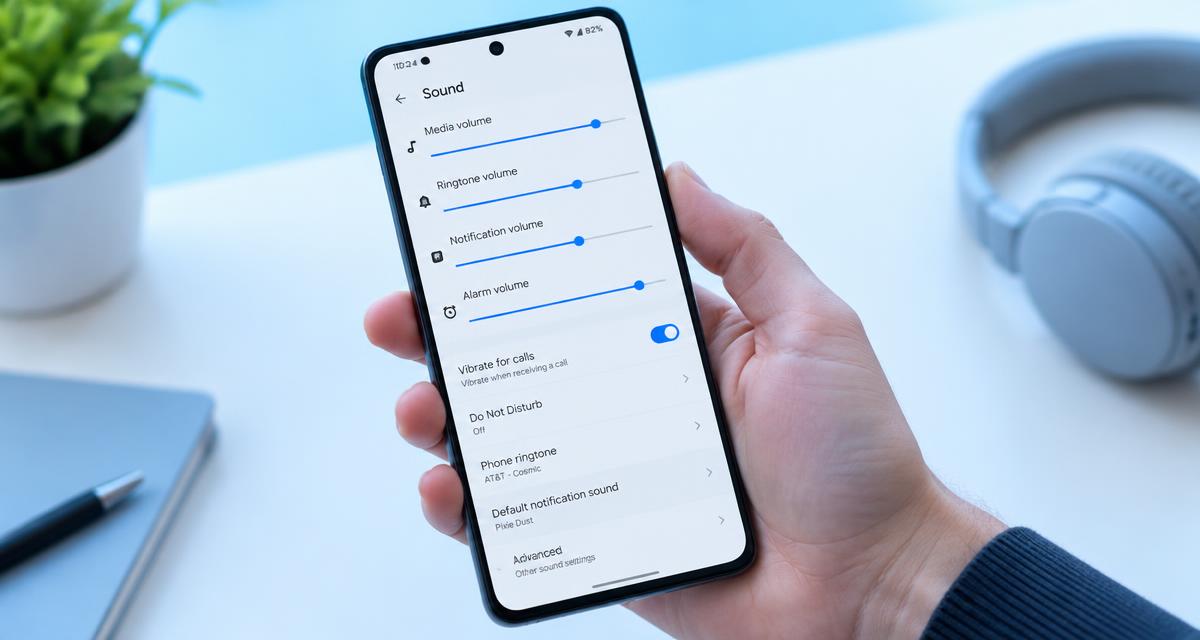
Press the volume-up button while the call is connected and the other person is speaking. Phones commonly maintain different volume levels for media, ringing, and calls. Raising music volume before dialing may leave call volume unchanged. Increase it gradually rather than starting at maximum, especially when you are using headphones.
Check the call screen's audio destination. Depending on the phone and connected accessories, you may see choices such as phone, speaker, a car system, or Bluetooth earbuds. Select the handset for an earpiece test, then select speakerphone for a separate comparison. Do not confuse the microphone mute button with a control for the sound you hear; muting usually affects your outgoing voice.
Rule out Bluetooth and wired accessories
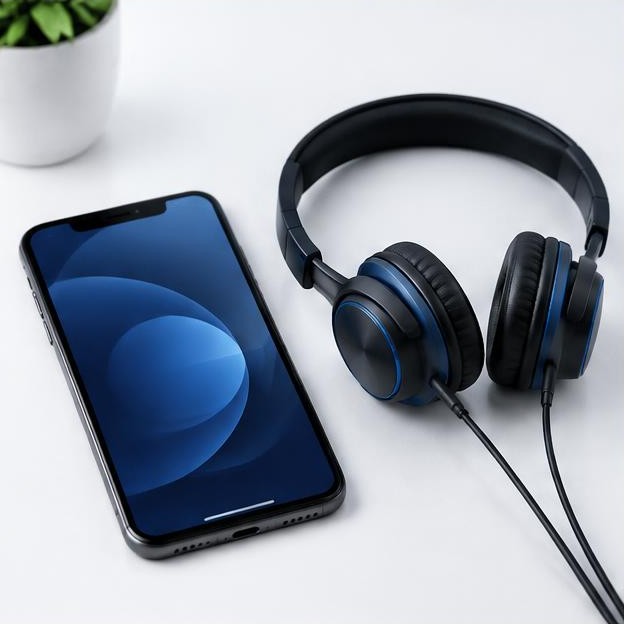
Temporarily turn Bluetooth off and disconnect wired headphones or audio adapters. A car, headset, or nearby speaker may still be the selected call destination even when you are not wearing or using it. Repeat the call with only the phone involved. If that restores sound, reconnect the accessory later and inspect its call controls and audio routing.
On many Android phones, a paired accessory has separate Phone calls and Media audio options. Music working through an accessory does not prove that call audio is enabled or supported. Google recommends checking the relevant Bluetooth settings when call or media playback fails. Some portable speakers support music only, so verify the product's calling capabilities before treating the absence of call audio as a defect.
Compare the receiver with speakerphone
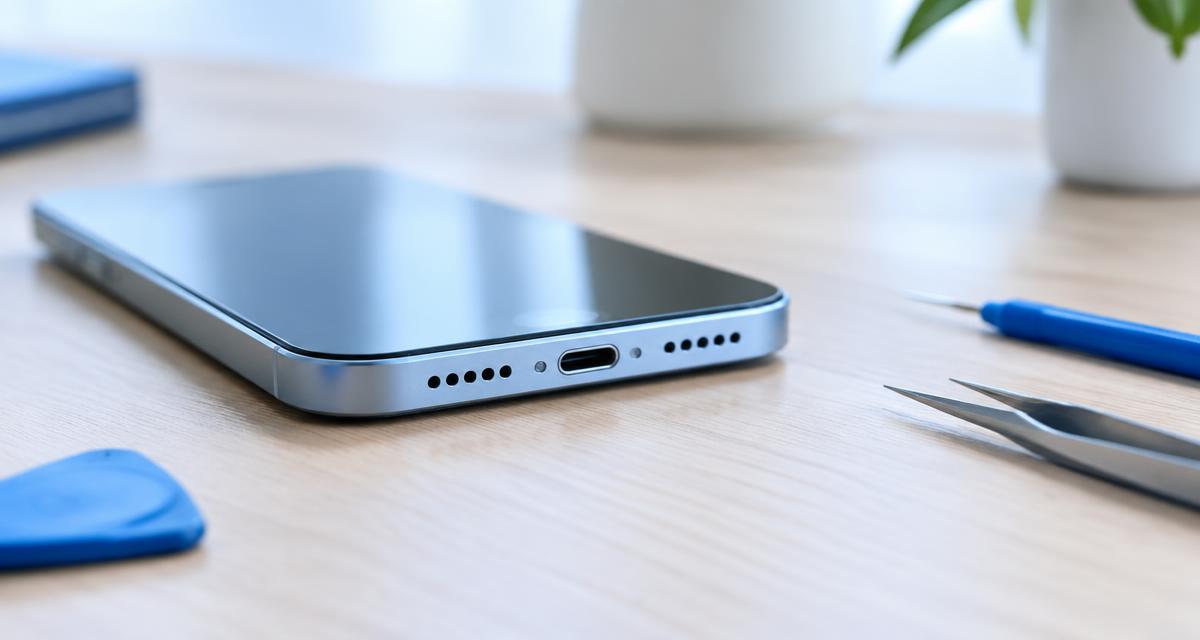
Switch speakerphone on, listen briefly, then switch it off. If speakerphone works but the normal earpiece remains silent, inspect the receiver opening at the top of the screen and check the handset's call volume again. Remove a case or screen protector that overlaps that opening. Apple specifically includes obstruction checks in its guidance for unclear or missing speaker sound.
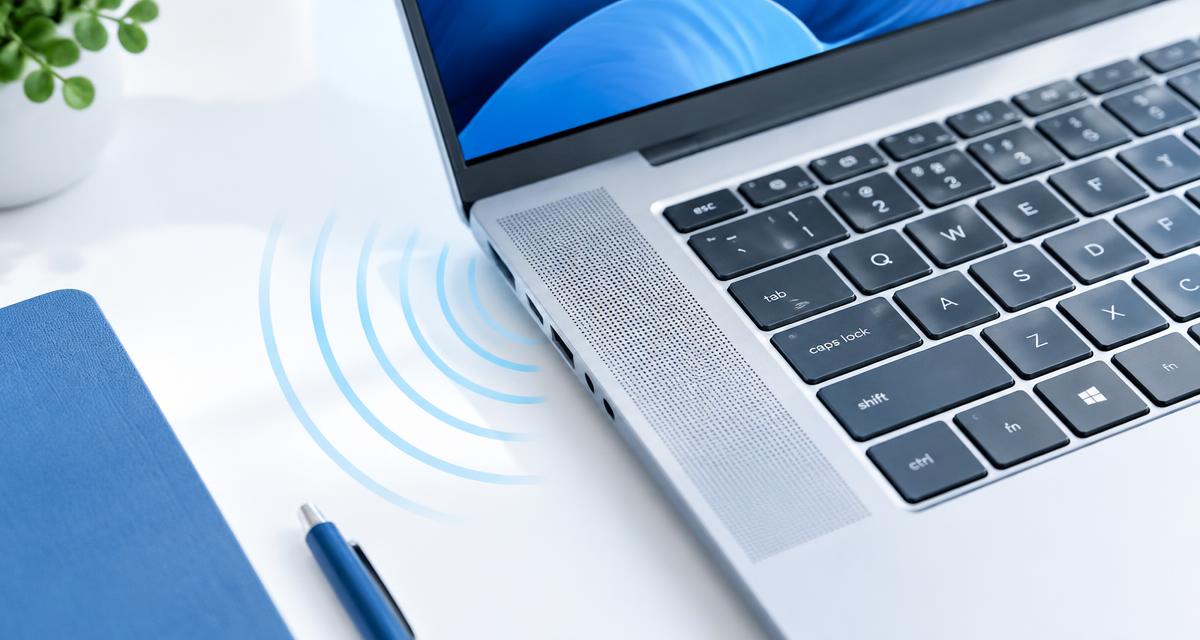
If the earpiece works but speakerphone does not, play a local video through the phone's speakers outside the call. If media also fails, the issue extends beyond the telephone connection. If media works normally, call routing, the calling app, or the network remains a stronger possibility. These comparisons narrow the path; they do not establish a hardware diagnosis by themselves.
Inspect and clean only accessible openings
Look for visible lint, dust, or material covering the receiver and speaker openings. Apple recommends a small, clean, dry, soft-bristled brush when cleaning an obstructed speaker or receiver opening. Use gentle surface strokes and avoid pressing debris through the mesh. Follow your phone manufacturer's cleaning instructions if they specify a different method.
Do not insert a needle, add cleaning liquid to the receiver, or blast it with compressed air. If the phone recently got wet, stop charging it until the manufacturer permits charging and follow its drying guidance. An audio tone cannot resolve a network fault or safely verify internal liquid damage. Persistent silence after a spill deserves support rather than repeated loud playback.
Test reception and internet calling separately
Move to a location with stronger reception and place another short call. Google notes that weak connections can affect call clarity and recommends comparing connection conditions. If you are moving in a vehicle, wait until you are safely stopped before troubleshooting. Do not change settings or perform test calls while driving.
Where available, compare a normal cellular call with a trusted internet-calling app on a stable connection. You can also compare Wi-Fi on and off, understanding that Wi-Fi calling availability depends on the carrier and configuration. If only one network path fails, contact the carrier or app provider with that result. Do not assume that a strong Wi-Fi icon guarantees that the internet connection or calling service is healthy.
Restart and investigate app-specific behavior
Restart the phone and install supported operating-system and calling-app updates. If only one app has silent calls, inspect that app's selected audio destination, in-app volume, and permissions. Microphone permission primarily concerns what you transmit; it is not a universal explanation for why the other person's voice is missing. Avoid changing every permission without a symptom-based reason.
On Android, safe mode may help investigate interference from downloaded apps, but the entry procedure varies by manufacturer. Follow the phone maker's instructions and understand that third-party calling apps may not run there. Use the built-in phone app for a relevant comparison. Uninstalling an app or clearing its storage can remove local information, so check backup and account requirements first.
Escalate with useful evidence instead of resetting blindly
Contact your carrier if cellular calls fail across locations while internet calls and local audio work. Contact the phone manufacturer if the receiver stays silent across multiple calls but speakerphone works, or if all audio outputs fail after the basic checks. For an accessory-only failure, test that accessory with another phone before requesting phone repair.
Keep a short record of the phone model, software version, affected call types, audio destinations tested, and whether the other person could hear you. Avoid a factory reset as an early experiment: it is disruptive and cannot repair a blocked receiver or damaged component. If support eventually recommends a reset, back up first and confirm how to preserve account access, authenticator information, and any eSIM details.
Sources
Apple: If you hear no sound or distorted sound from your iPhone, iPad, or iPod touch speaker — apple.com guidance
Google: Why can't I hear sound from my Pixel phone? — google.com guidance
Google: Fix Bluetooth problems on Android — google.com guidance