इस लेख में
- Quick answer
- Confirm where the speakers actually fire
- Run a controlled surface comparison
- Check feet, mats, cases, and support points
- Distinguish obstruction from normal acoustic changes
- Check software only after the placement comparison
- Clean only accessible exterior surfaces appropriately
- Choose a lasting setup and recognize service indicators
- Sources
Quick answer
Move the laptop onto a clean, hard, level surface with its original feet supporting it. Remove desk mats, soft pads, papers, and accessories that overlap underside speaker openings or ventilation areas. Play a familiar speech recording at the same moderate volume before and after the move. If clarity improves immediately, investigate clearance and placement before reinstalling audio software.
Do not prop the laptop on loose objects, block cooling vents, or press on underside grilles to test them. Use only a stable stand compatible with the computer's support and ventilation requirements. Downward-firing speakers can sound different on different surfaces without being damaged, but a missing foot, unsuitable case, or soft mat can reduce their intended clearance. Persistent distortion across suitable surfaces needs a broader diagnosis rather than progressively louder playback.
Confirm where the speakers actually fire
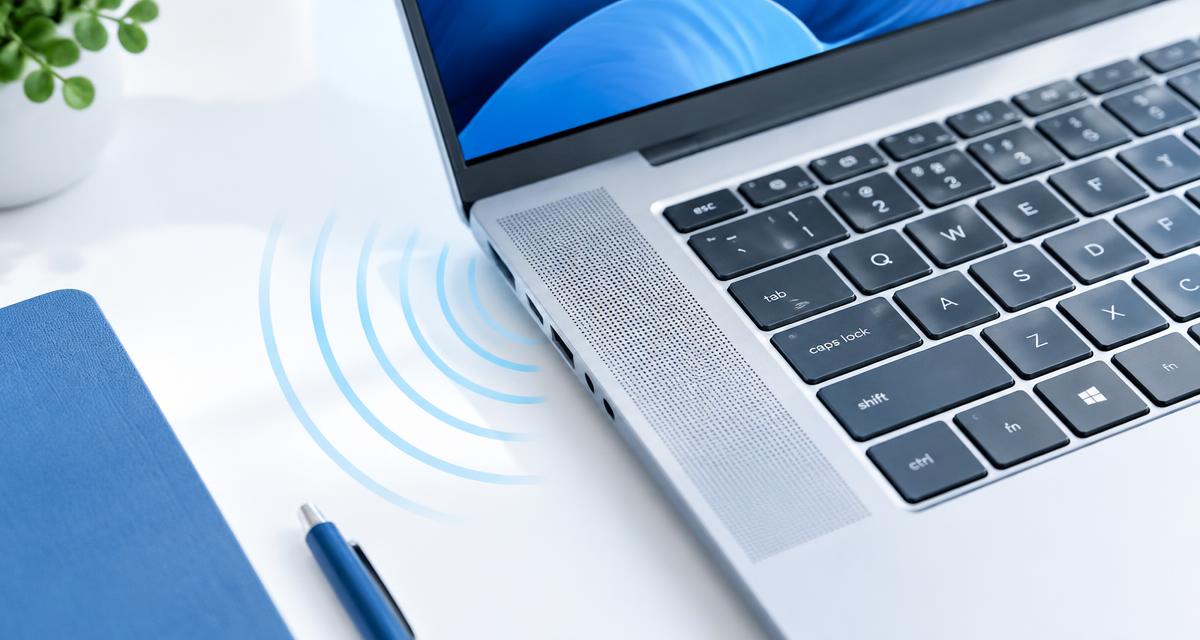
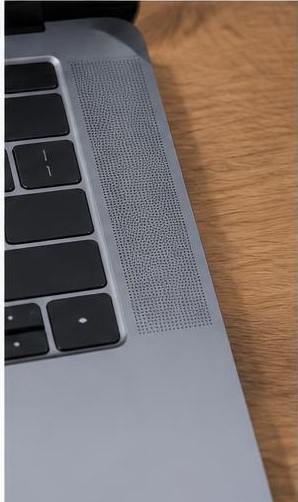
Consult the exact laptop model's user guide or external diagram. Decorative perforations above a keyboard are not necessarily the main speaker outlets, and underside slots may be vents rather than speakers. Some laptops use multiple drivers in different positions. Identifying the actual openings prevents you from cleaning the wrong area or positioning a stand across an acoustic outlet.
Inspect the underside only after closing or shutting down the laptop as appropriate and disconnecting accessories that could pull it over. Look for a protective cover, label, carrying sleeve edge, or accumulated papers that overlap the openings. Do not remove screws or peel factory materials away. If you cannot distinguish a vent from a speaker grille, use official documentation rather than experimenting with objects pressed against different openings during playback.
Run a controlled surface comparison
Choose a short local recording with clear voice and modest music, and note the current volume and sound settings. First listen in the problem position, then move the laptop to a bare, rigid desk. Keep the lid angle and your listening position similar. A local file avoids confusing network interruptions with a placement issue, and unchanged settings make the comparison meaningful.
Repeat the comparison on another suitable hard surface if available. A hollow desk may add a buzz, while a soft mat can absorb some sound or obstruct clearance. Neither result alone proves that the speakers are defective. If the noise occurs only on one desk, clear nearby objects and check whether the desk itself vibrates. Stop if moving the laptop reveals a swollen base, separation, unusual heat, or another physical safety concern.
Check feet, mats, cases, and support points
Original rubber feet help establish the laptop's intended spacing and support. If a foot is missing or compressed, the underside may sit differently against the desk. Compare its condition with official product images or service guidance, but do not glue on improvised feet or stack adhesive pads without checking manufacturer advice. A poorly positioned replacement can obstruct a vent or make the computer unstable.
Remove third-party shells and stands temporarily only when their instructions allow safe removal. Check whether a support bar crosses the speaker openings, whether a large desk mat reaches the underside, and whether a cable is trapped under one corner. The aim is to restore normal support, not maximize elevation. A stable manufacturer-compatible stand is preferable to balancing the rear edge on a pen, eraser, book corner, or other loose object.
Distinguish obstruction from normal acoustic changes
A desk can reflect sound from downward-facing outlets toward the listener. Changing the gap or surface can therefore alter tone even when nothing is blocked. A raised stand may sound less bass-heavy than a desktop while improving clarity. Judge intelligibility, balance, and unwanted noise rather than assuming the loudest arrangement is the correct one or the most faithful to the laptop's intended sound.
A true obstruction is more plausible when removing a mat or case produces a repeatable improvement at unchanged volume. A rattle that follows particular notes may instead involve the desk, a loose accessory, or a speaker component. If the issue persists on multiple suitable surfaces, do not keep raising the computer higher. Continue with software and source comparisons while maintaining stable support and adequate ventilation.
Check software only after the placement comparison
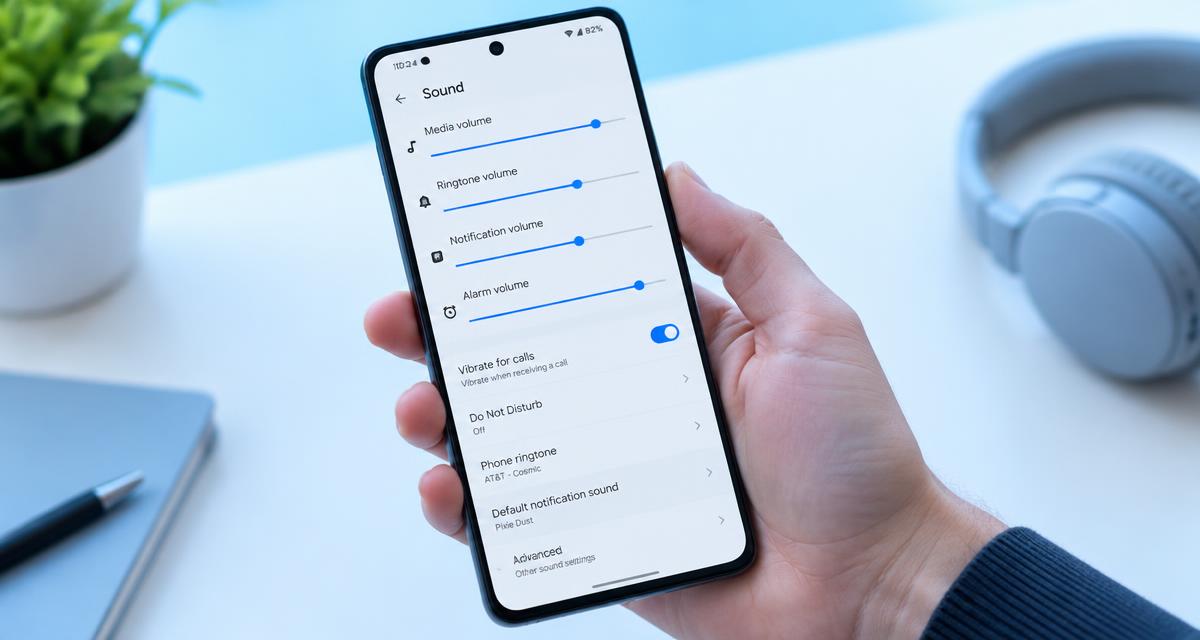
On Windows, confirm that the internal speakers are selected under Settings > System > Sound, and inspect the affected app's level in Volume mixer. An attached display or Bluetooth accessory may have become the output. Microsoft recommends checking the selected output and hardware connections early in general audio troubleshooting. microsoft.com guidance On other operating systems, use the equivalent sound-output selector and app controls.
If the speakers remain muffled or distorted on a suitable surface, compare another app and temporarily disable optional audio enhancements one setting at a time. Microsoft notes that enhancements can reduce or distort output. microsoft.com guidance Keep a record so settings can be restored. Obtain drivers only from official operating-system or computer-manufacturer channels, and avoid a driver reinstall when a simple mat removal already explains the symptom.
Clean only accessible exterior surfaces appropriately
If an outlet is visibly dusty, shut down the computer and follow its cleaning instructions. Do not push a brush, pin, or compressed-air nozzle through underside openings. Avoid spraying cleaner onto a grille or introducing moisture into vents. Apple, for example, advises a soft lint-free cloth, disconnected power, no direct cleaner spraying, and no moisture in openings for its products. apple.com guidance Use your laptop manufacturer's specific method rather than assuming all machines share the same allowance.
Do not remove the bottom panel to vacuum speakers or inspect a suspected obstruction. Internal cleaning can involve battery, cable, and electrostatic risks and is outside a simple placement diagnosis. If a grille is packed with residue that cannot be addressed by approved exterior care, ask support about service. A sound sweep cannot remove adhesive, repair a torn driver, or restore missing physical clearance.
Choose a lasting setup and recognize service indicators
For a placement-related fix, use a stable hard surface or compatible stand that leaves speaker outlets and cooling paths clear. Keep papers, sleeves, and thick mats from creeping underneath. If a missing foot caused the problem, obtain a manufacturer-approved replacement or repair. External speakers or headphones can be useful for listening, but they should not conceal an unsafe base deformation or recurring overheating problem.
Seek service if one speaker rasps on every suitable surface, the enclosure rattles after a drop, or built-in diagnostics identify a fault. Dell's general audio guidance distinguishes distorted, intermittent, and one-sided symptoms as separate troubleshooting cases. dell.com guidance Provide your surface comparisons, accessory details, and whether headphones sound normal. Those observations help support separate placement acoustics from an internal speaker or amplifier problem.
Sources
Microsoft, output and audio checks: microsoft.com guidance
Microsoft, enhancements and quiet sound: microsoft.com guidance
Apple, cleaning precautions: apple.com guidance
Dell, speaker symptom troubleshooting: dell.com guidance