Ebben a cikkben
- Quick answer
- Understand what this particular comparison tells you
- Set call volume while the call is active
- Compare callers and calling services
- Check positioning and protector overlap
- Clean cautiously without forcing debris inward
- Restart and review only relevant settings
- Choose a practical next step
- Sources
Quick answer
When the earpiece is quiet but speakerphone works, adjust volume during an active call, confirm that audio is routed to the phone rather than a headset, and remove any case or protector covering the upper receiver. Compare two callers before assuming a hardware fault. Speakerphone being clear shows that at least one playback path works; it does not prove that the small call receiver is healthy.
Keep speakerphone away from your ear and use a private setting for comparisons. Do not insert a pin into the receiver slot or play cleaning tones against your ear. If the receiver remains unusually quiet across different callers and calling apps, arrange an inspection rather than repeatedly increasing volume or aggressively cleaning the mesh.
Understand what this particular comparison tells you
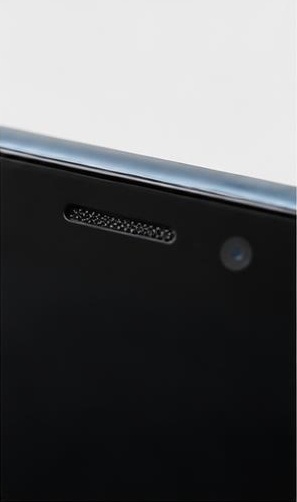
The earpiece, also called the receiver, delivers call audio near the top of the screen. Speakerphone uses a different output arrangement, sometimes involving multiple speakers and different processing. A clear speakerphone call therefore narrows the investigation toward receiver routing, obstruction, volume, or hardware, but it does not identify a specific failed part. Designs differ, and some phones also use the receiver for stereo media.
This problem concerns what you hear, not what the other person hears. If callers complain that your voice is quiet, investigate microphones and their connection instead. Start by asking a trusted caller whether your outgoing speech is clear. Keeping incoming and outgoing symptoms separate avoids cleaning the wrong opening or treating a microphone issue as an earpiece failure simply because both happen during calls.
Set call volume while the call is active
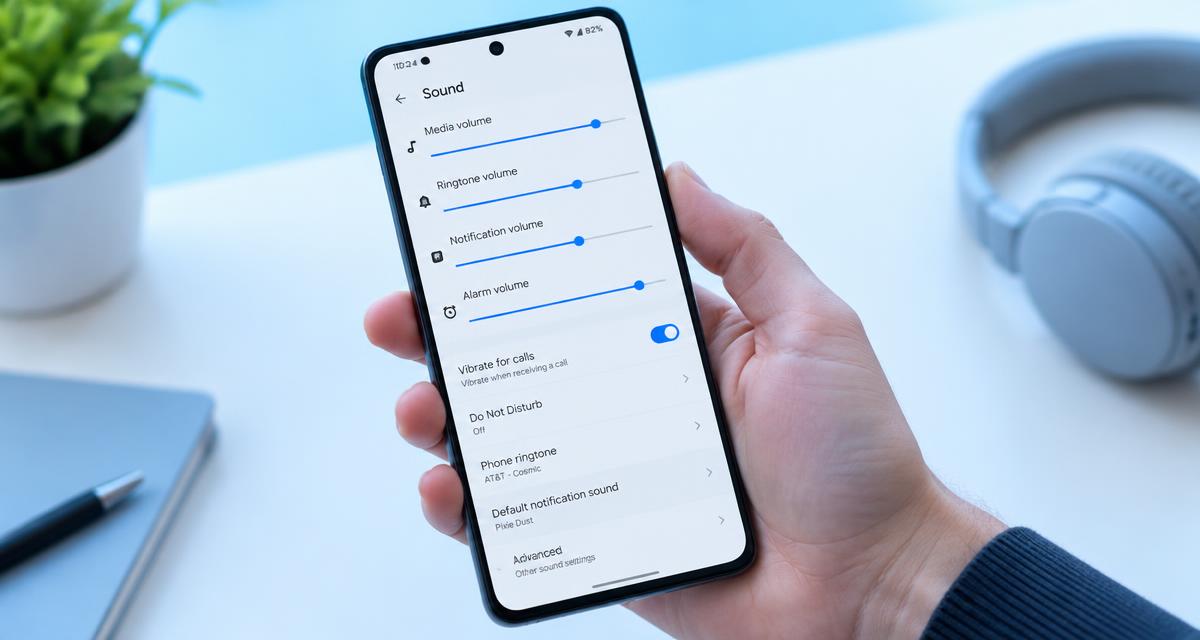
Call someone who can speak normally for a minute, turn speakerphone off, and use the side volume buttons while you are listening. Watch for the call-volume indicator. Changing the ringtone or media slider beforehand may not change the receiver level. Increase only enough for a comfortable test; if sound remains abnormally faint, that observation matters more than reaching the highest setting.
Check the call's audio-route control and select the phone or handset. Disconnect earbuds, hearing devices, car systems, and USB audio adapters temporarily if appropriate. Be mindful of any accessibility equipment you rely on and restore it after testing. A forgotten headset connection can produce confusing behavior, especially if switching speakerphone changes the route. Repeat the comparison after confirming that the receiver is the selected destination.
Compare callers and calling services
Repeat the test with another caller, preferably someone using a different phone or headset. If only one person sounds quiet, ask them to move their microphone into its normal position and try without their accessory. A clear loudspeaker can make weak incoming audio easier to hear, so apparent improvement on speakerphone does not automatically mean the receiver is at fault.
When practical, compare a cellular call with a trusted internet-calling app. Keep your location and listening conditions stable. If both services are quiet only through the receiver, a local receiver-path problem becomes more plausible. If one service is affected while another is clear, investigate that app, its audio route, and connection quality. Avoid recording calls without appropriate consent; written observations are enough for this troubleshooting step.
Check positioning and protector overlap
Locate the receiver on your exact phone model and align it naturally with your ear. Very slim slots can sit closer to the top edge than expected. A case with a thick raised lip may change how the phone rests against your ear, while a misaligned screen protector can physically cover part of the slot. Remove the case and compare again before deciding that cleaning is needed.
Inspect the protector under angled light. Look for an opaque border, adhesive ridge, privacy layer, or installation film crossing the receiver opening. If an accessory clearly overlaps the slot, follow its removal instructions rather than cutting it in place. Keep the handset position consistent during the before-and-after call. An immediate improvement with the obstruction removed is more informative than changing several settings at the same time.
Clean cautiously without forcing debris inward
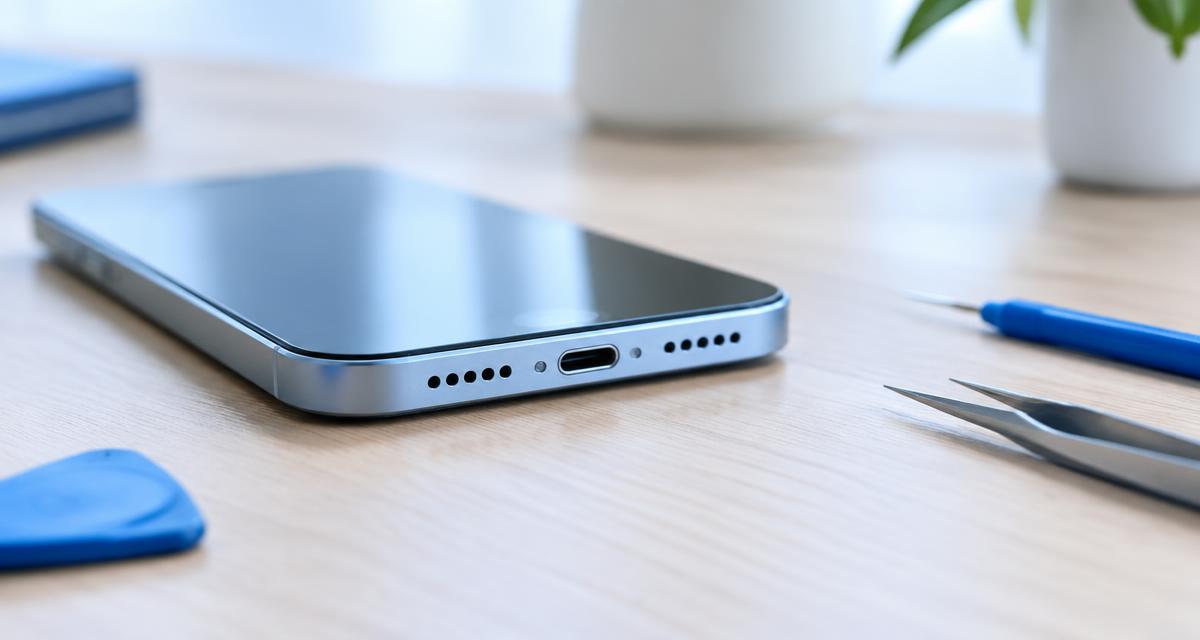
Skin oils and compacted lint can collect around a receiver, but the visible mesh is delicate. Disconnect the phone from power and inspect the slot in bright light. Follow the manufacturer's cleaning instructions. For iPhone, Apple recommends a clean, dry, small soft-bristled brush when the receiver opening needs cleaning. Sweep lightly across the exterior rather than pressing through the mesh.
Do not use needles, toothpicks, metal picks, liquids, compressed air, or sticky compounds to excavate the slot. These methods can damage the mesh or push contamination inward. Stop if the grille is dented, the debris is firmly embedded, or the phone recently became wet. Sound-based cleaning is not a substitute for clearing an adhesive-covered slot, and repeated playback cannot establish whether an internal receiver component needs replacement.
Restart and review only relevant settings
Restart the phone and repeat a call after confirming the route and volume. Install available stable system and calling-app updates when appropriate. Check accessibility audio balance or hearing-related routing only if those settings are relevant to your device and equipment. Menu names differ, and some adjustments apply to headphones rather than the receiver, so avoid treating every audio option as a universal call-volume control.
Do not factory-reset the phone merely because speakerphone works. A reset cannot remove protector adhesive or repair a damaged receiver. If support recommends a settings reset, ask what will change and back up important information first. Keep a brief record of each result: cellular receiver quiet, internet receiver quiet, speakerphone clear, headphones clear, or whichever pattern you actually observe. Specific comparisons are more useful than a long list of speculative fixes.
Choose a practical next step
If the receiver stays quiet across multiple callers, different call services, and a restart with accessories removed, arrange service. Mention any recent screen replacement, drop, liquid exposure, or protector installation. Those events can affect the acoustic path or internal assembly, but they do not establish the diagnosis by themselves. Ask the provider to reproduce the receiver problem during an ordinary call rather than checking media playback alone.
Until the phone is assessed, use an appropriate headset or speakerphone where privacy and surroundings allow. Do not hold an active loudspeaker against your ear. Back up the phone and confirm account-recovery access before handing it over. If you notice difficulty understanding speech across several unrelated devices or listening situations, consider seeking qualified hearing advice rather than assuming every device has the same receiver fault.
Sources
Apple's official speaker guidance includes receiver obstruction, gentle brushing, call comparisons, and service: apple.com guidance
Google's official Pixel sound troubleshooting also recommends checking call routing and comparing connection conditions: google.com guidance Follow the guidance for your own phone rather than transferring model-specific cleaning instructions indiscriminately.