Quick answer
Uneven headphone volume can come from the recording, an accessibility setting, a poor earbud seal, an obstructed mesh, or a hardware problem. Begin with familiar spoken audio at a comfortable level. Avoid turning the overall volume up to compensate for the quieter side, because that also raises the louder side. The aim is to identify a pattern, not to overpower it.
Dalam artikel ini
- Start with a repeatable listening comparison
- Center the left-right balance
- Separate stereo content from a headphone fault
- Check fit and removable ear tips
- Inspect and clean without driving debris inward
- For wireless earbuds, verify each battery separately
- For wired headphones, isolate the plug, cable, and adapter
- Update, reset once, and choose a sensible repair endpoint
- Sources
Start with a repeatable listening comparison
Uneven headphone volume can come from the recording, an accessibility setting, a poor earbud seal, an obstructed mesh, or a hardware problem. Begin with familiar spoken audio at a comfortable level. Avoid turning the overall volume up to compensate for the quieter side, because that also raises the louder side. The aim is to identify a pattern, not to overpower it.
Try a second recording from a different app. Music often places instruments deliberately to the left or right, so one song is not a reliable balance test. If your device offers mono audio, enable it temporarily so both channels receive the same mix. Record whether the imbalance remains, then return mono audio to its previous setting when you finish.
Center the left-right balance
On iPhone, open Settings > Accessibility > Audio & Visual and check that Balance is centered. Apple specifically recommends this when one AirPod is quieter than the other. Also review any headphone customization you previously enabled. Temporarily compare playback without optional personalization or spatial effects, but note the original settings so you can restore the features you use.
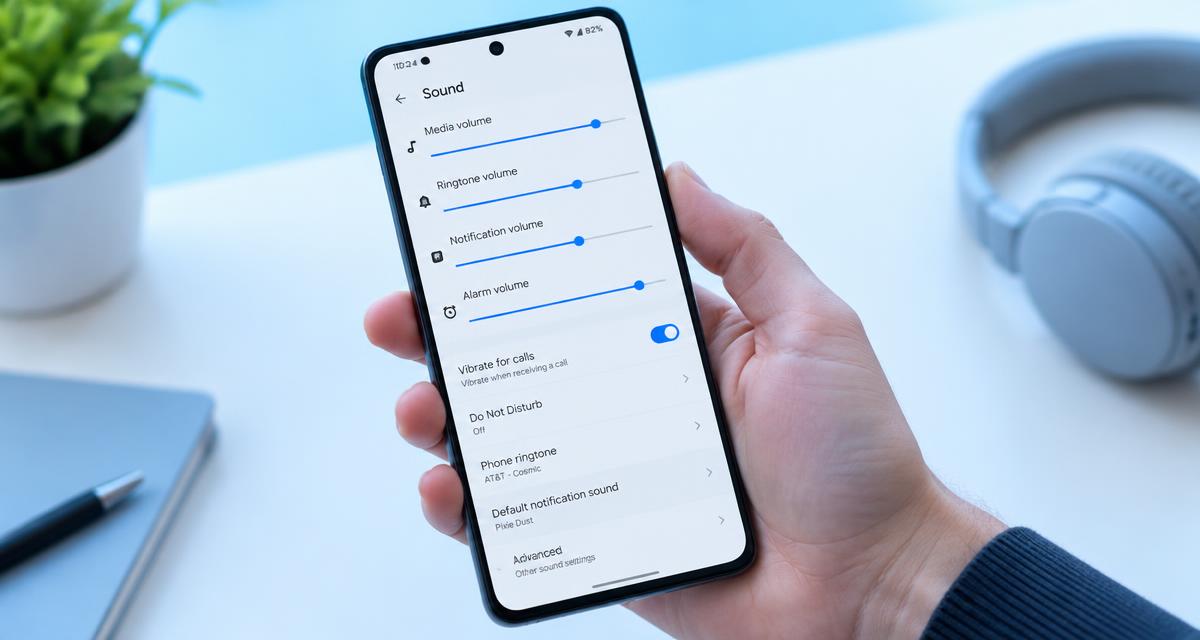
On a Mac, look in System Settings > Sound > Output for the selected device's balance control when available. Windows devices may expose separate left and right levels in the output device's properties. Android manufacturers place audio balance in different accessibility menus, so search Settings for balance or hearing enhancements. A missing control is not itself an error; supported options depend on the device and connection.
Separate stereo content from a headphone fault
Use another phone or computer with the same headphones, keeping the test recording consistent. If the imbalance disappears, the original source deserves attention. Check its application volume, equalizer, balance, and audio effects before resetting the headphones. If the same physical earpiece stays quiet on two sources, investigate the headphones themselves.
A left-right channel check can confirm which channel is playing, but it is not a medical hearing assessment and does not establish why a side seems quieter. Do not infer a health condition from an online tone test. If the headphones play evenly for another listener or you notice an unexplained change in everyday listening, stop device testing rather than trying to diagnose it through louder audio.
Check fit and removable ear tips
For in-ear headphones, a weak seal can make one side lose bass and seem much quieter. Reseat each earbud gently and compare the fit of the left and right tips. Different tip sizes can be appropriate for each side. If the manufacturer provides a fit test, use that rather than pushing the earbuds deeper or repeatedly increasing volume.
Remove silicone tips only as directed and inspect them for tears, trapped debris, or an obstructed opening. Reattach them securely before use. For over-ear headphones, check whether glasses, hair, or a displaced cushion is breaking the seal on one side. A loose or damaged cushion can alter the sound without indicating an electronic failure. Replace worn parts with compatible components rather than improvising a seal.
Inspect and clean without driving debris inward
Under good light, compare the speaker meshes and any accessible openings. Wax and dirt can reduce output, but cleaning methods differ between models. Follow the manufacturer's current instructions for your exact headphones. A method approved for one AirPods model, tip material, or mesh should not automatically be applied to another product.
Do not insert pins, scrape a mesh, use suction with your mouth, or force liquid into an opening. Avoid compressed air unless the manufacturer explicitly permits it. If the instructions allow a dry, soft brush for the area you are cleaning, use light strokes and keep debris from falling inward. Let any cleaned parts dry completely according to the product guidance before reassembly or charging.
For wireless earbuds, verify each battery separately
One wireless earbud may be disconnected or uncharged rather than merely quiet. Check the battery indication for each side, not just the case. Apple recommends placing both AirPods in the charging case for 30 seconds and verifying that each is charging when troubleshooting a silent side. This is a model-specific starting point, not proof that every earbud can recover in that time.
Inspect the charging contacts using the manufacturer's cleaning instructions. Confirm that each earbud seats properly and that its charging indicator responds. Test the affected earbud alone if the product supports single-earbud playback. If it works alone but not as a pair, follow the manufacturer's resynchronization or reset procedure. Replacement earbuds may require an additional setup process before both sides operate together.
For wired headphones, isolate the plug, cable, and adapter
Lower the volume, remove the plug, and reconnect it fully. A phone case or a partly inserted connector can prevent reliable channel contact. Check detachable cables at both ends and make sure they are installed in the correct sockets. If you use a USB-C or Lightning adapter, test a known-compatible replacement rather than assuming the headphones are at fault.
Compare the headphones with another source and compare another pair with the original source. If normal handling of the cable causes the quiet side to return or crackle, stop repeatedly bending that point; an intermittent conductor or connector may need replacement. Do not spray cleaner into a powered socket or insert metal tools. Replace user-removable cables only with electrically compatible parts.
Update, reset once, and choose a sensible repair endpoint
Install supported system and headphone firmware updates, then repeat the same short comparison. If the imbalance persists, perform the documented reset once and reconnect. Avoid changing balance to hide a new fault before completing these checks. A compensating setting can make listening more convenient, but it does not clean an obstruction or repair a failing driver.
Contact the manufacturer when the same earpiece stays quiet across sources, cleaning and fit checks do not help, or a charging fault persists. Include the model, affected side, battery readings, and comparison results. Stop using headphones with swelling, overheating, liquid inside the charging case, or damaged wiring. Loud sweeps and so-called repair tones are not a substitute for inspection or service.
Sources
Apple: If your left or right AirPod isn't working — apple.com guidance
Microsoft: Fix sound or audio problems in Windows — microsoft.com guidance
Google: Fix Bluetooth problems on Android — google.com guidance