Quick answer
Listen at modest volume to familiar speech and music. Note whether the noise occurs constantly, only on low notes or only while the computer is busy. Disconnect external speakers and headsets to confirm the laptop speakers are actually playing. A damaged recording can imitate a hardware fault, so compare several clean sources before changing anything. Write down whether the issue started after an update, a drop, a spill or a new peripheral.
ამ სტატიაში
- Identify when the crackling happens
- Rule out apps, streams and peripherals
- Check Windows sound options
- Handle Windows drivers cautiously
- Check Mac output and processing
- Inspect the outside without opening the laptop
- Use controlled tones to reproduce the fault
- Decide whether repair is warranted
- Quick answers
Identify when the crackling happens
Listen at modest volume to familiar speech and music. Note whether the noise occurs constantly, only on low notes or only while the computer is busy. Disconnect external speakers and headsets to confirm the laptop speakers are actually playing. A damaged recording can imitate a hardware fault, so compare several clean sources before changing anything. Write down whether the issue started after an update, a drop, a spill or a new peripheral.
Make one change at a time and compare the same short recording afterward. Keep the source, volume and listening position consistent. Otherwise a different track or a louder setting can sound like a successful repair when nothing has changed. A simple note of the symptom, the action taken and the result makes the process easier to follow and gives a technician useful information if you later need help.
Rule out apps, streams and peripherals
Play a local file as well as a stream. If only one website crackles, try another browser and disable optional extensions temporarily. Buffering, app bugs and overloaded processing can interrupt audio without damaging speakers. Disconnect docks and USB audio devices individually. Compare with headphones at a safe level. Clean headphone playback alongside distorted internal speakers narrows the search, but it does not by itself prove that a speaker driver is physically broken.
Check the manufacturer’s instructions for the exact model before applying advice written for another device. Speaker openings, protective meshes and water resistance arrangements vary. An opening that looks like a second speaker may actually serve a microphone or vent. Do not poke it to investigate. If a procedure requires force, unfamiliar chemicals or disassembly that you cannot confidently reverse, pause and choose a safer inspection or professional service instead.
Check Windows sound options
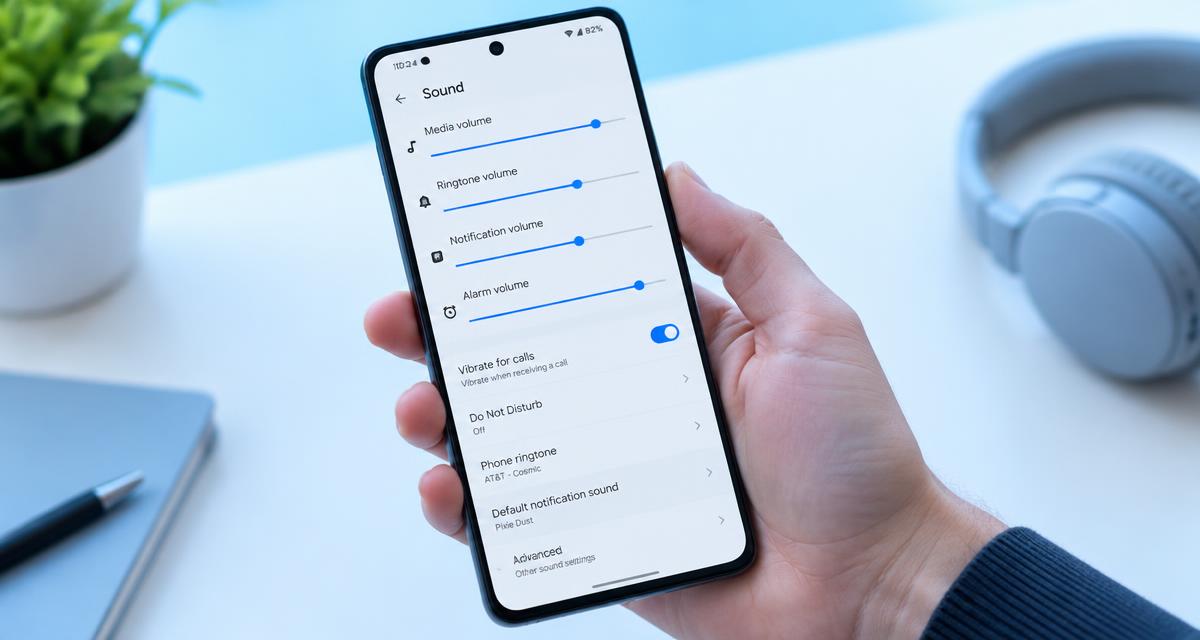
Select the internal speakers in Windows sound settings. Temporarily disable available enhancements, spatial processing and aggressive equalizer boosts. Menu names vary by version and audio hardware. If the device offers alternative sample rates, try a standard supported format and return to the original if nothing improves. There is no single bit depth or rate that repairs every laptop. Lower the volume and bass boost before judging a small speaker’s performance.
Use comfortable listening levels throughout the checks. Keep test tones away from your ears and avoid long sessions simply because improvement is slow. More volume is not a stronger cleaning treatment. Stop if the device develops unusual heat, severe distortion or a new mechanical noise. A short test should answer a specific question; once it has answered that question, silence the tone and decide what to do next.
Handle Windows drivers cautiously
Restart and check the laptop maker’s support page for audio and system updates appropriate to the exact model. Avoid third party driver download sites. If the problem began immediately after a driver change, an available rollback may help. Record the current version first. Crackles during heavy workloads can also involve other drivers or power management, so note whether closing demanding apps improves playback before reinstalling the audio device repeatedly.
A browser tool depends on the playback path selected by your device. Before interpreting a result, confirm that Bluetooth headphones, a dock or another output have not taken over. Start playback with the on screen control, then check the appropriate volume setting. If the browser remains silent, try familiar audio elsewhere. A silent web page by itself does not establish that a physical speaker has failed.
Check Mac output and processing
On a Mac, select the built in speakers in Sound settings and restart the affected app, then the computer. Disconnect docks to rule out unintended output routing. Disable third party equalizers or virtual audio utilities for a comparison. Audio MIDI Setup can show available formats, but do not change unfamiliar settings at random. Generic reset advice may apply only to older Intel machines, not every Mac, so consult model specific support instructions.
Do not treat a change in sound as proof that all damage is gone. A device can play normally while an unrelated electrical or charging problem remains. Watch for warnings and follow the relevant safety instructions before reconnecting power. Likewise, a faint low note may simply be outside a small speaker’s useful range. Judge recovery using ordinary speech and familiar music as well as controlled tones.
Inspect the outside without opening the laptop
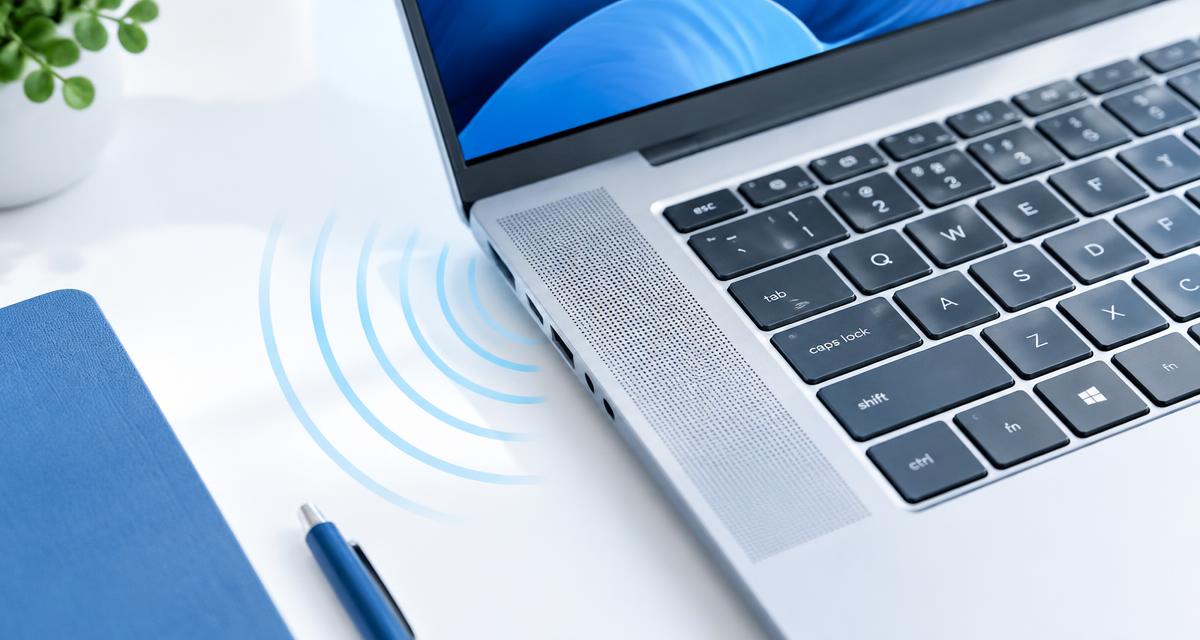
Power down and unplug before gently brushing an exterior grille with a clean dry soft brush. Keep debris from falling into vents. Do not spray liquid or compressed air into speaker openings, and do not remove the bottom cover merely to investigate a buzz. If liquid was spilled, shut down and seek service rather than playing cleaning sounds. Dust Cleaner cannot remove internal contamination or reverse corrosion from a drink.
If you need service, describe the event and the remaining symptoms accurately. Explain whether there was liquid, impact, an update or gradual deterioration, and list the checks already attempted. Ask what the proposed repair includes and whether any seals or protective parts need replacement. A clear diagnosis and written estimate are more useful than ordering a part because someone else reported a similar sounding problem online.
Use controlled tones to reproduce the fault
Speaker Test helps compare left and right output. Tone Generator covers 20 Hz to 20 kHz and can reproduce a suspect pitch, but begin quietly with a sine tone and brief playback. Laptop speakers may barely reproduce deep bass, and forcing it louder can cause distortion. A buzz near a certain note could involve a loose panel, an object on the desk or a damaged driver. Move nearby objects before deciding.
Allow time between attempts to inspect the result rather than repeating the same action automatically. Look for visible debris or moisture only from outside the opening, using ordinary good lighting. Do not insert a tool just to get a better view. If the condition is unchanged after cautious checks, that is useful evidence that the next step should be a different diagnostic approach, not greater pressure or louder playback.
Decide whether repair is warranted
If the fault persists across clean sources, normal volume and updated software, document the conditions for support. A noise isolated to one side after impact is useful information. External speakers can provide a temporary workaround, but continuing loud playback through a rattling internal driver is unhelpful. Ask for a diagnosis and quotation before ordering parts. Laptop speaker assemblies differ by model, and a replacement part must match the machine rather than just its approximate size.
Quick answers
Is every pop a blown speaker? No, software and routing can also interrupt sound. Should I set the highest sample rate? Not automatically; use a supported format. Will Dust Cleaner repair a torn cone? No. Should I use Water Eject after a laptop spill? No, shut down and follow liquid damage guidance. Why does it distort only loudly? Small speakers can exceed their limits, especially with boosted bass.