Quick answer
A Bluetooth speaker can appear in your device list without being the destination for the sound you are playing. Pairing stores a relationship between devices; connecting establishes an active link; selecting an output tells an app or operating system where to send audio. These are related steps, but they are not interchangeable. Start with a familiar music track at a modest volume rather than repeatedly pressing the speaker's volume-up button.
In dit artikel
- First separate a connection problem from an audio problem
- Check the speaker's input and both volume controls
- Select the actual playback destination
- Check Android media audio and competing devices
- Use a controlled test instead of changing everything
- Restart, then rebuild the pairing if necessary
- Handle computer-specific issues carefully
- Know when to stop troubleshooting
- Sources
First separate a connection problem from an audio problem
A Bluetooth speaker can appear in your device list without being the destination for the sound you are playing. Pairing stores a relationship between devices; connecting establishes an active link; selecting an output tells an app or operating system where to send audio. These are related steps, but they are not interchangeable. Start with a familiar music track at a modest volume rather than repeatedly pressing the speaker's volume-up button.
Note whether the speaker makes its normal startup sound. A startup chime shows that it can produce at least some audio, although it does not prove that every component is working correctly. If it has no lights, no charging indication, and no startup response, follow its power and charging instructions before troubleshooting Bluetooth. Avoid charging a wet speaker until its manufacturer says it is safe.
Check the speaker's input and both volume controls
Some portable speakers support Bluetooth, an auxiliary socket, USB playback, and a wireless group mode. Select Bluetooth using the speaker's own input button or companion app. Disconnect an auxiliary cable temporarily because certain models prioritize that socket even when the cable's other end is not connected to anything. Also leave stereo-pair or party mode temporarily if the manual explains how to return to standalone playback.
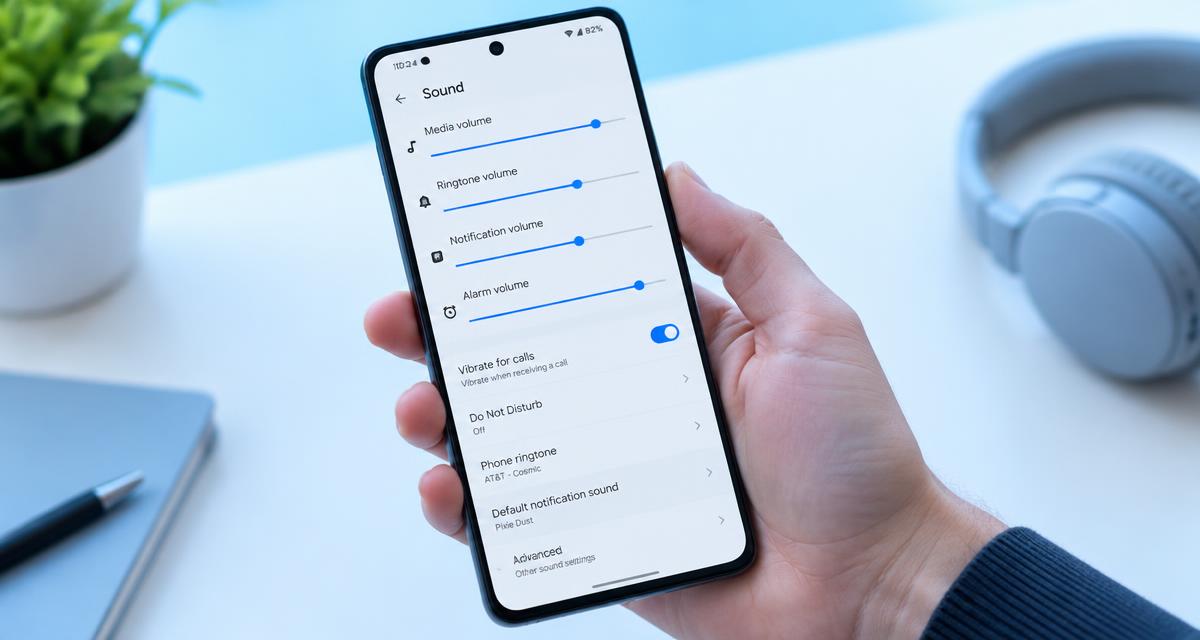
Raise the source device and speaker volumes gradually. Depending on the product, these controls may be linked or independent. Check the media player's mute control as well. A speaker announcing that it is connected does not mean the browser tab, music app, or meeting app is unmuted. Stop once a normal listening level is reached; maximum volume is unnecessary for this test.
Select the actual playback destination
On Windows 11, open Settings > System > Sound and select the Bluetooth speaker under Output. Also inspect Volume mixer if only one application is silent: an app can have a different output assignment or its own muted volume. Microsoft specifically identifies output selection as an early check for Bluetooth devices that connect without producing sound.
On a Mac, open Control Center > Sound or System Settings > Sound > Output and choose the speaker. On iPhone, use the playback destination control in Control Center or the current media player. On Android, look for the output selector in the media panel. Labels vary by manufacturer. Make sure the selected destination is the speaker, not the phone, a television, a casting session, or another nearby accessory.
Check Android media audio and competing devices
On many Android phones, the settings beside a paired Bluetooth device include separate Media audio and Phone calls switches. Enable Media audio for music and video playback. A speaker that supports media playback does not necessarily support telephone calls, so the absence of a calling option is not automatically a fault. Google recommends checking the relevant connection settings when troubleshooting Bluetooth audio.
Temporarily turn Bluetooth off on other phones, tablets, and computers that previously used the speaker. Multipoint speakers can maintain more than one connection, and another device may be holding the playback session or taking priority. Pause audio on those devices, then start your test track again. Do not delete everyone's pairings yet; simply removing competing connections is a more reversible first experiment.
Use a controlled test instead of changing everything
Play a downloaded track or a locally recorded video from a second app. If local playback works but a streaming service does not, investigate that app, its connection, and its playback destination. Try the original source through the phone or computer's internal speakers too. This comparison separates a silent file or stalled stream from a Bluetooth-specific failure.
Next, connect the speaker to a second phone or computer, with Bluetooth disabled on the first device. If the speaker works there, focus on the original device's routing, settings, and software. If two independent sources connect but remain silent, the speaker's input mode, firmware, or hardware becomes more suspect. Write down the result so you do not repeat tests without learning anything new.
Restart, then rebuild the pairing if necessary
Power the speaker off using its normal procedure, restart the source device, and reconnect. Keep the two close together during testing. If the connection still produces no sound, remove or forget the speaker in the source device's Bluetooth settings. Put the speaker into its documented pairing mode, add it again, and explicitly select it as the playback output afterward.
Pairing mode and a factory reset are different operations. Do not guess button combinations from instructions for another model. A factory reset may erase saved devices, equalizer settings, and speaker groups. Use it only after simpler checks, and follow the exact manufacturer's procedure. If the product has a companion app, check whether a firmware update is available and follow its power requirements.
Handle computer-specific issues carefully
For Windows 11, Microsoft's Get Help app includes Bluetooth and audio troubleshooting. Install relevant Windows updates and obtain Bluetooth or audio drivers through Windows Update or the computer manufacturer's support page. Avoid third-party driver download sites. If sound stopped immediately after a driver change, an available rollback may be more useful than installing the same driver again.
On either Windows or macOS, close meeting, recording, and chat apps before retesting music. Bluetooth accessories with microphones may change operating mode when a microphone is active, altering available outputs or playback quality. If your speaker has no microphone, do not spend time looking for headset-only settings. Likewise, changing audio formats is not a universal fix and should follow the options actually supported by your device.
Know when to stop troubleshooting
Seek manufacturer support if the speaker remains silent with multiple sources after a documented reset, or if it repeatedly shuts down, overheats, smells unusual, or has visible battery damage. Stop using a damaged battery-powered product. Keep your test results, purchase details, and firmware version available; they help support distinguish a compatibility issue from a speaker fault.
A tone generator cannot repair Bluetooth routing, a failed amplifier, or a damaged battery. Do not run prolonged full-volume tones to force the speaker to respond. The useful endpoint is a clear comparison: which sources work, which inputs work, and whether the speaker produces its own system sounds. Those observations are more informative than repeated resets or increasingly loud test signals.
Sources
Microsoft: Fix Bluetooth connected but no sound issue on Windows — microsoft.com guidance
Google: Fix Bluetooth problems on Android — google.com guidance
Apple: If sound quality is reduced when using Bluetooth headphones with your Mac — apple.com guidance