Neste artigo
- Quick answer
- Check safety before testing sound
- Record what changed immediately after impact
- Remove external causes without manipulating the frame
- Compare the main audio paths
- Try a restart, not escalating software changes
- Leave damaged openings and internal parts alone
- Prepare for assessment and verify the outcome
- Sources
Quick answer
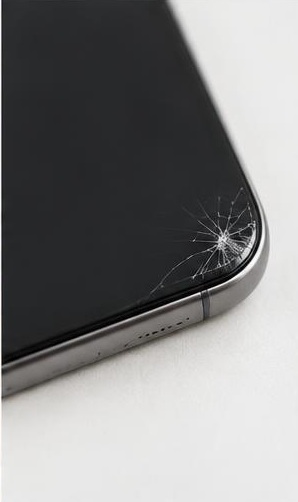
If your phone speaker changed after a drop, first inspect the device for cracked glass, bent edges, separated seams, unusual heat, or swelling. Stop using and charging it if there are signs of battery or structural damage. If it appears safe, remove the case, disconnect accessories, restart, and compare a brief local recording with a call at a comfortable volume.
Do not shake, squeeze, strike, or flex the phone to reseat a part. An impact can affect an accessory, acoustic opening, internal connection, or speaker assembly, and listening alone cannot tell you which. Persistent silence, rattling, or distortion after a drop deserves professional assessment, especially when another function also changed.
Check safety before testing sound
Place the phone on a stable surface and inspect it without pressing damaged areas. Look for a screen or back panel lifting away, an obviously bent frame, sharp glass, smoke, unusual odor, or rapidly increasing heat. Keep a potentially damaged device away from flammable materials and contact the manufacturer or an appropriate service provider for handling instructions. Do not continue charging simply because the display still works.
If the impact involved liquid as well, treat that as a separate exposure and follow the manufacturer's guidance. A drop can also compromise seals, so previous water resistance should not be taken as proof of continued protection. Do not open the phone yourself to inspect the battery or speaker. The first goal is deciding whether ordinary handling and a short playback test are appropriate at all.
Record what changed immediately after impact
Note the approximate drop height, surface, and which edge struck first if you know. Then list the new symptoms: no media sound, quiet calls, one-sided playback, a rattle on speech, microphone complaints, charging problems, or a loose button. You do not need a perfect reconstruction. A simple timeline helps a technician distinguish the reported impact-related behavior from an older unrelated issue.
Check whether the case shifted or a protector slid across the receiver. An accessory can move during impact and obstruct sound even when the phone itself is intact. Conversely, an undamaged case does not prove the internal device escaped stress. Avoid turning the timeline into a diagnosis: saying that sound changed immediately after the fall is accurate, while declaring that a specific connector came loose requires inspection.
Remove external causes without manipulating the frame
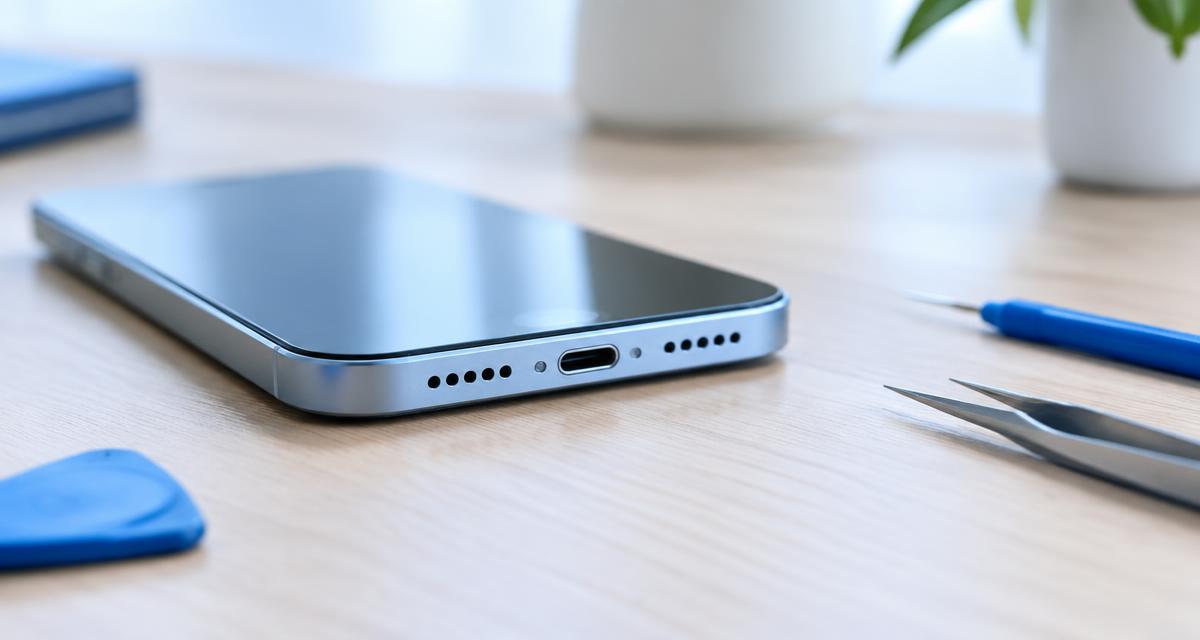
If the phone is safe to handle and the case can be removed without forcing damaged parts, take it off and inspect the speaker cutouts. Remove detachable stands or grips and disconnect USB audio equipment. Temporarily disable Bluetooth so the phone does not route playback to an accessory that was connected before the fall. Check the playback destination explicitly.
Hold the phone by its side edges without covering openings and play a brief familiar spoken recording. Compare with the phone resting on a folded dry cloth. A shifted case or loose attachment can create a rattle against the device or desk. Do not press around the speaker to see whether the sound returns. Any result that depends on squeezing or bending the phone is a reason to stop and seek service, not a usable home repair.
Compare the main audio paths
Use a local recording first so network conditions are not involved. Then compare a normal receiver call, speakerphone, and known-working headphones if available. Keep each test brief and moderate. Write down which paths work rather than treating all phone audio as one system. Different speakers, microphones, routing choices, and processing can produce different results after the same event.
If callers cannot hear you but your playback is normal, report a microphone symptom rather than a speaker failure. If headphones work but built-in media does not, the issue is more localized, although it still does not identify the exact part. If only one internet call sounds poor, compare another caller or service before attributing that result to the impact. The aim is a small map of the failure, not repeated stress testing.
Try a restart, not escalating software changes
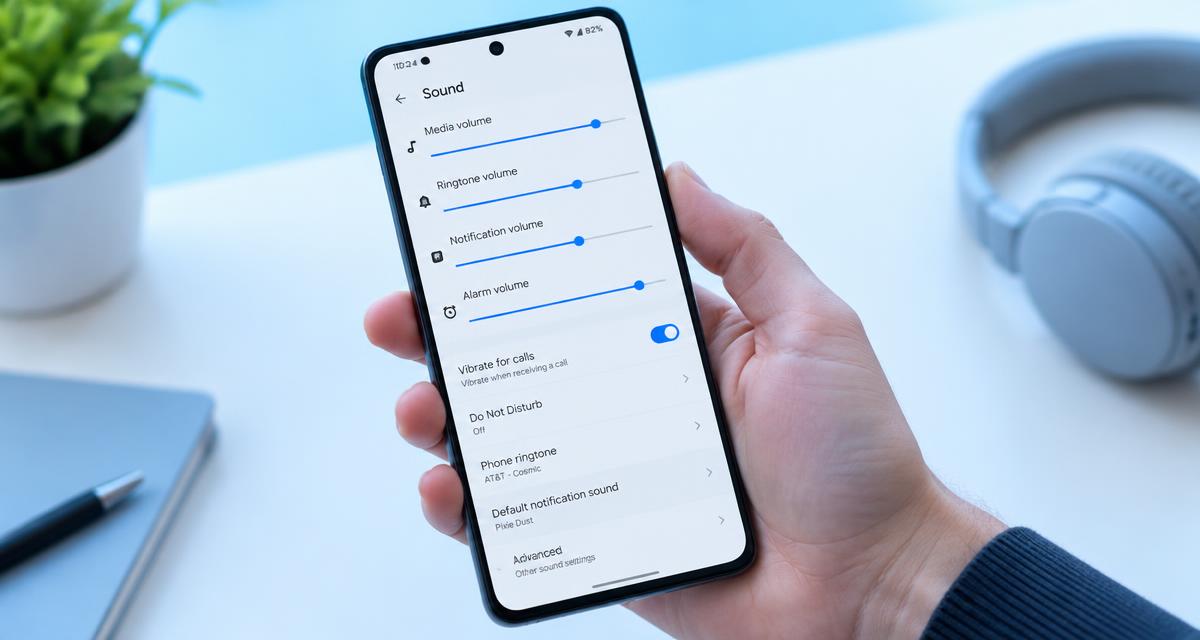
If there are no safety concerns, restart the phone normally and repeat the same local passage. Check that media and call volumes are set during their respective activities. A restart can clear a temporary audio-state problem that happened around the fall, but improvement does not certify that the device has no physical damage. Continue watching for other symptoms during normal use.
Avoid factory resets, unofficial repair apps, or firmware flashing as immediate responses to an impact-related problem. Software changes cannot straighten a grille, repair a damaged diaphragm, or restore a broken internal connection. If support requests a software comparison, back up first and understand what information will be removed. Keep the original test conditions documented so any temporary improvement can be distinguished from a genuine, repeatable resolution.
Leave damaged openings and internal parts alone
Inspect the grille visually, but do not straighten dents with a needle or press mesh back into place. Do not use glue around a separated seam, force compressed air through the opening, or insert cleaning tools to probe for a loose component. A speaker that rattles after impact is not a reason to play stronger bass in an attempt to move it back into position.
If dirt is only on an intact exterior surface, follow the manufacturer's ordinary cleaning guidance. Cracked glass, displaced mesh, or adhesive exposed around an opening is a different situation and needs assessment. Water resistance may also require evaluation after repair or impact. Ask the service provider about the specific device rather than assuming that a new case or cosmetic repair restores its original protection.
Prepare for assessment and verify the outcome
Back up important information while the device is safe and stable, and confirm that you can access essential accounts from another trusted device. Ask the repair provider about diagnostic charges, parts, data handling, and any warranty implications. Describe the audio-path comparisons and disclose the drop honestly. A useful report includes the exact recording or call condition that reproduces the problem.
After service, compare the same local speech passage, normal calls, speakerphone, and microphones at ordinary levels. Check that the case and protector do not introduce a new obstruction. If no repair is performed, ask what was inspected and which symptoms would warrant returning. Do not interpret one successful alert as proof that an intermittent impact-related issue is resolved; repeat the original everyday scenario without resorting to loud or prolonged tests.
Sources
Apple's official speaker guide supports obstruction checks, call comparisons, and service when sound problems persist: apple.com guidance
Samsung's official guidance covers accessory removal and basic speaker troubleshooting: samsung.com guidance Physical-damage and battery concerns require the manufacturer's device-specific service guidance rather than audio tests.