මෙම ලිපියේ
- Quick answer
- Choose a local test that removes uncertainty
- Inspect output routing, docks, and displays
- Separate media volume, Silent mode, and app controls
- Review balance and compare headphones
- Check the case, grip, and speaker openings
- Restart and resolve app-specific failures carefully
- Know when service is the useful next step
- Sources
Quick answer
If your iPad speakers are not working, play a familiar local video, adjust volume during playback, and select the iPad as the audio destination. Disconnect Bluetooth accessories, USB docks, headphones, and external displays for the test. Check the app's mute control and compare a second app. If alerts or certain apps are silent, also inspect Silent mode in Control Center.
Restart the iPad and test with the case removed before assuming that the speakers need replacement. iPad models have different speaker layouts, and not every opening is expected to behave identically. If the problem followed liquid exposure, a drop, unusual heat, or visible separation, address that condition first rather than continuing audio tests.
Choose a local test that removes uncertainty
Start with a video stored on the iPad that you know contains speech or music. Streaming adds possible connection problems, unavailable tracks, and player behavior that can obscure a simple sound test. Confirm that the timeline advances and the clip is not muted inside its player. Use a comfortable volume and keep the iPad in the same position while comparing results.
Then try a different app and a short alert preview if available. Write down whether the problem affects all sounds, one app, notifications, or only a particular video. If the clip is silent through another known-working output too, inspect the file before troubleshooting the speakers. A familiar local recording is a better reference than a random online speaker test whose source level and processing you do not know.
Inspect output routing, docks, and displays
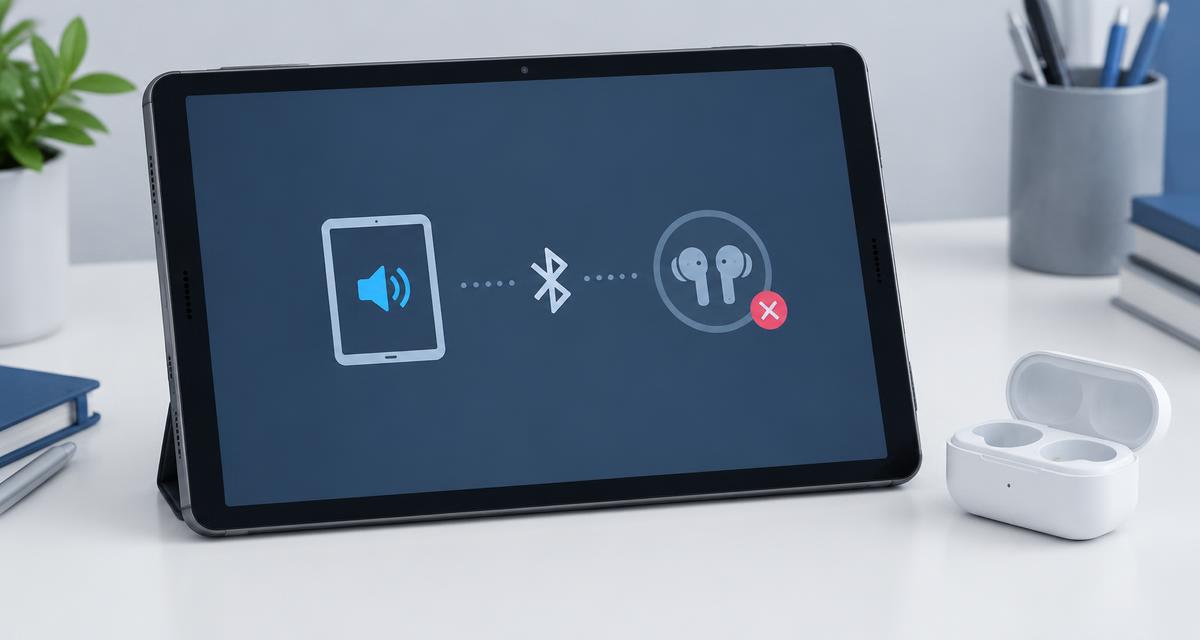
Open Control Center and inspect the playback destination. Select the iPad instead of an AirPlay speaker, television, or headset. Temporarily disconnect Bluetooth audio equipment if necessary. Remove any USB-C hub, Lightning adapter, wired headphones, or external display connection. These accessories can change where media audio goes even when you are looking at the video on the iPad screen.
If the app has its own casting or remote-playback control, stop that session inside the app. Closing the visible player may not end remote playback. Restart your local test after choosing the iPad output. If removing a dock restores sound, reconnect its components one at a time later to identify which attachment changes the route. Do not buy replacement speakers to solve a playback destination that is still assigned elsewhere.
Separate media volume, Silent mode, and app controls
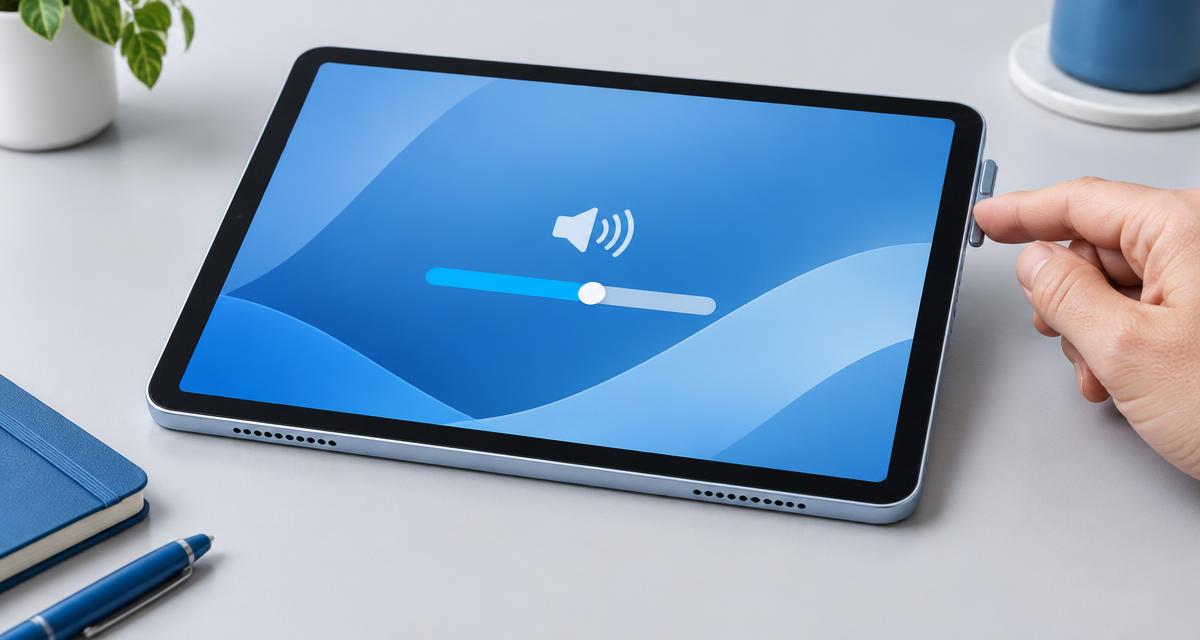
Adjust volume while the test recording is playing. This confirms that you are changing the relevant playback level. Also inspect the player's own mute button or slider. Silent mode can affect alerts and some app behavior, but it does not explain every kind of missing media audio. For an alerts-only problem, inspect Focus settings as well as the relevant notification configuration.
Use Control Center to check Silent mode on supported iPad configurations; older models and software can present controls differently. Avoid assuming that a button or switch has the same function as on another iPad. If games are silent while video apps work, examine both Silent mode and each game's audio settings. That pattern calls for targeted app checks rather than aggressive cleaning or a whole-device reset.
Review balance and compare headphones
Open Settings, Accessibility, Audio & Visual, and center the stereo balance slider. If a recording has strongly separated channels, an extreme balance setting can make important content seem absent. Briefly compare Mono Audio to check whether channel content explains the symptom, then restore your preferred configuration. Mono combines content; it does not repair a speaker that is blocked or damaged.
Compare the same local recording through known-working headphones at a modest level if available. Normal headphone playback with silent built-in speakers narrows the issue toward output selection or the internal speaker path, but it does not establish a particular failed component. If both outputs are silent in one app and another app works, concentrate on that app. Keep the results separate rather than describing every pattern as no sound.
Check the case, grip, and speaker openings
Remove the case, keyboard cover, stand attachment, and any protective film crossing an opening. Tablet cases can partially cover grilles or alter how the device rests against a desk. Test while holding the iPad by clear side areas, then place it on a dry soft support without covering speakers. Consult the model layout before expecting sound from a particular edge or grille.
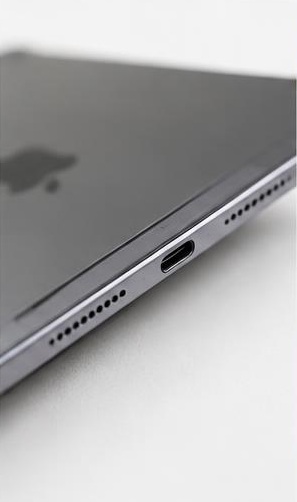
Inspect accessible openings in good light. Apple recommends a clean, dry, small soft-bristled brush when speaker cleaning is necessary. Work gently on the exterior and do not insert metal tools, force air through the grille, or apply liquid. If the mesh is damaged or debris is embedded, stop. If moisture may be involved, follow the iPad's exposure guidance; playback cannot certify that internal parts or charging connections are dry.
Restart and resolve app-specific failures carefully
Restart the iPad normally, then replay your original local recording before reconnecting accessories. Check for stable iPadOS and app updates. If just one app remains silent, close and reopen it, inspect its playback settings, and consult its support information. Educational apps, games, and specialist music tools can have their own audio engines, track mute controls, or output choices.
Before reinstalling an app, determine whether it stores projects, drawings, recordings, or downloads only on the device. Back up or export those items appropriately. Do not erase the entire iPad because one application fails to play audio. If support recommends a settings reset or clean setup comparison, ask which settings or data are affected and what result would distinguish a software problem from a persistent speaker-path issue.
Know when service is the useful next step
Contact Apple or an appropriate service provider if several local recordings remain silent with the iPad output selected, accessories removed, balance centered, and the device restarted. Persistent crackling, one consistently missing speaker area, or a problem beginning after impact also warrants assessment. A working alert or headphone output does not rule out a fault that affects another audio path.
Prepare the iPad model, iPadOS version, affected apps, and your local-playback comparison results. Mention any recent case change, dock connection, drop, repair, or liquid exposure. Back up important information and confirm service preparation requirements. Until the issue is resolved, captions or a suitable external audio device may help, but do not use those workarounds to ignore structural damage, unusual heat, or other signs that the iPad needs prompt inspection.
Sources
Apple's official no-sound guide covers iPad Silent mode, obstruction checks, gentle speaker cleaning, and service: apple.com guidance
The official iPad User Guide explains Mono Audio and left-right balance under Accessibility: apple.com guidance Model and iPadOS differences can change available controls.