V tomto článku
- Quick answer
- Work out which sound category is affected
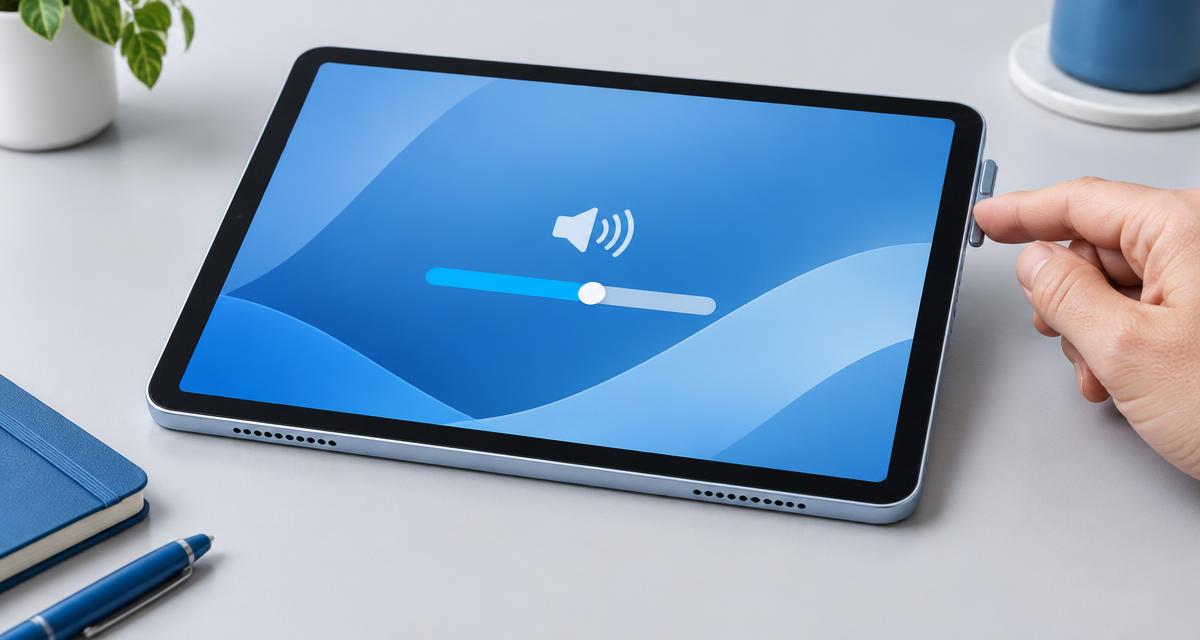
- Check media volume, not just the buttons
- Select the desired audio output
- Check Mute all sounds, Do Not Disturb, and notifications
- Case, attachments, and speaker openings
- Software checks without risky resets
- Interpreting the results and service limits
- A controlled listening comparison
- Sources
Quick answer
For a Galaxy tablet with no sound, first verify what is silent: a particular app, media, notifications, or everything. Start known-good media, raise Media volume while it is playing, and use the media output selector in Quick Settings or the media panel to choose This phone/This tablet or the intended device. Disconnect Bluetooth headphones or speakers temporarily to check for redirected audio. Remove a case if it may cover an opening. Then check Accessibility > Hearing enhancements for Mute all sounds and restart the tablet. Samsung notes that settings and names can differ by model and software version. A symptom that remains across apps and built-in output after these checks merits Samsung support; these steps cannot diagnose a failed component.
Work out which sound category is affected
Before changing settings, compare categories. Play a familiar song or video, try another app, and consider whether notification sounds are also missing. One silent app may have its own mute switch, audio level, playback issue, or content with no audible track. If other apps play normally, begin inside that app rather than modifying every tablet setting. If media works but notifications do not, inspect notification settings, Do Not Disturb, and notification volume. If notifications work but media does not, focus on Media volume, app playback, and output destination. If all audio including system sounds is silent, inspect Mute all sounds and routing. Keep the test modest and repeatable. A web-based tone test is an extra listening check, not proof of speaker health, because browser behavior and output selection also matter.
Select the desired audio output
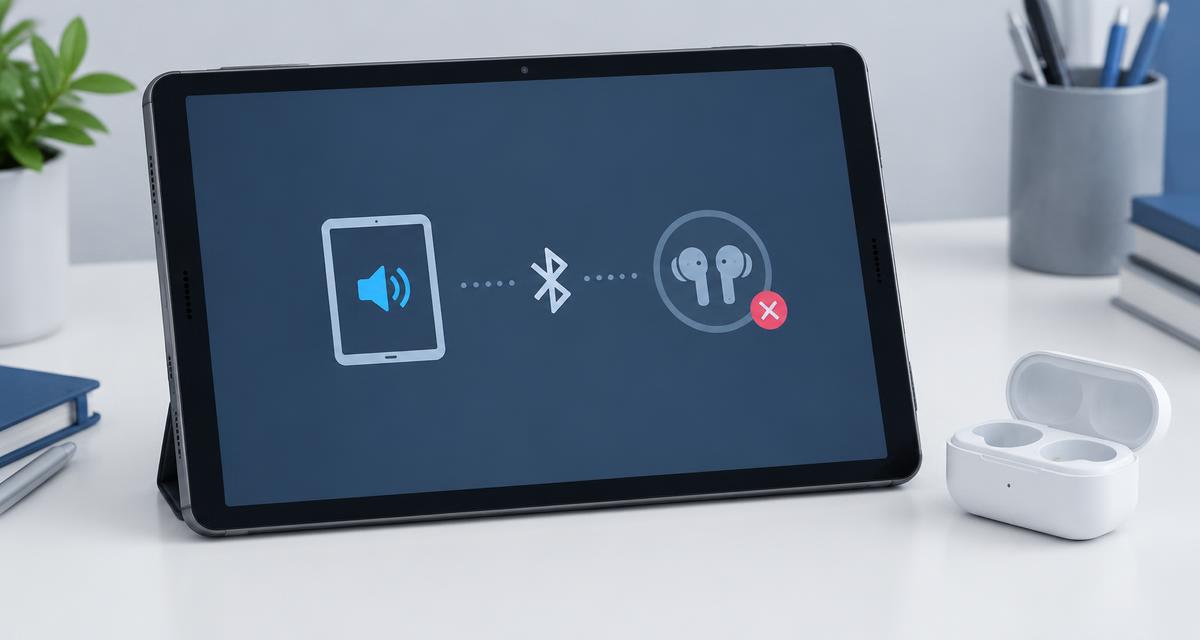
A Galaxy tablet can send sound to a connected Bluetooth device rather than its own speakers. Swipe down to open Quick Settings and look for Media output or the media panel; exact placement varies. Select the tablet or desired accessory, then test again. Open Settings > Connections > Bluetooth to inspect active connections. Disconnect earbuds, speakers, a car system, or other accessory as a brief comparison. Bluetooth can be turned off temporarily to test local output, then turned back on if needed. Samsung’s support guidance explicitly identifies external connections as one possible cause of silent built-in output. Do not assume pairing means sound should come from the tablet: active output selection matters. If you intend to use headphones, verify their own power, volume, and connection separately. If changing the route restores sound, the observation points to routing, not necessarily a broken speaker.
Check Mute all sounds, Do Not Disturb, and notifications
Samsung documents Mute all sounds under Settings > Accessibility > Hearing enhancements. When enabled, it can mute media, notifications, system sounds, and call audio. Turn it off if appropriate, then repeat the media check. Do Not Disturb is different: Samsung describes it as silencing calls and notifications except allowed exceptions. It generally will not explain why a video has no media sound. If only alerts are missing, check Settings > Notifications > Do not disturb and inspect the volume controls for Notification volume. Individual apps can have notification categories or sound permissions that affect their alerts. If only touch or button sounds are absent, review system sound settings. Menu paths and labels can change by One UI version, region, or model, so use Settings search for the feature name if the exact path differs.
Case, attachments, and speaker openings
Remove a protective case, keyboard cover, or other attachment temporarily if it might block a speaker opening or change how the tablet rests. Also unplug wired headphones, adapters, or docks before testing the built-in speakers. Samsung’s speaker guidance lists cases, accessories, obstructions, and external devices among possible influences on sound. Inspect only the exterior for obvious blockage. Do not poke a grille with a pin, push debris inside, or use liquid or force. Use model-specific Samsung cleaning instructions if cleaning is needed. Test the same familiar media at the same comfortable level before and after removing the accessory. If the sound changes, that is useful evidence of an obstruction or route difference, not a guarantee that hardware is fault-free. Take care around signs of liquid or physical damage and seek official guidance.
Software checks without risky resets
A temporary software problem can affect sound. Restart the tablet using its normal power menu and test again. Check for system updates in Settings > Software update when available; keep battery and connectivity adequate and follow the on-screen instructions. Samsung support recommends basic checks and restart for sound issues. If a particular app is affected, update it through its normal source and check its permissions and playback settings. Do not begin by factory resetting: that erases personal data and is not a diagnostic proof. Avoid changing developer settings or installing untrusted “repair” apps. If you consider clearing an app’s data or resetting settings, first understand what information may be removed and back up important content. Exact menus differ by software version, and Samsung support can give model-specific directions.
Interpreting the results and service limits
If media plays through Bluetooth but not the tablet, or vice versa, you have isolated a difference in route or output path, not a precise diagnosis. If only one app is silent, the app is a reasonable next place to investigate. If all apps fail on built-in speakers but work through headphones, note that behavior for support. If all outputs fail, include that fact too. Persistent silence, unusual distortion, crackling, or sound that cuts in and out after basic checks may require evaluation by Samsung or an authorized service provider. The available observations do not determine whether a speaker, connector, software layer, or another condition is responsible. Do not open the tablet, use heat, or attempt a component repair based on a listening test. A service provider can advise according to the specific model and symptoms.
A controlled listening comparison
Use one familiar clip with continuous sound, set moderate volume, and keep the tablet in one position. Confirm playback is not paused and the app is not muted. Observe the selected route in the media panel, choose the tablet, and compare with a second app. If practical, test once with Bluetooth disconnected and the case removed. Record which combinations work: app, built-in output, Bluetooth, media, and alerts. This makes a support conversation clearer and avoids repeating settings changes. The check is not calibrated, does not measure maximum output, and cannot certify that a speaker is healthy. If you want a simple listening tool, Test reproduktora tabletu or Test reproduktora tabletu Samsung may complement ordinary media checks; interpret either as a basic comparison rather than a diagnosis.