Katika makala hii
- Quick answer
- Draw the connection path
- Check power, mute, and the selected input
- Verify the HDMI ports and control settings
- Treat optical as a separate connection type
- Use PCM as a diagnostic comparison
- Restart the handshake in a controlled way
- Isolate a source-specific failure
- Update or reset only after documenting results
- Sources
Quick answer
Confirm the soundbar is powered on, unmuted, and set to the input actually connected to the television. For HDMI television audio, connect the TV's labeled ARC or eARC port to the soundbar's corresponding TV connection, not an ordinary HDMI input. Select the television's external audio-system output and enable the required ARC, eARC, or HDMI-control settings.
For optical, choose optical output on the TV and optical input on the bar, and make sure protective cable caps were removed. Test a built-in television app, then temporarily try PCM audio if compatibility is uncertain. Work through the signal path in order rather than repeatedly changing volume or assuming that a connected indicator guarantees audio.
Draw the connection path
Write down where the sound originates and every device it passes through. A streaming box connected to the television follows a different path from a box connected directly to the soundbar. Include switches, adapters, splitters, and docking devices. Their capabilities can affect whether a format reaches the bar.
Test the simplest available path first: a built-in television app sending audio directly to the soundbar. If that works, the bar and TV connection are probably functional, and attention can shift to the external source. If it does not, remove unnecessary adapters before changing advanced settings. Keep a note of the original arrangement so you can rebuild it once basic playback works.
Check power, mute, and the selected input
Look at the bar's display or app rather than relying solely on the television's volume graphic. The TV can show changing volume even when it is not sending usable audio. Confirm that neither device is muted and raise the bar from zero gradually while ordinary content plays.
Select the input explicitly using the soundbar remote or app. Names such as TV, ARC, D.IN, Optical, and HDMI may refer to different connections. If the bar supports independent Bluetooth or network music, test that at a comfortable level. Successful music playback confirms that the bar can produce sound, but it does not prove that the television connection is correctly configured.
Verify the HDMI ports and control settings
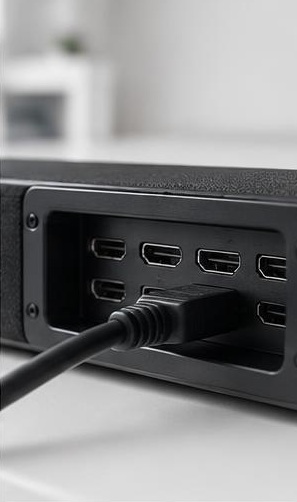
On the television, use the socket specifically labeled ARC or eARC. On the soundbar, follow the manual's TV connection label, which may be called HDMI OUT even though it receives returned television audio. A normal television HDMI input does not automatically send audio back to the bar.
Enable the HDMI-control feature required by the equipment, often branded differently by each manufacturer. Check the TV's audio-system selection and ARC or eARC setting separately. Do not assume that eARC and ordinary HDMI control are identical functions. If the system previously worked, inspect whether a software update, new console, or changed input arrangement altered these settings.
Treat optical as a separate connection type
If using optical, confirm that the cable is connected to the television's optical output rather than another device's input. Remove any protective caps, align the connector correctly, and seat it without forcing it. Select optical output in the television menu and the corresponding input on the soundbar.
Avoid sharp bends and do not stare into an optical output. Optical does not carry every format supported by HDMI eARC, so choose an audio format documented as compatible with both devices. Sonos specifically identifies cable seating, protective caps, and television optical-output selection as checks for a silent optical connection. sonos.com guidance
Use PCM as a diagnostic comparison
Temporarily set the television or source to PCM and play straightforward content. If sound returns, the physical path may be working while the previous encoded format was unsupported or not passed through correctly. Check the exact soundbar model's supported formats rather than relying on a brand-wide feature list.
PCM can have different channel limitations depending on the connection and equipment. Therefore, a successful PCM test is a clue, not proof that you should abandon every surround option permanently. Restore features one at a time after confirming compatibility. Also inspect app-specific audio settings, because a streaming box or disc player may override the television's preferred format.
Restart the handshake in a controlled way
Follow the manufacturer-recommended restart sequence for the television and bar. If instructed to disconnect power, first switch the devices off and handle plugs normally with dry hands. Reconnect only the essential television-to-soundbar link, then allow both devices time to start before testing.
HDMI connections involve capability negotiation, so changing several devices at once can obscure the cause. If a direct connection works but the full system does not, reconnect accessories one by one. Use a cable meeting the equipment's documented requirements, and try a known-working compatible replacement if available. Do not purchase an expensive cable merely because its packaging promises better sound.
Isolate a source-specific failure
If television apps work but a game console or streaming box is silent, inspect that source's audio-output setting. Confirm it is not sending audio to headphones, a controller, Bluetooth, or an unsupported format. Test another app on the same device and another input on the television where appropriate.
If the source connects directly to the soundbar, select that HDMI input rather than the TV-return input. Check whether the video still passes through when audio fails. A working picture narrows the problem but does not guarantee audio compatibility. Record which combinations work so support can distinguish a source configuration issue from a TV pass-through or soundbar decoding limitation.
Update or reset only after documenting results
Check official firmware updates for both devices and read any model-specific connection notes. Before resetting, save input names, network details, room-tuning settings, and remote-control arrangements. A reset may erase useful information without fixing an incompatible cable path or unsupported format.
Contact support if the bar plays independent music but never receives television audio after these checks, or if every input remains silent. Provide model numbers, cable type, port labels, firmware versions, and your simplest working or failing configuration. Stop using equipment that smells hot, shows damage, or repeatedly loses power. Do not open a soundbar or attempt internal electrical repairs.
Sources
Official troubleshooting: sonos.com guidance ; sonos.com guidance
Use the exact television and soundbar manuals for port labels, HDMI-control names, supported audio formats, firmware procedures, and restart instructions. Requirements vary even between products from the same manufacturer.