ఈ కథనంలో
- Quick answer
- Separate media, alerts, and app-specific silence
- Set playback volume while audio is playing
- Silent mode and Focus: what they do and do not mean
- Check where the audio is going
- When only alerts or only media are missing
- Case, openings, and safe external checks
- Restart, update, and know when to ask for help
- A short, repeatable check
- Sources
Quick answer
When an iPad seems silent, first identify whether the problem affects one app, media playback, alerts, or every sound. Start a familiar recording or video, raise playback volume while it is playing, and check Control Center’s audio destination for headphones, a speaker, or another AirPlay/Bluetooth route. Disconnect or select iPad explicitly, then test again. iPad Silent mode is not a master mute for music, podcasts, movies, or TV shows; it is more relevant to alerts and selected system sounds. A quiet notification alone therefore does not establish a speaker fault. If several apps and system sounds remain silent through the built-in speakers after settings and routing checks, remove an obstructive case, restart, update iPadOS when practical, and consult Apple Support rather than probing openings or assuming a repair.
Separate media, alerts, and app-specific silence
A good first step is to write down what is silent. Is a video playing but inaudible? Are notification tones missing while video audio works? Does one game fail while other apps play? These distinctions help avoid changing unrelated settings. Test a second ordinary app and a second known-good piece of content. Streaming services can have their own mute controls, volume sliders, permissions, or playback errors; a video paused, an app muted, or content without an audible track may look like device-wide failure. Avoid relying on a speaker-tone website as the sole diagnostic: browser permissions, the page, or the selected output can affect what you hear. For a basic comparison use trusted media at a moderate level and keep the setup unchanged. If one app is affected, close and reopen it, inspect its own audio controls, and check whether its issue is limited to particular media. If every app has a problem, continue with system-level checks.
Set playback volume while audio is playing
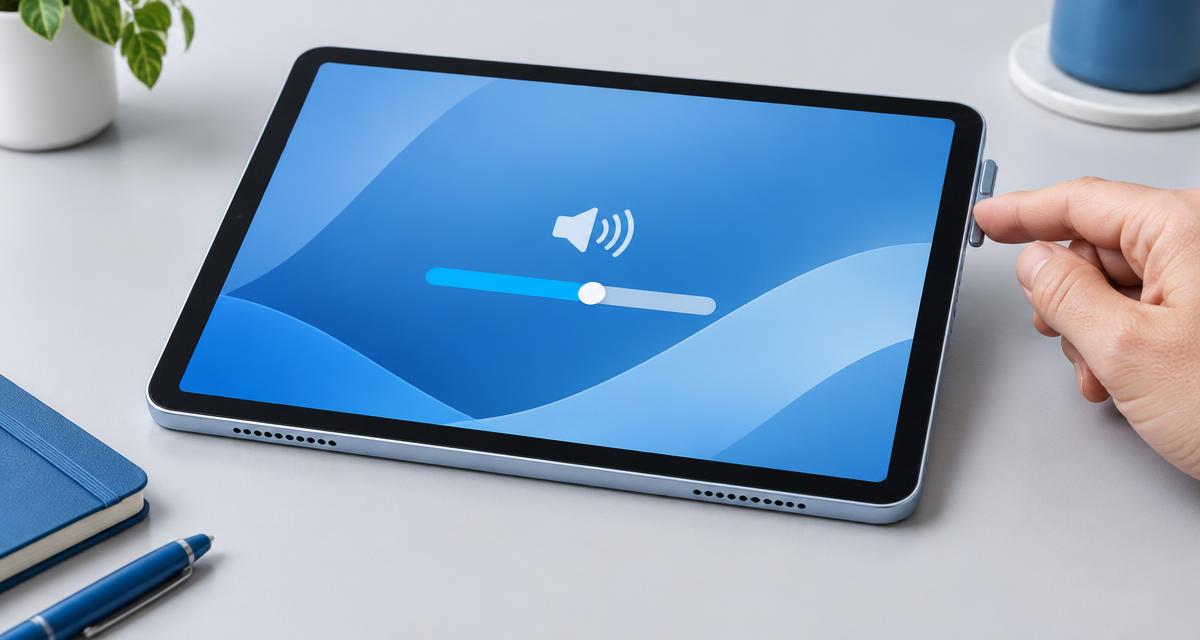
On iPad, the side volume buttons control media while audio is playing; when nothing is playing, they can instead adjust ringer and alert volume. Apple describes this difference in its iPad guide. Use a video or song, press Volume Up, and observe the onscreen control. You can also open Control Center and adjust its volume slider. Make sure the app itself is not muted and, if relevant, check the volume on the external speaker or headphones separately. On some versions, Settings offers separate controls for alerts or other sound categories; menu names vary with software. Do not infer a media volume problem from a notification slider or the reverse. If buttons appear to behave differently than expected, repeat the test during active playback and then while idle. This is a simple way to determine which category the control is changing, not a hardware test.
Silent mode and Focus: what they do and do not mean
Apple’s current iPad user guide says Silent mode does not mute audio from music, podcasts, movies, and TV shows. You can toggle Silent mode in Control Center on supported software. Silent mode and Focus can affect notifications, alerts, and certain system sounds, so they matter when the symptom is specifically missed or quiet alerts, but do not explain ordinary media being silent. Do Not Disturb is a Focus that suppresses or filters notifications according to its settings; it is not a replacement for checking media volume. Check Control Center for a Focus that may be active and Settings for notification sound choices if alerts are the only issue. Some app notifications may have no sound by design, be disabled, or be delivered quietly. Distinguish notification behavior from a speaker that fails to play media before changing settings.
Check where the audio is going
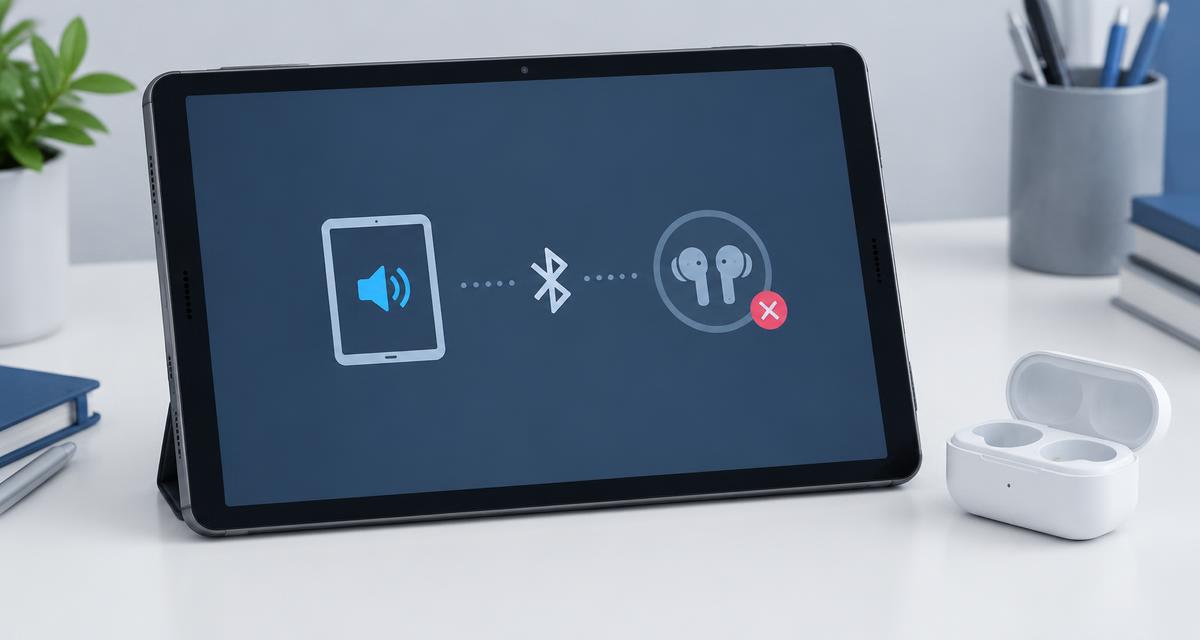
Audio can be audible somewhere other than the iPad’s built-in speakers. Open Control Center while media is playing and inspect the playback or AirPlay destination control. Choose iPad when you want built-in output, or disconnect the accessory temporarily. Check Settings > Bluetooth for connected headphones, earbuds, or speakers; turn Bluetooth off briefly only as a routing test if appropriate, then restore it afterward. Also consider USB-C or other wired audio devices and docks. Apple documents playing audio through Bluetooth accessories and selecting a destination. A connection can remain active after headphones have been put away, and an accessory may have its own low volume or mute control. If sound returns on iPad speakers after changing destination, the tablet’s speaker may not have been the source of the issue. If external output is silent too, investigate that accessory and app separately.
When only alerts or only media are missing
If video and music work but alerts do not, review Focus/Do Not Disturb, app notification permissions, alert tone selection, and alert volume rather than diagnosing a speaker. Check Settings > Notifications for the relevant app and Settings > Sounds for available alert controls; locations and options depend on iPadOS. If alerts work but media does not, confirm playback is active, increase volume while playing, inspect app mute, then check output routing. A Bluetooth headset may be selected even though the user expects built-in output. If only one app is silent, compare another app before reinstalling anything or resetting settings. If sound works only with headphones, that observation narrows the symptom to built-in output or its path, but does not prove a particular component has failed. Record exactly what worked and what did not.
Case, openings, and safe external checks
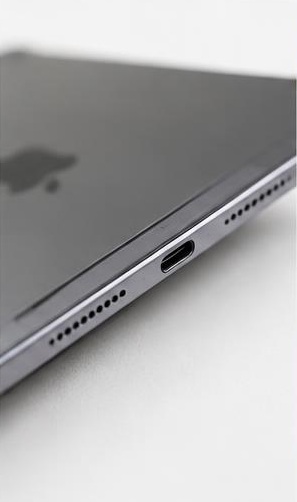
Remove a case or cover temporarily if it could cover or press against a speaker opening. Inspect the exterior for visible debris or damage without inserting objects. Apple advises checking openings and, if cleaning is necessary, using a clean, dry, soft-bristled brush gently. Do not use liquids, sharp tools, compressed air, or force; do not assume every grille-like opening is a speaker. Keep the iPad dry and follow model-specific guidance. Compare the same known-good media before and after removing the case at a moderate volume. A change may indicate obstruction or positioning, but is not proof of an internal defect or a guaranteed fix. If the tablet was wet, dropped, or visibly damaged, avoid aggressive testing and seek model-specific support.
Restart, update, and know when to ask for help
After checking app controls, volume, and output destination, restart the iPad using Apple’s instructions for its model, then test again. If an iPadOS update is available, install it when you have a backup, sufficient battery, and a reliable connection. A software update can address software issues but cannot establish that hardware is healthy. Avoid erasing the device or resetting all settings as an early step; these actions can remove preferences and should be considered only with appropriate backup and support guidance. If sound remains absent across multiple apps and built-in output after basic checks, or audio is persistently distorted, crackling, or intermittent, contact Apple or an authorized service provider. Apple’s speaker guidance notes that persistent issues may need service; it does not let a remote listener identify a failed part. Do not open the iPad or attempt component replacement based only on this symptom.
A short, repeatable check
For a useful comparison, choose a familiar clip with continuous dialogue or music, set a comfortable level, pause other sources, and keep the tablet uncovered on a stable surface. Confirm that the clip is actually playing. Listen first with the selected destination shown in Control Center, then deliberately select iPad. Try a second app. Note whether alerts differ from media and whether headphones behave differently. This is not a calibrated measurement and cannot determine internal condition; it simply separates routing, app behavior, and broad output symptoms. Avoid maximum volume, prolonged tones, or repeated playback if sound is harsh. If using a dedicated test page, treat it as an additional listening check, not as definitive diagnosis; see iPad స్పీకర్ పరీక్ష and టాబ్లెట్ స్పీకర్ పరీక్ష for related checks.