Trong bài viết này
- Quick answer
- Separate physical speakers from stereo channels
- Create a repeatable rotation comparison
- Rule out hands, cases, and nearby surfaces
- Center balance and briefly compare mono playback
- Compare apps and orientation behavior separately
- Check routing and physical condition
- Decide what is normal and what needs support
- Sources
Quick answer
If your tablet's speaker balance changes when you rotate it, remove the case, keep every grille clear, center the accessibility balance control, and compare a familiar spoken recording in portrait and both landscape directions. Briefly test Mono Audio where supported. Some tablets adjust stereo presentation with orientation, while grip, speaker placement, room reflections, and strongly separated recordings can also change what you hear.
Do not assume that the same physical grille must always carry the same stereo role. The useful question is whether content disappears, one physical side stays weak, or only one app behaves differently. A consistently quiet speaker area across apps and orientations deserves further investigation rather than repeated balance adjustments.
Separate physical speakers from stereo channels
A stereo recording contains left and right channels, but a tablet may have two or more physical speakers arranged around its edges. The device's processing can distribute content differently depending on its design and orientation. Manufacturers do not implement every model identically, so consult your tablet's documentation before treating a channel change as a fault. Apparent loudness can also change because a speaker now points toward a different surface.
Describe the symptom in physical terms first: the edge near the camera is quiet, the side under your hand sounds dull, or dialogue disappears only in one landscape direction. Then describe the content: missing words, weaker music, or a shifted stereo image. Keeping these observations separate prevents a left-right test recording from being mistaken for a direct test of each individual speaker component.
Create a repeatable rotation comparison
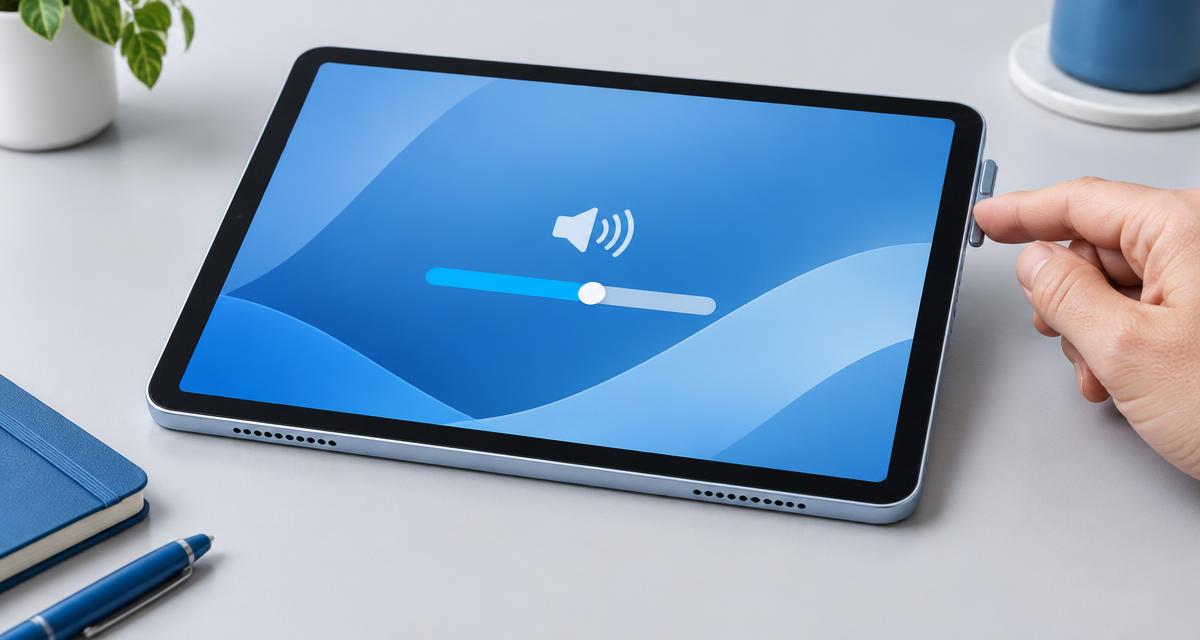
Use a familiar local speech recording and keep volume fixed at a comfortable setting. Hold the tablet at the same distance and height, with your hands away from the grilles. Listen in portrait, landscape with one edge upward, and landscape rotated the other way. Allow the interface to settle after each turn, and note the orientation rather than relying on memory.
Repeat using ordinary music, but avoid judging a complex stereo mix before the speech comparison. Some recordings deliberately place instruments or voices strongly to one side. Do not use an unfamiliar online test at excessive volume. If the tablet rests on a stand, repeat while holding it clear of the stand; a support lip can block a speaker or redirect sound in only one orientation.
Rule out hands, cases, and nearby surfaces
Take off the case and any keyboard cover or detachable stand. Inspect whether the case has symmetrical-looking cutouts that do not actually align with every grille. In landscape use, palms often cover openings that remain clear in portrait. Move your grip to the side edges without pressing on the screen or frame, then repeat the exact passage.
Try the comparison away from a wall and above a soft, dry support rather than flat on a hard table. Reflections and contact vibration can make one orientation seem louder or harsher. If the imbalance disappears when the device is freely held, investigate the case or support arrangement before changing software settings. Do not press a suspected weak speaker or flex the chassis to see whether its output changes; that is not a safe diagnostic method.
Center balance and briefly compare mono playback
On iPad, check Settings, Accessibility, Audio & Visual, and center the balance slider. On Samsung tablets, look under Accessibility, Hearing enhancements, for the relevant balance controls; availability varies. Other Android tablets use different labels, so search Settings for balance or mono. Note the original configuration if it reflects an accessibility preference you need to restore.
Turn on Mono Audio briefly and replay the speech and music examples in each orientation. Mono removes left-right content differences from the comparison, although the tablet may still use its speakers differently. If missing instruments return in mono, investigate channel content and balance before assuming a failed speaker. If one physical edge remains weak with mono content across several apps, the result more strongly supports an obstruction or device-level issue, but it is not a complete hardware diagnosis.
Compare apps and orientation behavior separately
Test a local video player and a second unrelated media app. If the change occurs in only one app, inspect that app's audio effects, spatial settings, player controls, and updates. A game may position sounds according to the scene or device movement, so it is a poor first reference for fixed balance. A spoken recording offers a simpler baseline.
Try orientation lock only to document the behavior, not as a guaranteed repair. Screen rotation and audio-channel handling are not necessarily controlled in the same way on every tablet. Restart the device and repeat your comparison before reconnecting accessories. Check for available stable system updates, but do not install unofficial audio drivers, booster utilities, or beta firmware to force a channel arrangement that the manufacturer may not support.
Check routing and physical condition
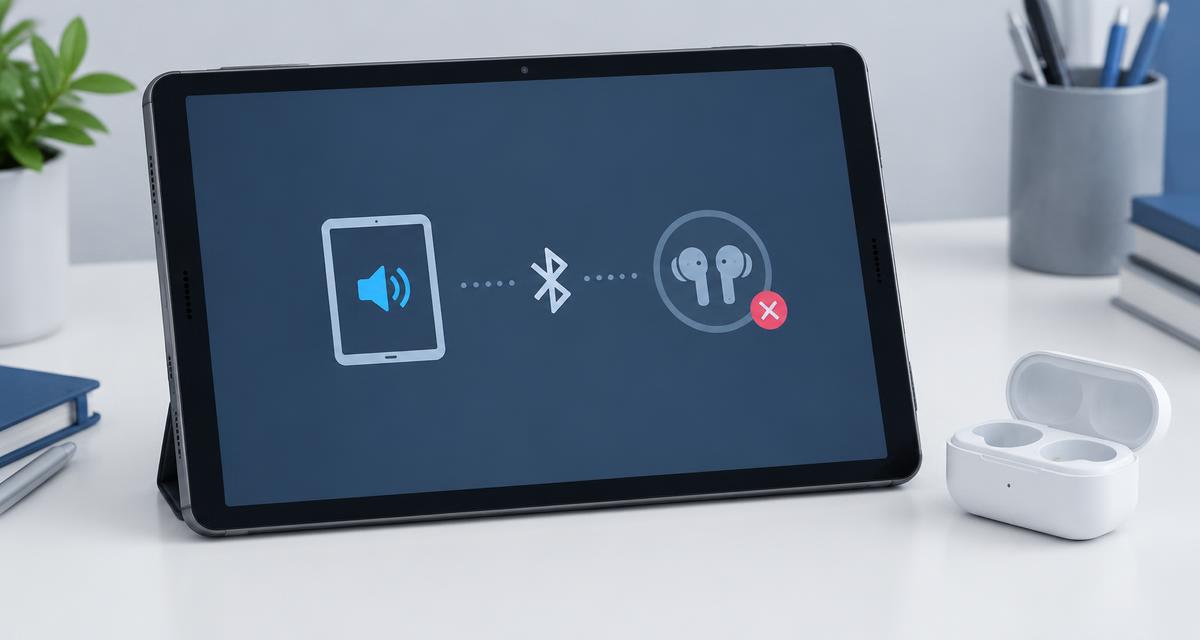
Confirm that sound is coming from the tablet rather than a Bluetooth speaker, headset, dock, or external display. Disconnect those accessories temporarily and choose the local output. An external speaker placed to one side can make rotation appear to change balance simply because your position relative to that speaker changes. Keep the source and listening position clear in your notes.
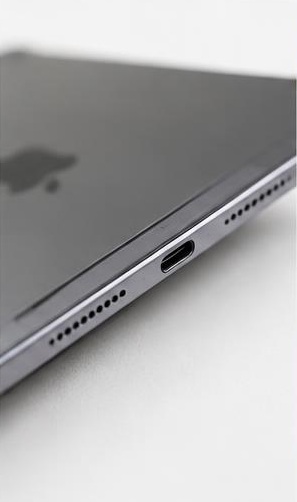
Inspect the tablet's grilles for covering film, compacted debris, dents, or signs of liquid exposure. Follow the manufacturer's exterior cleaning guidance and avoid sharp tools, forced air, liquids in openings, or adhesive compounds. If the issue started after a drop or repair, disclose that history. Rotation does not repair a damaged speaker, and a balance slider should not be used to conceal a persistent physical defect that is becoming worse.
Decide what is normal and what needs support
A changing stereo image with otherwise clear, complete sound may reflect the recording, grip, environment, or the model's intended orientation handling. Missing dialogue, consistent weakness at one physical edge, crackling, or a sudden new asymmetry is more concerning. Compare against your own repeatable tests rather than demanding identical loudness from every grille; multi-speaker tablets can use different drivers for different acoustic roles.
For support, provide the tablet model, system version, affected apps, orientation notes, and whether mono or case removal changed anything. Explain whether the weakness follows a physical edge or follows a channel label. Back up before service and bring the familiar test recording if possible. Ask the provider to reproduce both landscape directions and portrait playback, because a quick check in only one position may miss the original complaint.
Sources
Apple's iPad guide documents Mono Audio and stereo balance for controlled comparisons: apple.com guidance
Samsung documents balance settings and accessory-related sound checks: samsung.com guidance Neither source establishes a universal rotation-mapping rule; consult documentation for the exact tablet model.