في هذا المقال
- Quick answer
- Identify which kind of sound is muffled
- Check your grip, case, and protector alignment
- Confirm that the Pixel itself is playing
- Compare Adaptive Sound and app processing
- Separate network call quality from speaker quality
- Clean only the exterior and restart methodically
- Recognize a persistent hardware-pattern problem
- Sources
Quick answer
If your Pixel speaker sounds muffled, remove the case, disconnect Bluetooth and USB audio accessories, and compare two or three familiar recordings from different apps. Include a video stored on the phone so network quality cannot explain every result. Check the speaker openings for covering material, then restart and repeat the comparison. On supported models, briefly compare Adaptive Sound on and off.
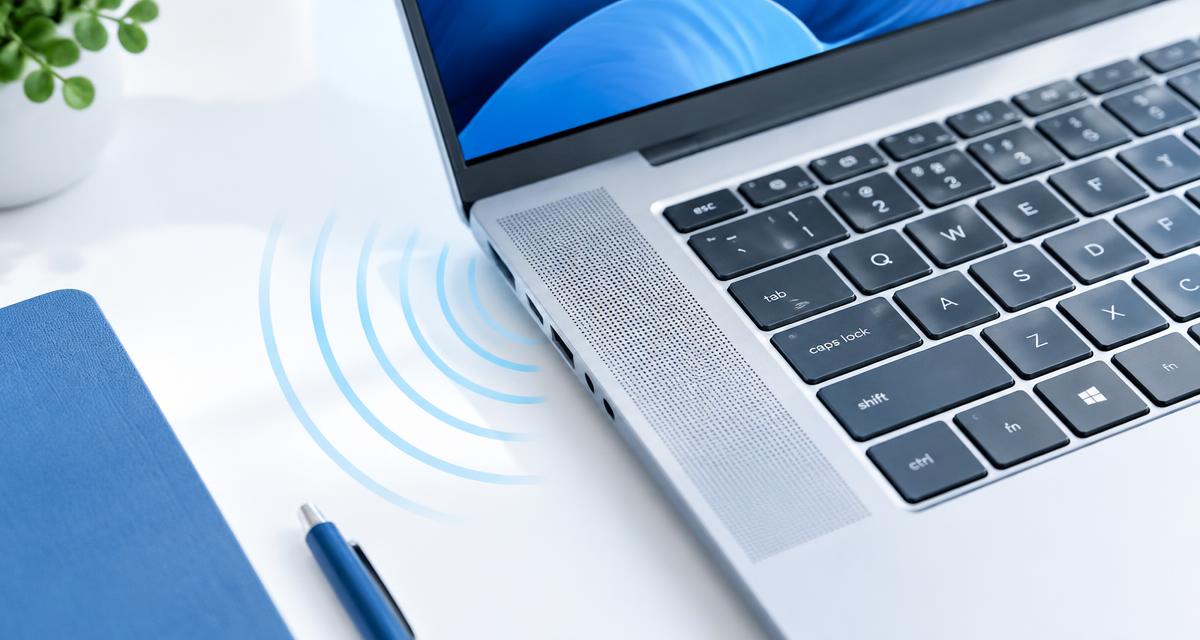
Avoid assuming that every opening is a speaker or that upper and lower speakers should sound identical. If muffling began after liquid exposure or an impact, follow the relevant safety guidance before further playback. A blocked acoustic path, a poor recording, and an internal fault can sound similar, so the goal is to narrow the pattern safely.
Identify which kind of sound is muffled
Start with clear speech rather than bass-heavy music. Listen to a familiar podcast or local video at a comfortable setting, then compare a normal call and a speakerphone call. Note whether consonants sound dull everywhere, only incoming calls sound unclear, or music alone seems heavy and indistinct. Those distinctions matter because calls depend on the other person's microphone and network as well as your own phone.
Google recommends comparing different songs or videos from different apps when investigating Pixel sound problems. Keep the room and phone position unchanged while you do this. If only one clip sounds poor, test that clip on another known-working output before changing the device. If all local recordings sound similarly muffled, continue with physical obstruction, output selection, and settings checks rather than blaming reception.
Check your grip, case, and protector alignment
Hold the Pixel by its side edges and make sure a finger is not covering an opening. Try portrait and landscape positions, because a gaming grip can block a speaker that remains clear during ordinary use. Remove the case completely rather than merely loosening one corner. Thick lips, poorly aligned cutouts, and attached accessories can alter the sound without creating an obvious visual blockage.
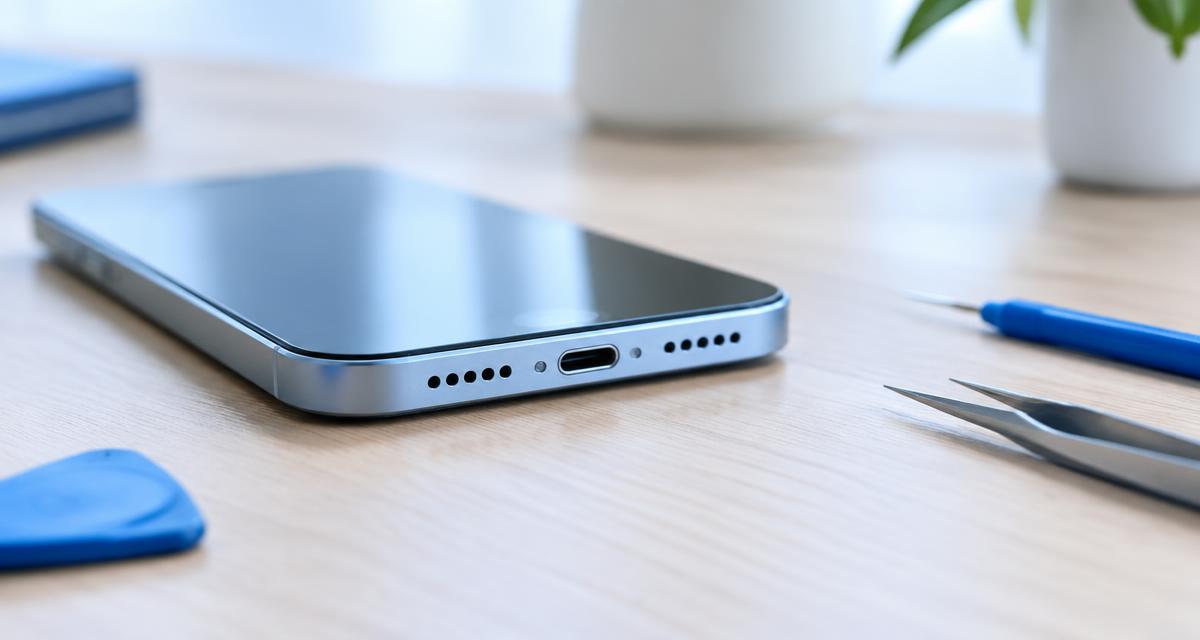
Inspect the screen protector around the upper receiver. A protector made for a similar-looking model may place its border or adhesive over an acoustic opening. Consult the model's hardware diagram before deciding which slots matter. Do not poke a grille to check whether it is open. A clear improvement with an accessory removed is useful evidence that fit, not an audio setting, needs attention.
Confirm that the Pixel itself is playing
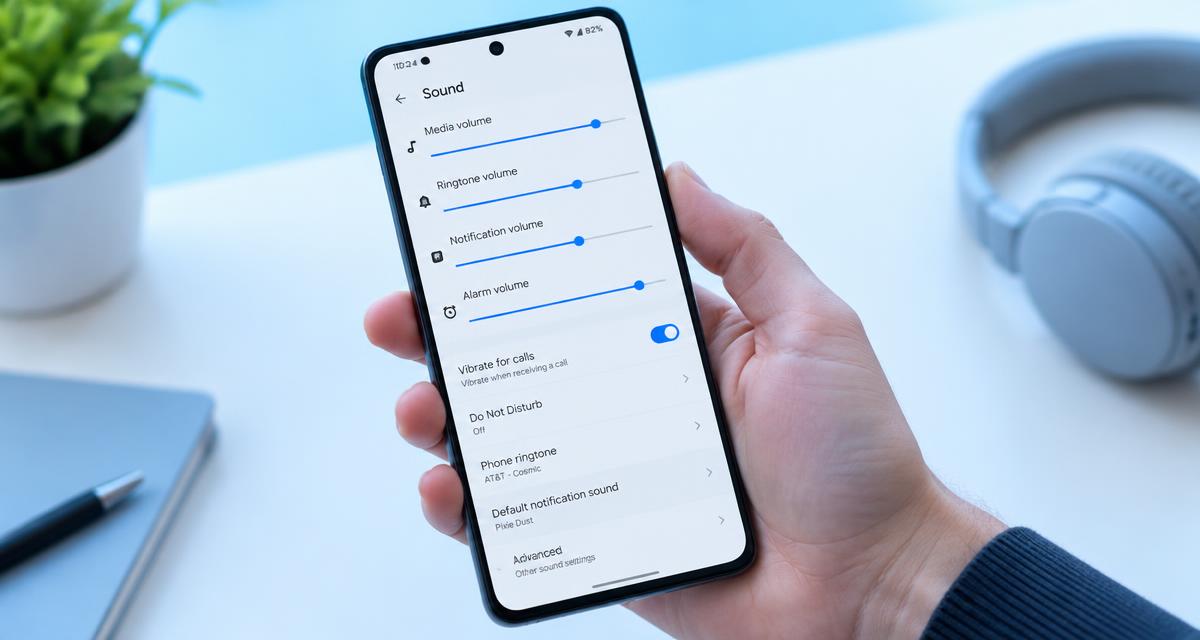
Open the media controls and inspect the output destination. Choose the phone instead of earbuds, a car, or another connected device. Temporarily disable Bluetooth and unplug USB equipment to simplify the test. Adjust the volume while the recording is actively playing so you are changing media output rather than an unrelated call or notification control. Keep the volume comfortable throughout the comparison.
If the audio is muffled only through an accessory, troubleshoot that accessory separately. If it is normal through headphones but dull through the built-in speakers, the problem is more specific, although that does not prove the speaker module is damaged. Different outputs use different acoustic paths and processing. Record that difference because it helps support distinguish broad app behavior from a problem limited to the phone's own sound output.
Compare Adaptive Sound and app processing
On supported Pixels, Adaptive Sound adjusts speaker output for the environment. Look under Settings, Sound & vibration, and use the option only if your model provides it. Play the same short passage with the feature enabled and disabled, leaving volume and phone position unchanged. Google explains that Adaptive Sound applies to the phone speaker rather than external speakers or headphones.
Also inspect the affected media app for equalization, normalization, or voice-enhancement options. Temporarily return custom processing to a neutral setting and compare again. Do not install a booster to compensate for muffling: extra gain does not remove a blocked opening and can make distortion more obvious. If no setting changes the symptom, restore your preferences instead of leaving a collection of unrelated audio changes in place.
Separate network call quality from speaker quality
If local recordings are clear but calls sound muffled, try a second caller and another location. Ask whether the other person is using a covered microphone or a problematic headset. Compare an ordinary cellular call with an internet call when practical. A single caller's poor audio is not strong evidence that your Pixel speaker needs cleaning or replacement.
Google's sound troubleshooting includes checking the connection and comparing Wi-Fi-related calling conditions. Make these comparisons while stationary and when you can safely finish the call. If changing location or connection changes the problem but local audio remains consistently clear, record that pattern for your carrier or calling-app support. Do not reset every network setting unless the evidence points there and you understand which saved connections or preferences would be removed.
Clean only the exterior and restart methodically
With the phone disconnected from power, inspect accessible speaker surfaces under good light. Use a soft, dry cloth for exterior dirt and follow Google's cleaning guidance for your exact device. Do not insert metal tools, push adhesive putty into the openings, spray liquid onto the grille, or force air through it. Embedded contamination is a reason to seek appropriate cleaning help rather than progressively stronger home methods.
Restart the Pixel using its normal power menu, then replay the same local recording before changing anything else. Check for available Android and app updates. If muffling appeared immediately after installing an audio-related app, consider its settings or removal after protecting any saved data. If the phone recently became wet, stop ordinary cleaning experiments and follow manufacturer drying instructions; sound playback cannot confirm that internal components are safe or dry.
Recognize a persistent hardware-pattern problem
A service assessment is reasonable when several local sources remain muffled with accessories removed, output confirmed, and the phone restarted. Seek help sooner if there is crackling, visible grille damage, sudden loss of one output, or a clear connection with a drop. A successful headphone test does not eliminate a physical speaker-path problem, and a brief normal alert does not necessarily rule out an intermittent fault.
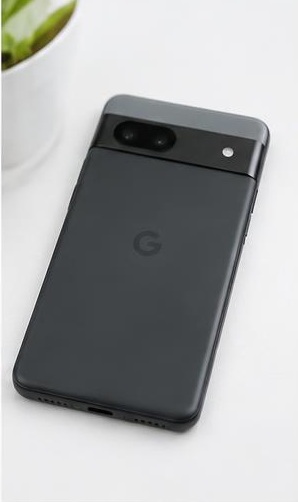
Prepare your Pixel model, Android version, affected apps, and a short list of repeatable examples. Include whether Adaptive Sound changed anything and whether normal calls differ from speakerphone. Back up important information before repair, and ask about service preparation. You do not need to prove the exact failed component yourself; a precise description of conditions and comparisons is enough to make the next diagnostic step more focused.
Sources
Google's official Pixel sound guide covers connection checks, restarting, comparing multiple recordings, and hardware obstructions: google.com guidance
Google's playback guide explains output selection and Adaptive Sound, including supported-device limitations: google.com guidance Consult the options actually available on your Pixel.