Quick answer
Start with a familiar audio file or video and try it in two different applications. If sound works in one app but not another, the built-in speakers are capable of playback. Apple makes this distinction in its internal-speaker guidance. Focus first on the silent app's own controls, the media itself, or the website rather than assuming the Mac needs hardware repair.
Bu məqalədə
- Confirm what is silent before changing the Mac
- Check app volume and muted browser content
- Choose built-in speakers in Sound settings
- Disconnect external audio paths methodically
- Use headphones as a comparison, not a conclusion
- Restart and update before using advanced fixes
- Distinguish Bluetooth quality problems from speaker silence
- Check external obstructions and decide when service is needed
- Sources
Confirm what is silent before changing the Mac
Start with a familiar audio file or video and try it in two different applications. If sound works in one app but not another, the built-in speakers are capable of playback. Apple makes this distinction in its internal-speaker guidance. Focus first on the silent app's own controls, the media itself, or the website rather than assuming the Mac needs hardware repair.
Check whether the issue affects built-in speakers, external speakers, headphones, or every output. Those are different troubleshooting paths. Note any recent change, such as connecting a display, using an audio interface, installing a conferencing app, or waking from sleep. Keep the first test simple: one app, a modest volume, and no unnecessary accessories.
Check app volume and muted browser content
Music, video, and meeting apps often have their own volume controls in addition to macOS output volume. Raise the player's volume gradually and confirm that playback is actually advancing. A paused stream, unavailable track, or muted advertisement does not provide a useful speaker test. In conferencing software, select the intended speaker in the application's audio settings.
In Safari, inspect the audio button associated with a webpage or tab. Other browsers may offer tab or site muting through the tab's menu. A website's embedded player can also be muted independently. If a local file plays correctly but one website does not, try reloading that page and checking its player settings before changing system-wide audio configuration.
Choose built-in speakers in Sound settings
Open Apple menu > System Settings > Sound > Output. On older macOS versions, the equivalent area is in System Preferences. Select the built-in speaker entry, which may include your Mac model's name. Raise Output volume and make sure Mute is not selected. If a balance control is shown, center it for the test.
Control Center > Sound also provides a convenient output selector. Check this after disconnecting accessories or answering calls on another Apple device, because your intended destination may not be the current one. A connected Bluetooth headset or an AirPlay destination can be silent from your perspective while the Mac is still sending audio there successfully.
Disconnect external audio paths methodically
Apple recommends disconnecting devices that can receive audio when checking internal speakers. This includes headphones in the 3.5 mm socket, USB or Thunderbolt audio devices, and external displays connected through USB or HDMI. Save work before removing a dock that also carries storage or other essential peripherals. Disconnect safely rather than pulling everything out during an active transfer.
After each change, reselect the built-in speakers and replay the same test. A display may advertise an audio endpoint even if its volume is controlled elsewhere or it lacks practical playback capability. A dock or interface can also remain the selected destination. Once the internal speakers work, reconnect equipment individually and note which connection changes the output.
Use headphones as a comparison, not a conclusion
Connect known-working headphones or a supported USB audio device and select that output explicitly. If it works, the application and at least one Mac audio path are functioning. This narrows the investigation, but it does not by itself prove that the internal speakers are physically damaged. Their output selection or detection may still be wrong.
If wired headphones are not detected or the Mac behaves as though a plug is present after removal, inspect the socket externally for visible obstruction. Do not insert metal tools, add liquid, or force the connector. If the built-in speaker entry is missing even after disconnecting accessories and restarting, document that symptom for Apple support rather than repeatedly probing the socket.
Restart and update before using advanced fixes
Quit audio, recording, and meeting apps, save your work, and restart the Mac normally. Then test before reopening your usual collection of background applications. Install supported macOS updates after backing up important data and checking compatibility with any specialist audio software you depend on. Updates can address software problems, but they do not guarantee that a silent speaker will recover.
Avoid beginning with Terminal commands copied from forums. Restarting an audio process may interrupt active work and does not explain a recurring fault. Likewise, Intel-era reset instructions are not universal instructions for Apple silicon Macs. Follow Apple's model-specific support guidance if a support representative recommends an advanced step, rather than applying every reset procedure you can find.
Distinguish Bluetooth quality problems from speaker silence
If the real issue is poor sound from Bluetooth headphones rather than silent internal speakers, close applications using the headphone microphone and test again. Apple explains that microphone use can switch supported Bluetooth headphones into a mode with reduced playback quality and volume. Selecting the Mac's microphone in a meeting app may help isolate that behavior where the app supports separate input selection.
Apple also recommends reselecting the headphones after briefly selecting internal speakers when Bluetooth quality remains reduced. This is a targeted check for that symptom, not a repair for every Mac audio issue. For a silent Bluetooth speaker, verify its own input, battery, volume, and connection to other devices. Do not assume an internal-speaker problem and a wireless accessory problem share the same cause.
Check external obstructions and decide when service is needed
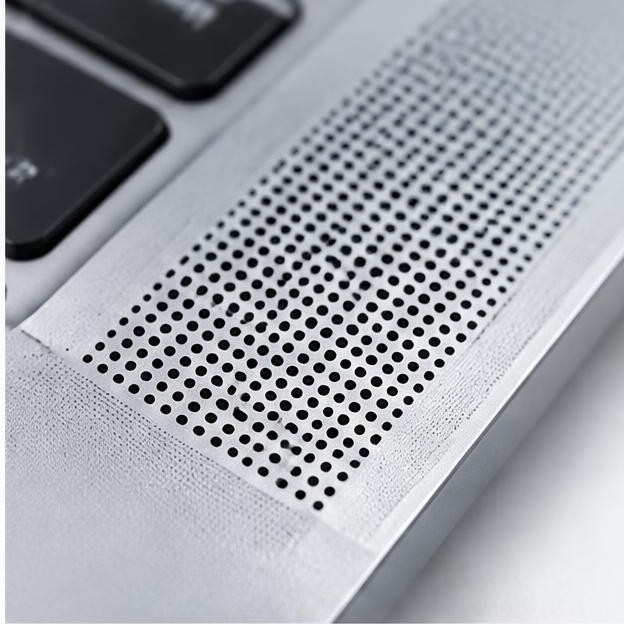
Keep speaker openings clear of cases, covers, fabric, and objects on the desk. Inspect accessible areas without opening the computer or pushing anything through a grille. For surface cleaning, follow the Mac model's cleaning guidance and keep moisture away from openings. Loud tones cannot repair a damaged speaker, and aggressive brushing or compressed air can create additional problems.
Contact Apple or an authorized service provider if built-in speakers remain silent after the documented volume, output, and disconnection checks. Provide your Mac model, macOS version, whether the speaker entry appears, and whether headphones work. If there was a spill, overheating, or visible damage, mention it promptly and avoid further testing that could worsen the condition. Back up data before arranging service whenever the Mac can be used safely.
Sources
Apple: If the internal speakers on your Mac aren't working — apple.com guidance
Apple: If you can't hear sound from your Mac speakers — apple.com guidance
Apple: If sound quality is reduced when using Bluetooth headphones with your Mac — apple.com guidance