Tässä artikkelissa
- Quick answer
- Locate the exact moment and character of the noise
- Check the source using a second output
- Eliminate contact vibration and loose accessories
- Return audio processing to a simple baseline
- Restart and investigate app-specific behavior
- Inspect contamination and recent physical events
- Set a stopping point for home troubleshooting
- Sources
Quick answer
If your phone speaker crackles at low volume, compare the same quiet passage in two apps and play another known-good local recording. Remove the case, disconnect accessories, and test with the phone held freely rather than resting on a hard surface. Restart and temporarily disable optional equalization or sound effects. Low-volume crackling can come from the recording, processing, a vibrating accessory, or hardware; it is not a diagnosis by itself.
Do not increase the volume sharply to drown out the noise, and do not run prolonged bass sweeps. If crackling started after a drop or moisture exposure, stop repeated testing and follow the relevant inspection or drying guidance. A short, repeatable comparison is more useful than continuous playback.
Locate the exact moment and character of the noise
Choose a passage where the crackle is easy to reproduce and note its timestamp. Does it happen on a particular word, during a quiet musical note, when playback starts, or randomly while the phone is otherwise idle? A noise tied to the same instant in a recording is more likely to involve that source or its processing than a random interruption, although further comparisons are still necessary.
Describe what you hear without assigning a component failure: a single click, repeated static, a papery rattle, or a faint buzz under speech. Listen briefly at your usual distance instead of placing the speaker against your ear. Very quiet rooms make minor recording artifacts more noticeable, so compare against your normal listening conditions before deciding that a newly noticed sound represents a worsening device fault.
Check the source using a second output
Play the same passage through known-working headphones or an external speaker at a modest level. If the identical crackle occurs at the same timestamp, examine the recording, stream, or app before cleaning the phone. Try another download or a different version of the content when available. Compressed uploads and imperfect recordings can contain artifacts that become obvious during sparse or quiet passages.
Then play a local camera video or spoken recording through the phone. Use at least two unrelated sources. If only streaming breaks up, compare connection quality and downloaded playback. If several clean local files crackle only through the built-in speaker, continue with accessory, processing, and hardware-path checks. Headphone playback is a comparison tool, not definitive proof: the outputs use different components and can receive different processing.
Eliminate contact vibration and loose accessories
Take the phone out of its case and remove detachable grips, stands, or decorative attachments. Hold it by the side edges without covering the openings. Next, place it on a folded dry cloth and repeat the passage. A hard tabletop, metal stand, or loose case feature can create a rattle that seems to come from inside the phone.
If changing the support surface removes the noise, inspect the accessory rather than pressing on the phone. Do not squeeze the chassis, push the grille, or tap the device to locate a loose part. Those actions can worsen damage and make the result difficult to interpret. Note whether the crackle follows the same musical notes even when the phone is freely held; that is useful information for a repair assessment if the symptom persists.
Return audio processing to a simple baseline
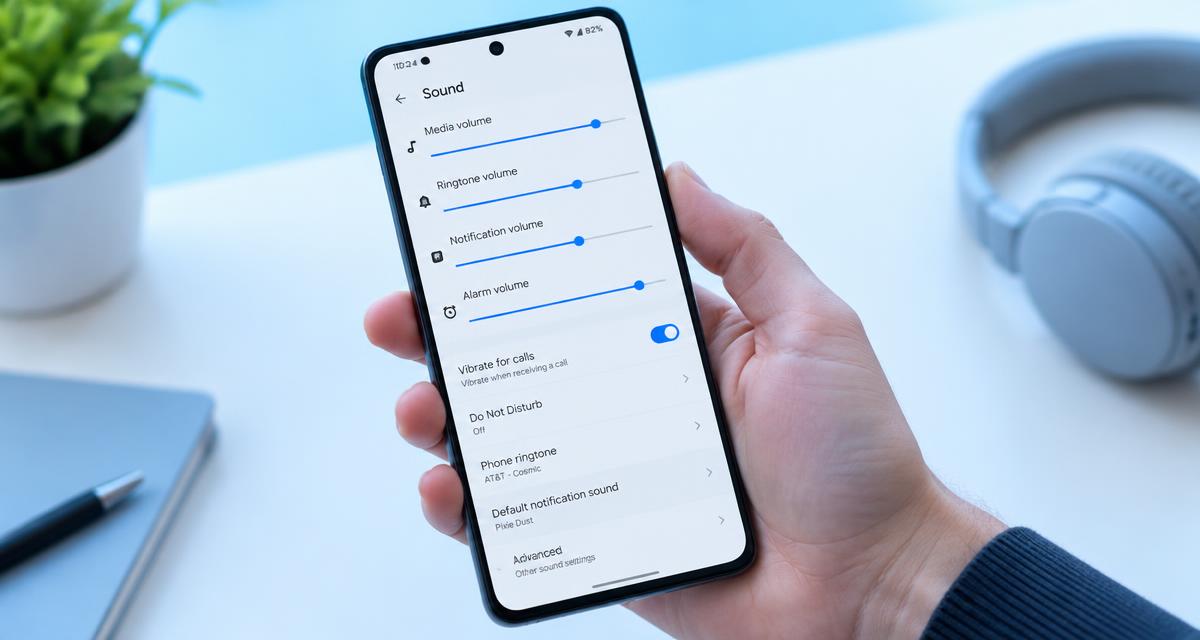
Temporarily disable optional equalizers, bass enhancement, spatial effects, or volume-boosting apps. On supported Galaxy phones, compare a neutral equalizer and optional Dolby settings. On supported Pixels, compare Adaptive Sound on and off. Inside the media app, inspect normalization and playback effects. Availability varies, so do not search for a setting your device does not provide.
Change one option at a time and replay the same short passage without altering volume. Some processing combinations make existing artifacts or mechanical noise more noticeable; that does not mean the feature has damaged the speaker. If an option makes no difference, restore your preference. Avoid installing another sound enhancer as a diagnostic step, because it adds processing and may conceal the underlying pattern rather than clarify it.
Restart and investigate app-specific behavior
Close the affected app, end any active voice chat or recording session, and restart the phone. Repeat the local test before reconnecting accessories. Check for stable system and app updates. If crackling occurs in only one app after a recent update, report the version and exact timestamp example to that app's support rather than assuming that the physical speaker suddenly failed.
If an audio utility was recently installed, disable its processing or remove it after protecting any saved settings or projects. Manufacturer-guided Safe mode can help isolate downloaded apps on supported Android devices, but it changes which apps are available, so plan an appropriate built-in test. Do not clear app storage or factory-reset the phone without understanding the data consequences and the specific hypothesis that the step is intended to test.
Inspect contamination and recent physical events
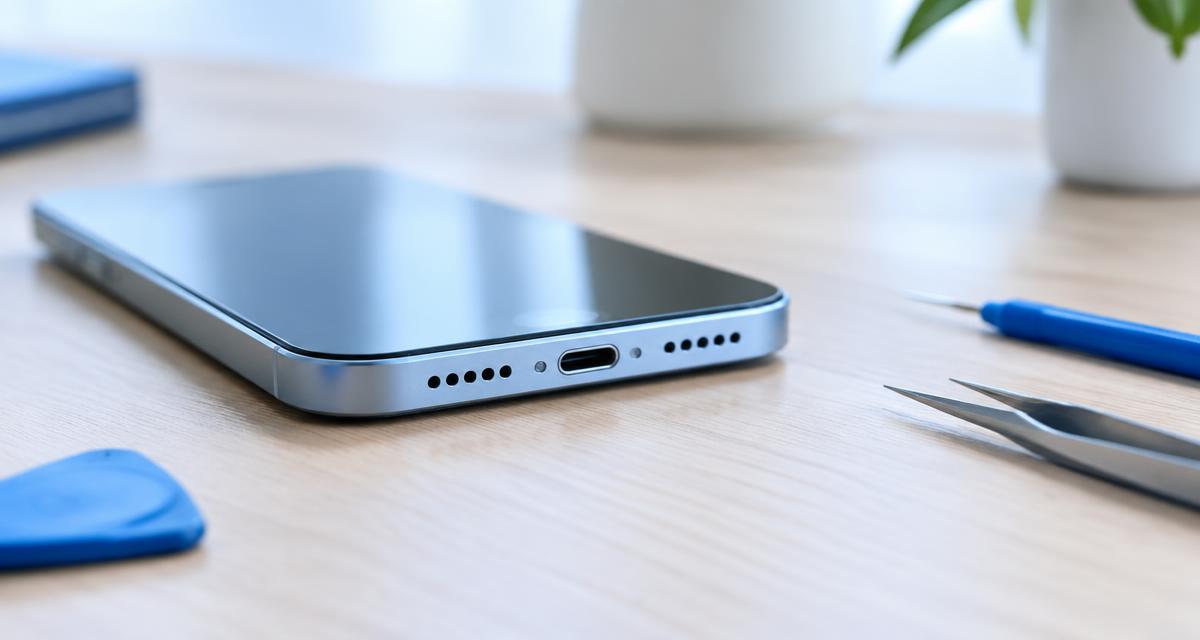
Look at the speaker openings under bright light. Remove obvious external covering material, but do not dig into the mesh. Follow the manufacturer's cleaning instructions, using only gentle exterior methods. Liquid, sticky residue, embedded lint, or a dented grille calls for more caution than ordinary surface dust. Compressed air, sharp objects, and adhesive compounds can turn an uncertain noise complaint into a definite physical problem.
Consider whether the crackle began after a drop, screen replacement, rain, or a spill. Mention those events even if the phone continued working afterward. Follow manufacturer liquid-exposure guidance before operating or charging a wet device. A cleaning tone cannot repair impact damage, remove internal corrosion, or establish drying safety. If the phone is unusually hot, swollen, or separating, stop using and charging it and seek appropriate service.
Set a stopping point for home troubleshooting
Arrange an assessment if crackling remains across multiple local recordings with accessories removed, neutral processing, and a fresh restart. Service is also reasonable when the noise is worsening, appears during ordinary speech, or follows a known impact. You do not need to demonstrate it with a loud tone; a short everyday recording that reliably triggers the symptom is a better example.
Prepare the model, software version, affected speaker area, and results from headphone and surface comparisons. If possible, show the technician the timestamp and the conditions needed to reproduce it. Back up important information before service. Until then, use captions or another suitable output if the noise is distracting, but avoid repeatedly testing a damaged speaker. A stable, documented symptom is enough to justify professional investigation without claiming a particular repair will be necessary.
Sources
Apple's official guide addresses crackling, distorted sound, obstruction, and service: apple.com guidance
Google recommends comparing several recordings and apps for distorted Pixel sound: google.com guidance Samsung provides accessory-removal and restart checks: samsung.com guidance