આ લેખમાં
- Quick answer
- Build a reliable before-and-after comparison
- Confirm the output and the active volume control
- Check balance and app processing without changing everything
- Separate an app problem from an iOS-wide problem
- Inspect the speaker path without aggressive cleaning
- Use resets only when the evidence justifies them
- Know when the next step is service
- Sources
Quick answer
If your iPhone speaker became quiet after an update, play a familiar recording, select iPhone as the playback destination, and adjust the volume while that recording is playing. Disconnect Bluetooth accessories and USB audio equipment, restart the phone, and compare another app before changing additional settings. An update happening immediately before the problem does not prove that the update damaged the speaker.
Keep tests at a comfortable listening level. If the phone also crackles, has visible damage, or recently became wet, stop repeated playback and address that condition first. The most useful distinction is whether every sound is quieter or only music, calls, notifications, or one particular app. Each pattern points toward different checks.
Build a reliable before-and-after comparison
Choose a short spoken recording already stored on the phone. A downloaded podcast or familiar video works better than an unfamiliar streaming clip because advertisements, mastering, and connection quality can change apparent loudness. Listen in the same quiet room, with the phone in the same position and its openings unobstructed. Write down the approximate volume setting rather than relying on memory.
Compare that recording with one other local item and a brief ringtone preview. Then make a normal call if calling is also affected. Record which category is quiet: all playback, one app, alerts, or the call receiver. Avoid comparing your phone with a different iPhone model; speaker design, processing, and recording choices make that comparison unreliable. A repeatable test on your own device is more informative.
Confirm the output and the active volume control
Open Control Center while media is playing and inspect the playback destination. Select the iPhone rather than an AirPlay speaker, television, car, or headset. Disconnect any USB adapter or dock for the test. Temporarily turn Bluetooth off in Settings if you need to rule out an accessory reconnecting automatically. A connected device may receive audio even when the phone screen still shows the video.
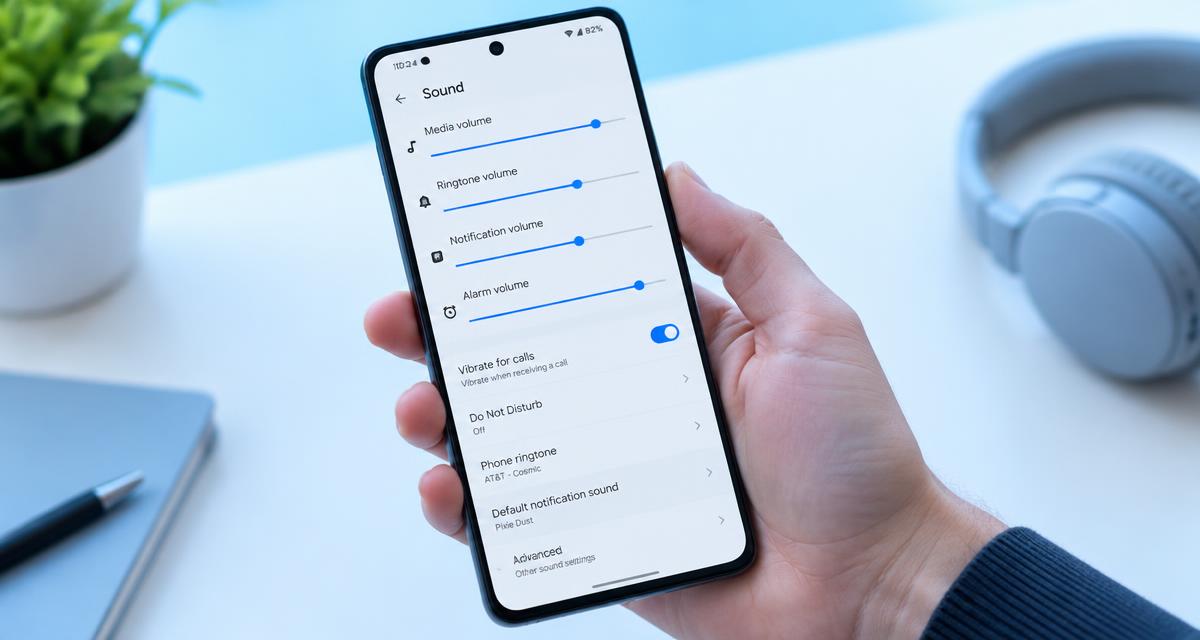
Use the side buttons during actual playback. Those buttons can control a different sound category when nothing is playing, depending on your settings. Likewise, adjust call volume during an active call rather than before dialing. Silent mode and Focus mainly help explain missing alerts; they are not universal explanations for quiet music. Note exactly which slider changes before deciding that the speaker itself is weak.
Check balance and app processing without changing everything
Go to Settings, Accessibility, Audio & Visual, and check that the left-right balance is centered. On stereo content, an extreme balance setting can make playback seem incomplete or uneven. Briefly compare Mono Audio if a recording contains strongly separated channels, then restore your preferred setting. Mono is a diagnostic comparison, not a repair for a blocked or damaged speaker.
Next inspect the affected app for its own equalizer, normalization, volume leveling, or playback controls. Availability and names vary by app and software version. Change one option, replay the same passage, and write down the result. Do not assume that headphone-specific settings govern the built-in speaker. Keeping unrelated settings unchanged prevents an apparently successful fix from becoming impossible to explain or reproduce later.
Separate an app problem from an iOS-wide problem
If only one app sounds quiet, close and reopen it, check for an app update, and compare downloaded content with streaming content. Confirm that the app has not selected a remote playback target internally. Try another recording inside that same app, because an unusually quiet upload can resemble a device problem. Website players may also have their own mute and volume controls.
Restart the iPhone normally after saving your work. Then repeat your original local recording before opening several other apps. Check Settings for any subsequently available iOS maintenance update, but do not install beta software as an audio troubleshooting shortcut. If the issue persists across unrelated apps after restarting, note the iPhone model, installed iOS version, and when the symptom began. That is more useful to support than simply reporting that an update ruined the volume.
Inspect the speaker path without aggressive cleaning
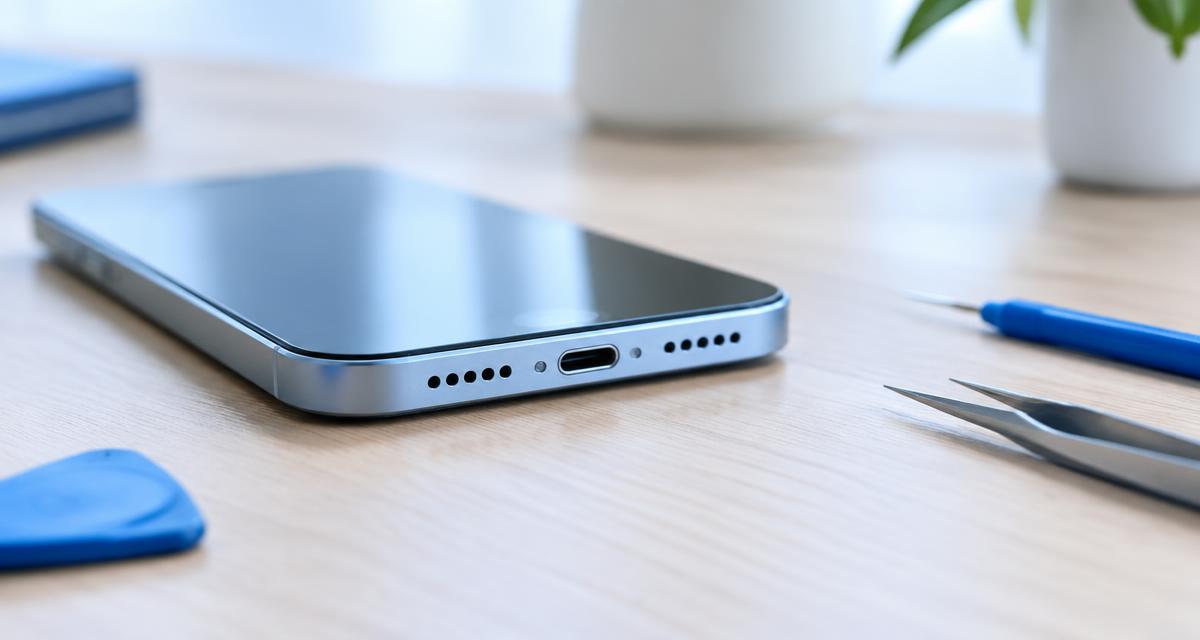
Remove the case and inspect the bottom openings and upper receiver under good light. A shifted case lip, dirty mesh, or protector overlapping the receiver can become noticeable around the same time as an update by coincidence. Not every opening along the bottom edge is a speaker, so consult the model layout instead of assuming that two matching grilles should produce equal sound.
Apple recommends a clean, dry, soft-bristled brush when cleaning the speaker or receiver opening is necessary. Work gently across the exterior rather than forcing bristles inside. Do not use pins, cleaning liquid, compressed air, or adhesive putty. If moisture is possible, follow the device's liquid-exposure guidance instead of playing repeated cleaning tones. Surface cleaning cannot establish whether an internal component is dry or undamaged.
Use resets only when the evidence justifies them
Avoid erasing the phone as your first response. A factory reset cannot remove a physical blockage or repair a damaged receiver. It also creates extra work restoring accounts, authenticator access, and downloaded content. If ordinary checks identify one affected app, concentrate on that app before considering system-wide changes. Back up important information before any step that removes apps, settings, or data.
A settings reset may be suggested by Apple support after they review the pattern, but ask what the chosen reset changes and what you must reconfigure afterward. Network resets are particularly unhelpful when a local recording is equally quiet without any network connection. If support recommends a clean software comparison, follow their instructions carefully and document whether the problem exists before restoring your previous configuration.
Know when the next step is service
Arrange an assessment if multiple local recordings, ringtone previews, and speakerphone calls remain abnormally quiet after routing checks, restarting, and removing obstructing accessories. Persistent crackling, a silent speaker location, or symptoms following impact also justify professional inspection. Speakerphone and media can use different processing, so one successful test does not certify every component, but consistent failures across several tests strengthen the hardware concern.
Prepare a short support summary: model, iOS version, affected audio categories, whether headphones sound normal, and the exact checks already completed. Include any drop or liquid exposure even if it happened earlier. Ask about backup requirements and service options before handing over the phone. Do not repeatedly raise the volume to compensate for a worsening fault; use captions or an appropriate external output temporarily when available.
Sources
Apple's official speaker troubleshooting covers obstruction checks, gentle exterior brushing, ringtone testing, and service: apple.com guidance
Apple's audio settings guide explains Mono Audio and stereo balance: apple.com guidance Menu availability can vary with the installed software and iPhone model.