
Quick answer: Monitor Speaker Test
Compare monitor speaker playback with a short, quiet signal; check routing and ordinary media before assuming a fault.
This tool starts at 1000 Hz and offers 300–5000 Hz. It creates a playback signal, not a microphone measurement or automatic repair. Confirm routing, listen briefly, and compare with familiar audio.
Speaker test: understand what you are hearing
A speaker test helps you check whether sound reaches the expected output and whether it is clear. FixMySpeaker.now lets you select left, right, or both channels. Use it to investigate missing audio, reversed connections, uneven volume, or distortion before assuming that a speaker needs replacing. It is a listening check, not a calibrated measurement of speaker quality.
A left right speaker test is especially useful after connecting headphones, installing desktop speakers, or changing an audio interface. On a phone, the result depends on the model’s physical speakers and internal routing. Some devices combine or process channels. Start with a simple question: does each selection produce sound where your particular setup is supposed to reproduce it?
How to run a left right speaker test
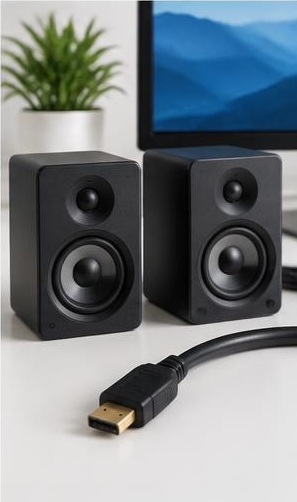
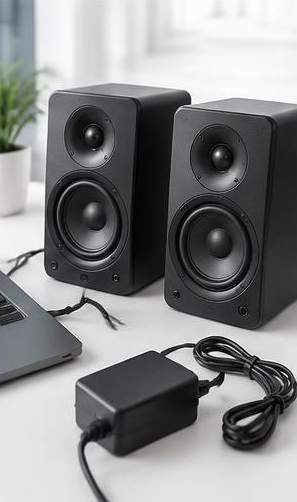
Connect the speakers or headphones you intend to check and select them as the system output. Set a low media volume before starting. Keep left and right speakers clearly identified from your listening position. For headphones, check the L and R markings rather than guessing from the cable position. Place speakers at similar distances if you want a useful balance comparison.
Play the left channel, stop, then play the right channel. Finally select both and listen from the center. Repeat at a comfortable level if needed, without changing the volume between channels. Write down whether the issue follows one channel, one physical speaker, or one connection.
Confirm that left playback comes from the expected left side.
Check right playback separately rather than relying only on music.
Use both channels to notice broad differences in level or clarity.
How stereo channels and routing work
Stereo audio contains separate left and right signals. A stereo test sends channel-specific audio through the browser, operating system, and selected output hardware. Every stage can affect the result. Accessibility settings may combine stereo into mono, a balance slider may favor one side, or an adapter may connect incorrectly. A surprising result is therefore a clue, not an immediate diagnosis.
When both speakers play during a left-only selection, check mono audio settings first. Wireless speakers, smart displays, and some portable devices may intentionally combine channels. Surround receivers may also apply processing that spreads stereo across several speakers. For a simpler test, select a normal stereo listening mode and turn off optional spatial effects temporarily, then restore your preferred settings afterward.
Testing phones, tablets, and laptops
Phones do not always place left and right channels in a fixed way that matches two obvious bottom openings. One opening may be a microphone, and the earpiece may contribute to media playback. Device orientation can affect stereo presentation on some models. Consult the model’s documentation before treating different output levels as proof of a broken speaker.
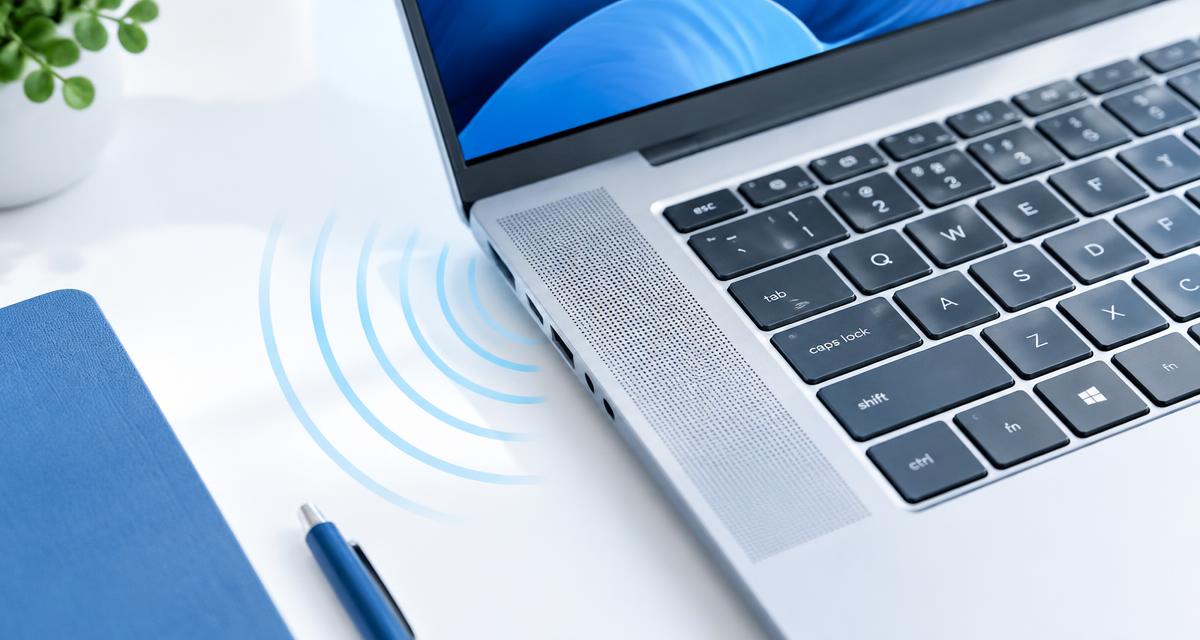
For laptops and tablets, move the device onto a firm, unobstructed surface. Bedding, a protective cover, or your hands can block downward-facing speakers. Compare channels while keeping the orientation unchanged. If the built-in speakers sound uneven but headphones do not, that narrows the possibilities without proving a specific hardware fault. Room reflections and speaker placement can also make one side seem louder.
Troubleshooting a silent or reversed channel
If one side is silent, inspect the simplest connections first. Fully insert headphone plugs, check removable cables, and verify that powered speakers are switched on. Lower the volume before reconnecting equipment. Try a known working output device, or test the suspect speakers with another source. Changing one item at a time makes the result easier to interpret.
If left and right are reversed on external speakers, check labels and cable connections. Avoid compensating with random software changes before checking the physical setup. With wireless earbuds, confirm both buds are charged and connected according to the manufacturer’s instructions. A browser test cannot repair a weak battery, a damaged cable, or a failed amplifier. Persistent one-sided audio deserves a more targeted hardware check.
Checking distortion and uneven volume fairly
Use moderate volume and keep the test conditions consistent. A speaker that distorts only near its highest setting may be running into its output limits. Distortion at low volume across several sources is more concerning, but the cause could still be a loose enclosure, damaged connection, or processing setting. Do not turn the sound up repeatedly to make a buzz more obvious.
For balance checks, sit centrally and move nearby objects that block one speaker. If possible, swap the physical speaker positions while keeping channel connections clearly tracked. A difference that stays with the room position suggests acoustics or placement. A difference that follows a speaker suggests that speaker or its associated connection. This comparison is more useful than judging loudness from one listening position alone.
Listening safely during a stereo test
Begin at a low level, especially with headphones. Take the headphones off before starting if you do not know how loud the selected output will be. Raise volume gradually and stop if the sound feels sharp, painful, or tiring. A short channel check is usually enough to establish whether sound is reaching each side.
Do not put a phone speaker against your ear to locate output during a loud test. Keep children and pets away from unexpectedly loud playback. Avoid connecting bare speaker wires while an amplifier is operating, and follow the equipment manual for wiring changes. This test is designed to help you listen methodically, not to push a system to its maximum output or test hearing limits.
Quick answers and choosing the next tool
Does passing a speaker test mean the system is perfect? No. It confirms only what you heard under the current conditions. Intermittent faults, limited bass response, and distortion at other frequencies may remain. Can this test measure hearing? No. Differences between ears can affect perception, but this page is not a hearing assessment or a medical screening tool.
Use the Tone Generator when you want to explore a particular frequency at a safe level. Use the Subwoofer Test for a system designed to reproduce low bass. If recent moisture is the concern, Water Eject is the more relevant starting point. When a channel remains absent after checking routing, balance, cables, and another source, consider manufacturer support or a qualified repair service.