ဤဆောင်းပါး၌
- Quick answer
- Establish a repeatable before-and-after test
- Check whether the volume controls remain synchronized
- Separate media volume from app-specific attenuation
- Remove competing connections without erasing everything
- Compare another app and another source device
- Repair the connection in a controlled order
- Recognize the limits of a volume-setting fix
- Sources
Quick answer
If your Bluetooth speaker becomes quiet specifically after reconnecting, compare the source device's media volume, the speaker's own volume, and the affected app's level before changing anything else. Start a familiar downloaded track, select the speaker explicitly as the output, and raise each available control gradually to a comfortable level. Disconnect other previously paired devices temporarily. Do not compensate with maximum volume: a later reconnection could restore the original gain unexpectedly.
Once normal playback returns, pause the track, disconnect, reconnect, and repeat the same short passage. Record which slider or setting changed. This reconnect comparison distinguishes a remembered volume or routing problem from a speaker that is consistently quiet. If the speaker recently became wet, suffered a drop, or shows abnormal heat or battery damage, stop and address that condition before troubleshooting audio.
Establish a repeatable before-and-after test
Choose one local recording with clear speech and steady music rather than a playlist containing differently mastered tracks. Keep the speaker in the same position and leave its equalizer unchanged. Note the phone or computer volume and, if visible, the speaker's level in its companion app. Listen briefly before disconnecting, then reconnect without changing the recording or your listening position.
Try two reconnect methods separately: switching Bluetooth off and on at the source, and powering the speaker off and on normally. A problem that follows only speaker restarts may involve its startup level or firmware. A problem that follows only computer sleep may involve output selection or application routing. These observations are more useful than describing every quiet session as random, and they give manufacturer support a reproducible sequence.
Check whether the volume controls remain synchronized
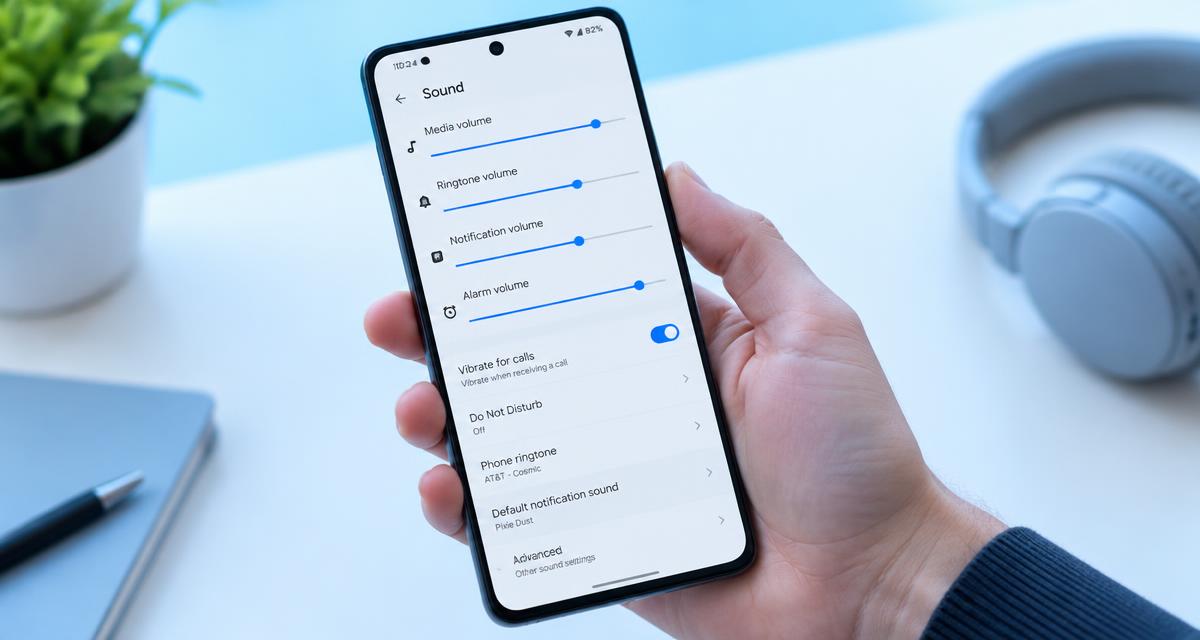
Some Bluetooth combinations link the source and speaker volume controls; others retain separate levels. Watch the phone or computer slider while pressing the speaker's volume button once. If the slider moves, the controls are probably linked for that connection. If it does not, the speaker may have a separate setting, although interface delays and model differences mean this observation is not conclusive.
Adjust each available control cautiously while audio is playing quietly. Then repeat the reconnect test and observe whether one level returns to a lower value. Do not begin by changing Android developer options or copying registry modifications from another product's instructions. Volume synchronization behavior varies by operating system, firmware, and accessory. Use a manufacturer-documented workaround only when it specifically addresses your model and software version.
Separate media volume from app-specific attenuation
A reconnect can happen while a meeting, navigation prompt, voice assistant, or communication app is active. Close those apps completely and replay the local recording. If the speaker supports a microphone, an app using that microphone may also change Bluetooth operating behavior. This explanation does not apply equally to every speaker, so check its actual capabilities rather than searching for nonexistent headset settings.
On Windows, open Settings > System > Sound > Volume mixer and inspect both the selected output and the affected application's level. Microsoft identifies system and app volume as separate checks for quiet playback. microsoft.com guidance In music apps, temporarily compare playback with loudness normalization, an equalizer, or a volume limiter unchanged or carefully disabled one at a time. Preserve any hearing-protection setting you need; diagnosing a level difference does not require defeating safety limits.
Remove competing connections without erasing everything
A multipoint speaker may reconnect to a laptop and phone together. The device you are adjusting might not be the one currently supplying audio, or another device may interrupt the session. Pause playback everywhere, switch Bluetooth off on the other paired devices, and connect only your intended source. Explicitly select the speaker in the current app or operating system's playback destination menu.
Repeat your disconnect-and-reconnect sequence with this single-source arrangement. If the volume remains correct, reconnect the second device and test again. That result points toward connection priority or multipoint behavior rather than an acoustic blockage. Check the speaker manual for documented priority rules and companion-app options. Avoid clearing the whole pairing list initially, especially on a shared speaker, because doing so removes useful evidence and creates unnecessary setup work.
Compare another app and another source device
Play the same recording from another app where possible. If only one app becomes quiet after reconnecting, investigate its output assignment, normalization, session state, and updates. If every app is quiet on one computer, focus on that computer's sound configuration. On Windows, temporarily disabling audio enhancements for the selected output is a reversible comparison recommended in Microsoft's quiet-audio guidance.
Next, disconnect the original device and test with another phone or computer. Establish a comfortable level, reconnect twice, and note whether the reduction repeats. Consistent failure across independent sources makes speaker firmware or remembered speaker settings more plausible. Failure on only one source suggests a compatibility or operating-system issue. Keep the source volumes modest when switching devices, because each may remember a different level and produce an unexpected jump.
Repair the connection in a controlled order
Restart the source device and speaker using their normal procedures. If the issue persists, forget the speaker on the affected source, enter the speaker's documented pairing mode, and pair again. Microsoft includes removing and re-pairing a device among its Bluetooth audio troubleshooting steps. microsoft.com guidance After pairing, select the output explicitly and begin playback at a low level before checking whether reconnect behavior has changed.
Check official operating-system updates, the computer manufacturer's Bluetooth drivers, and the speaker's companion app for firmware information. Follow update power requirements only after confirming that charging connections are dry and safe. Reserve a factory reset for the exact model's documented procedure. A reset can erase equalizer settings, wireless groups, and pairings, so record them first and avoid guessed button combinations taken from a similar-looking speaker.
Recognize the limits of a volume-setting fix
If the speaker is also quiet before reconnecting, inspect placement, blocked fabric, battery warnings, and any recent exposure or damage. Some products limit output under particular battery or temperature conditions; verify that behavior in the model documentation rather than assuming every level reduction is Bluetooth-related. Allow an overheated speaker to return to its approved operating conditions naturally, away from direct sunlight.
Contact support if two sources reproduce the same sudden reduction after a documented reset or firmware update. Provide the exact reconnect sequence, source software versions, app name, and whether speaker-button adjustments move the source slider. Stop using a unit with swelling, unusual heat, odor, or repeated shutdowns. Cleaning tones cannot repair remembered gain settings, and loud test signals add risk without revealing why a connection restored the wrong playback level.
Sources
Microsoft, quiet playback and volume mixer checks: microsoft.com guidance
Microsoft, Bluetooth audio connection troubleshooting: microsoft.com guidance