Quick answer
Most phone speaker problems are not broken hardware. They are software settings, a blocked grille, a bit of moisture or an app that is misbehaving. Working through the fixes below in order saves time, because the early ones take seconds and solve a surprising number of cases.
W tym artykule
Start with the simple checks
Most phone speaker problems are not broken hardware. They are software settings, a blocked grille, a bit of moisture or an app that is misbehaving. Working through the fixes below in order saves time, because the early ones take seconds and solve a surprising number of cases.
Before you start, play a short video or song at medium volume so you can hear whether each step changes anything. Test after each fix, and stop when the sound is back.
Make one change at a time and compare the same short recording afterward. Keep the source, volume and listening position consistent. Otherwise a different track or a louder setting can sound like a successful repair when nothing has changed. A simple note of the symptom, the action taken and the result makes the process easier to follow and gives a technician useful information if you later need help.
1. Restart the phone
A restart clears audio bugs from apps that grabbed the speaker and never let go. It fixes more speaker problems than you would expect. Hold the power button, shut the phone down fully, wait ten seconds and start it again.
Check the manufacturer’s instructions for the exact model before applying advice written for another device. Speaker openings, protective meshes and water resistance arrangements vary. An opening that looks like a second speaker may actually serve a microphone or vent. Do not poke it to investigate. If a procedure requires force, unfamiliar chemicals or disassembly that you cannot confidently reverse, pause and choose a safer inspection or professional service instead.
2. Check where sound is going
Phones remember the last paired audio device. A pair of earbuds in a bag across the room can quietly take over your audio and make it seem like the speaker has died.
Use comfortable listening levels throughout the checks. Keep test tones away from your ears and avoid long sessions simply because improvement is slow. More volume is not a stronger cleaning treatment. Stop if the device develops unusual heat, severe distortion or a new mechanical noise. A short test should answer a specific question; once it has answered that question, silence the tone and decide what to do next.
Turn off Bluetooth so audio is not routed to earbuds, a watch or a car.
Unplug any wired headphones or adapters.
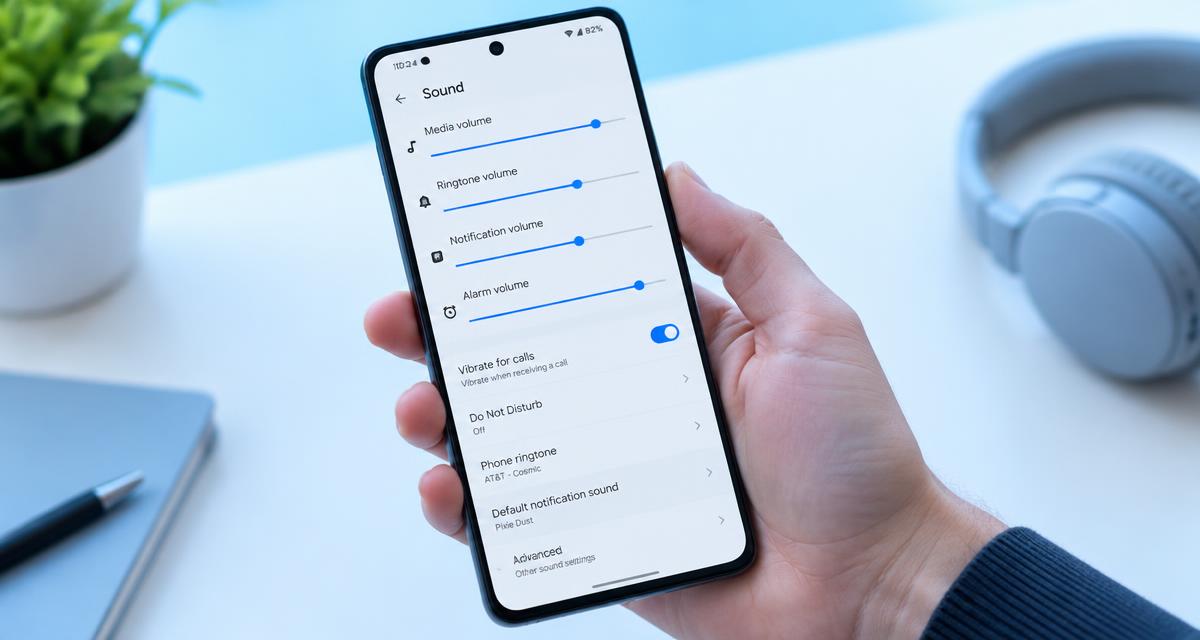
Check Do Not Disturb, Focus modes and the ringer switch.
Raise both media volume and ringer volume, since they are separate.
3. Test in another app
Play a video in a different app. If one app is silent but others work, clear that app's cache or reinstall it. If every app is quiet, the problem is in the phone itself and you can move on.
A browser tool depends on the playback path selected by your device. Before interpreting a result, confirm that Bluetooth headphones, a dock or another output have not taken over. Start playback with the on screen control, then check the appropriate volume setting. If the browser remains silent, try familiar audio elsewhere. A silent web page by itself does not establish that a physical speaker has failed.
4. Eject water
If the problem started after rain or a spill, follow the manufacturer’s liquid-exposure guidance first. When playback is appropriate, a brief quiet Water Eject attempt may shift surface droplets. Stop and reassess rather than repeating automatically.
Do not assume humidity explains muffled playback. Compare familiar media and check the case, output routing and exterior obstruction. Pulse mode is a playback pattern, not a treatment for an unconfirmed moisture problem.
Do not treat a change in sound as proof that all damage is gone. A device can play normally while an unrelated electrical or charging problem remains. Watch for warnings and follow the relevant safety instructions before reconnecting power. Likewise, a faint low note may simply be outside a small speaker’s useful range. Judge recovery using ordinary speech and familiar music as well as controlled tones.
5. Clear dust and lint
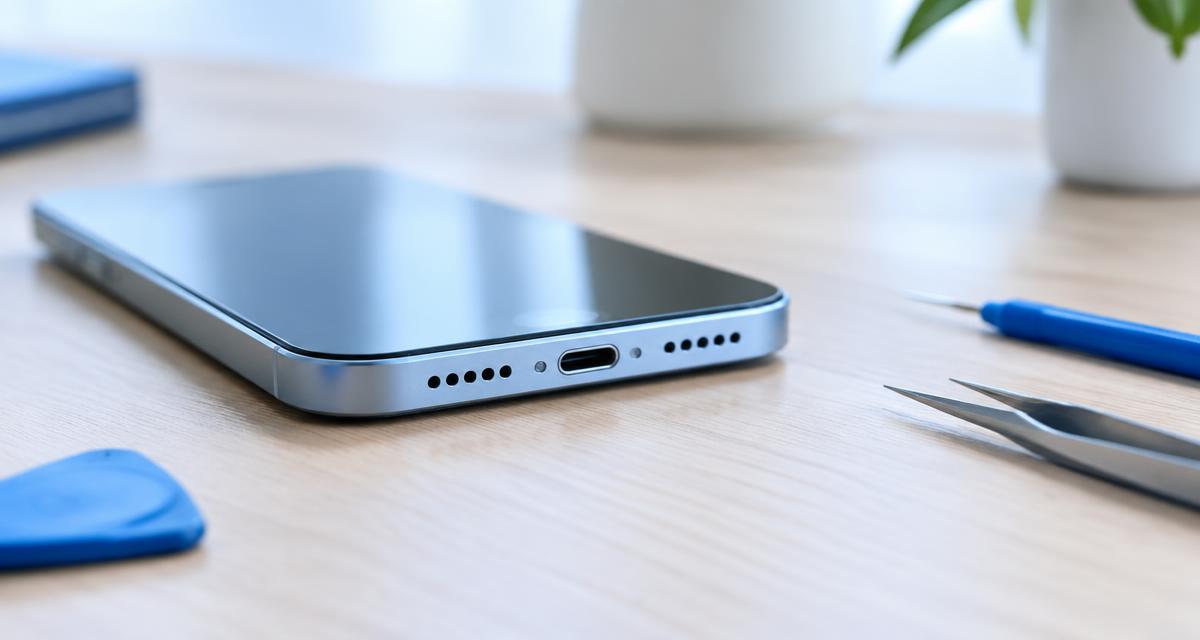
Pocket lint packs into speaker meshes over months. Run the Dust Cleaner sweep, then brush the grille gently with a dry, soft toothbrush. Never push pins or needles into the mesh.
Avoid adhesive putty and tape on delicate meshes unless the manufacturer recommends them. A clean, dry, soft brush is a more cautious starting point.
If you need service, describe the event and the remaining symptoms accurately. Explain whether there was liquid, impact, an update or gradual deterioration, and list the checks already attempted. Ask what the proposed repair includes and whether any seals or protective parts need replacement. A clear diagnosis and written estimate are more useful than ordering a part because someone else reported a similar sounding problem online.
6. Remove the case and screen protector
Thick cases can cover the bottom speaker and some screen protectors block the earpiece slot. Test without them. A case cutout that is slightly off can muffle sound without looking wrong, so this check is worth doing even with a case you trust.
Allow time between attempts to inspect the result rather than repeating the same action automatically. Look for visible debris or moisture only from outside the opening, using ordinary good lighting. Do not insert a tool just to get a better view. If the condition is unchanged after cautious checks, that is useful evidence that the next step should be a different diagnostic approach, not greater pressure or louder playback.
7. Update and reset settings
Resetting settings sounds drastic, but it only clears preferences such as Wi-Fi networks and display options. It removes odd audio configurations that are hard to find by hand.
Install the latest system update.
Reset all settings. Read the confirmation screen carefully and back up first.
On Android, boot into safe mode to rule out a third-party app.
Turn off equalizers and sound enhancers to test the raw output.
8. Know when it is hardware
Constant crackling at every volume, or no sound at all after the steps above, usually means a damaged speaker or loose connector. A replacement speaker module is a common, affordable repair at most phone shops.
To describe the fault clearly to a technician, use the Speaker Test to check Left and Right, and the Tone Generator to find whether the distortion appears at certain pitches. Saying that it crackles below 200 Hz is more useful than saying it sounds bad.
Quick answers
Why is my phone speaker quiet but earbuds are fine? Usually water, dust or a covering case.
Can settings explain silence? Yes. Routing, volume and app permissions can affect playback.
Is a factory reset needed? Rarely. Try reset all settings first.
How do I distinguish dust from water? Recent exposure and visible debris are clues, not definitive tests.
Can a tone cause problems? Excessive volume or long playback can stress a speaker; stop if it distorts.