În acest articol
- Quick answer
- Describe the distortion before changing settings
- Rule out recordings, streaming, and redirected audio
- Create a neutral Samsung sound-settings baseline
- Remove accessories and inspect the openings
- Restart and use diagnostic tools cautiously
- Handle moisture and impact as separate branches
- Decide between app support and device service
- Sources
Quick answer
For a Samsung speaker that sounds distorted, remove the case, disconnect accessories, and play two familiar recordings from different apps at a modest volume. Temporarily return the equalizer to Normal and switch off optional sound effects available on your model. Restart the phone and repeat the same passage. Distortion limited to one recording or app is different from distortion across every local sound.
Do not try to overpower buzzing with louder playback or extended bass tones. If the problem followed a drop, liquid exposure, or visible damage, prioritize inspection rather than repeated tests. Galaxy models have different speaker arrangements and menus, so use your exact model name when checking support instructions or comparing results.
Describe the distortion before changing settings
Listen briefly to ordinary speech and then a familiar piece of music. Note whether you hear a fuzzy edge on voices, a metallic rattle on certain notes, intermittent popping, or sound that breaks up only during streaming. These descriptions help distinguish a recording problem, unstable delivery, processing changes, and a possible physical vibration without pretending that listening alone identifies a failed component.
Keep the phone in your hand without covering an opening, then place it on a folded dry cloth. If a noise occurs only on a hard desk, the case, camera area, or nearby object may be vibrating against that surface. Do not press the back or twist the frame to search for a loose part. A safe comparison changes the support surface, not the mechanical stress on the phone.
Rule out recordings, streaming, and redirected audio
Try a local camera video, a downloaded spoken recording, and another app. A damaged or heavily compressed source can sound harsh on a perfectly functional speaker. If the same passage also distorts through known-working headphones, suspect the source or app processing before blaming the phone speaker. Keep headphone testing at an ordinary level and do not wear headphones during diagnostic tones.
Turn Bluetooth off temporarily and remove USB audio adapters. In the media output selector, choose the phone. Samsung's Separate app sound can send selected apps to another device, creating confusing differences between music and other audio. Inspect that feature under Sounds and vibration if it is available. If only internet calls break up, compare a local recording before investigating Wi-Fi, mobile reception, or the calling service.
Create a neutral Samsung sound-settings baseline
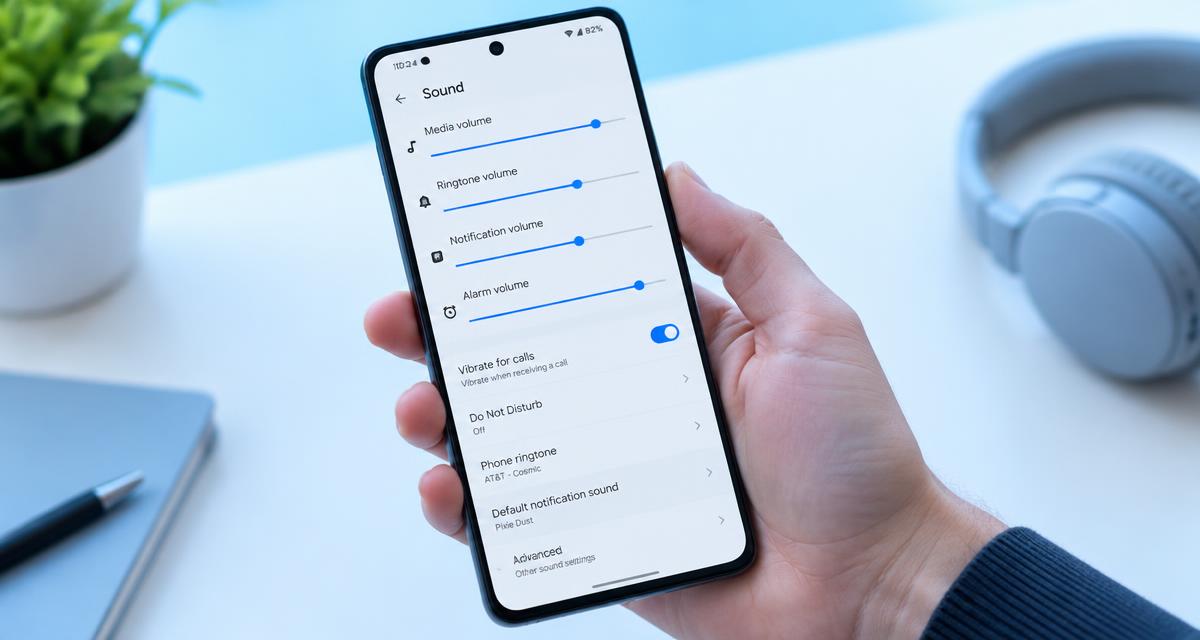
Open Settings and look under Sounds and vibration for Sound quality and effects, where available. Note your current choices, then temporarily choose a neutral equalizer and disable optional effects such as Dolby Atmos for comparison. The purpose is not to declare those features faulty; it is to find whether a particular processing combination makes the symptom more noticeable on your recordings.
Also inspect Accessibility, Hearing enhancements, for left-right balance and Mute all sounds. Samsung documents these settings as relevant to sound troubleshooting, although their location varies by model and region. Keep balance centered for your test. Change only one setting at a time, replay the same ten-second passage, and restore options that make no difference. Installing a volume booster or another equalizer adds variables instead of establishing a clean baseline.
Remove accessories and inspect the openings
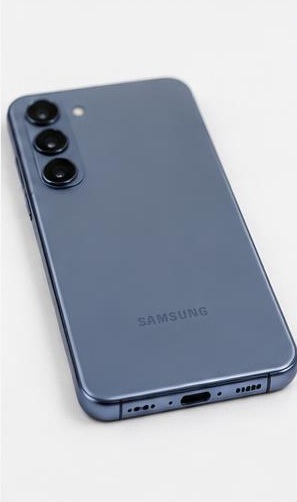
Samsung recommends removing third-party cases, films, skins, and attached accessories when investigating speaker problems. Check whether a case opening is offset or whether a protective film covers the receiver. Some Galaxy phones use the upper receiver as part of stereo playback, so a problem near the screen can affect music as well as calls. Consult the model diagram before deciding which bottom opening should make sound.
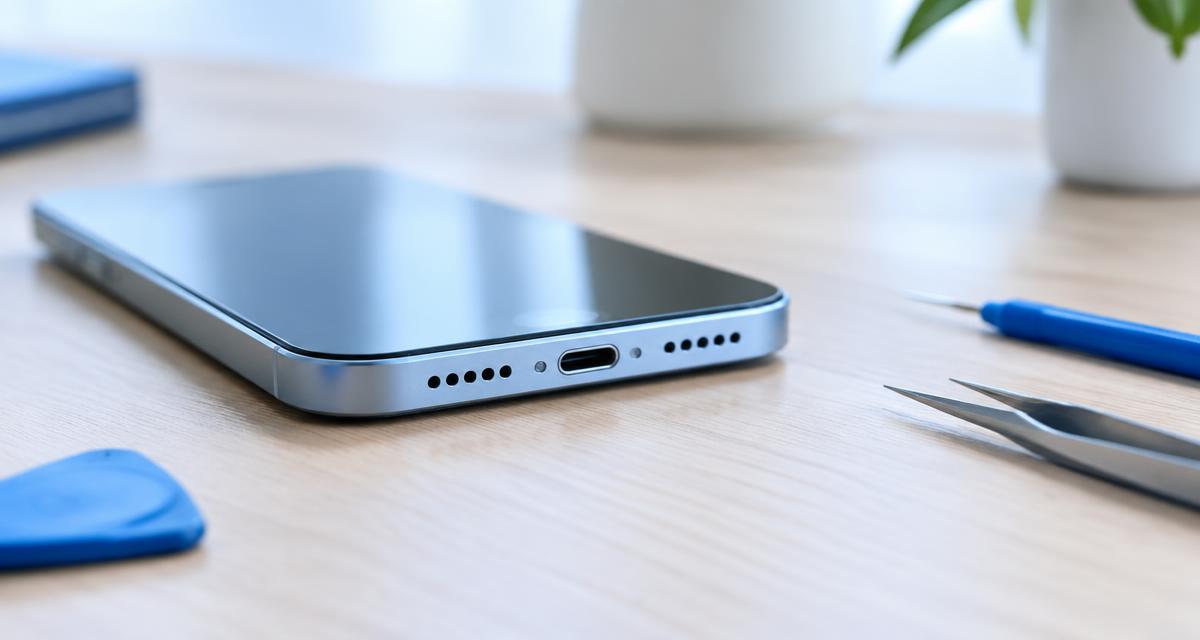
Inspect under bright light without inserting anything into the mesh. Wipe accessible exterior surfaces with a soft, dry cloth and follow your model's cleaning instructions for anything more involved. Avoid needles, compressed air, liquids, and adhesive substances. If debris is embedded or the grille appears dented, stop. Trying to scrape the obstruction can damage the protective mesh or push contamination farther into the acoustic path.
Restart and use diagnostic tools cautiously
Restart the phone normally and repeat the original recording before opening optional audio utilities. Check for available system and app updates. If Samsung Members on your device offers phone diagnostics, run its speaker test following the displayed instructions. Labels and availability vary. A diagnostic result is useful evidence, but a passing result does not necessarily explain an intermittent rattle that appears with only certain everyday sounds.
If you recently installed an equalizer, recorder, automation tool, or other app that affects audio, Samsung's model-specific Safe mode instructions can help test whether downloaded software is involved. Safe mode temporarily limits third-party apps, so use an available built-in test rather than expecting your usual music app to run. Know how to exit Safe mode before starting. Do not erase the phone simply because one diagnostic result is inconclusive.
Handle moisture and impact as separate branches
If distortion began after rain, a spill, or a drop, that history changes the troubleshooting priorities. Follow Samsung's drying and charging guidance for your model after liquid exposure. Do not use heat, force air through the openings, or assume that a water-resistance rating rules out damage. Saltwater and other contaminated liquids require particular caution because surface drying does not remove internal residue.
After an impact, inspect for cracked glass, separated seams, a bent frame, and charging abnormalities without pressing or flexing the device. Stop using and charging a phone that is swollen, unusually hot, or physically opening. A speaker can sound damaged while the rest of the phone appears functional, but only an appropriate inspection can determine what needs repair. Repeated loud playback cannot reseat parts or restore damaged seals.
Decide between app support and device service
When distortion exists in only one app, report the app version, example content, and whether downloaded playback behaves differently from streaming. Reinstalling may be reasonable only after checking what local data, projects, or downloads would be removed. When several local recordings and Samsung's available speaker test distort with accessories removed, a device assessment becomes more useful than continued settings changes.
Give support your model number, software version, distortion description, and test results. Mention whether the upper or lower area seems affected, but avoid claiming a particular component has failed solely from that observation. Include any impact or moisture history and back up important data before service. Ask the repair provider to verify playback after repair using ordinary speech and music, not only a brief alert that might miss the original symptom.
Sources
Samsung's official troubleshooting explains accessory removal, restarting, and moisture considerations: samsung.com guidance
Samsung also documents Separate app sound, hearing settings, balance, and model-dependent menu differences: samsung.com guidance Use instructions matching your Galaxy model and region.